DWC online application walkthrough
How to apply for the Return-to-Work Supplement Program online
The Return-to-Work Supplement Program is a one-time $5,000 payment, and the DWC only takes the application through its own online portal. This walkthrough follows a real screen recording of that portal from the first blank field to the submitted confirmation, and every screenshot links to the exact second it came from.
The short answer
- The RTWSP pays a one-time $5,000 to an injured worker whose date of injury is January 1, 2013 or later, who received an SJDB voucher from a claims administrator, and who applies within one year of the date that voucher was served.
- The application exists only online, at dir.ca.gov/RTWSP/RTWSPApplication.html, and it runs in five steps: Individual Information, Injury History, Upload SJDB, Certification, and Review and Submit.
- Step 1 asks for your name, date of birth, SSN or ITIN, mailing address, city, state and ZIP. Email and phone carry no asterisk, but give them anyway — the RTWSP unit uses them to fix problems with your application.
- Step 3 is the one that fails quietly: you must upload the entire SJDB voucher including the duly signed proof of service, which is page 6 of 6, as a single PDF or TIFF file.
- A completed application gets an eligibility decision within 60 days and the $5,000 within 25 days of that decision; a denial can be appealed within 20 days at a DWC district office.
Source video
How to Apply for California’s Return-to-Work Supplement Program. Using your SJDB Voucher. By Steps
Gonzalez Law Empower — CA Work Comp Attorneys (Naomi Gonzalez, Esq.)
Screenshots are frames from the video above, and only the screen recording of the DWC portal and the SJDB voucher is used — the presenter’s talking-head segments and slides are not, so no face, branded lower third or channel bug appears in any image. The written steps are ours and were checked against the DWC Return-to-Work Supplement Program page and its FAQ, linked here. The portal is shown with the presenter’s deliberately fake sample applicant data, and the recording dates from July 2021, so screens and field labels may have changed since. Source page: www.dir.ca.gov/rtwsp/rtwsp.html
Applying for the RTWSP online, step by step
Thirteen steps through the DWC Return-to-Work Supplement Program application, in the order the portal asks for them, from the eligibility check to the printable confirmation. Every screenshot is a still from the source video and deep links to the second it was taken.
- 1
Open the online application — and check the deadline first
The Return-to-Work Supplement Program pays a one-time $5,000 supplement, and the DWC only takes the application online, at dir.ca.gov/RTWSP/RTWSPApplication.html. Three things have to be true before you type anything: your date of injury is January 1, 2013 or later, a claims administrator has served you a Supplemental Job Displacement Benefit (SJDB) voucher, and the RTWSP receives your application within one year of the date that voucher was served. The deadline is the one people lose, because it runs from service of the voucher rather than from the injury. No computer? Every DWC district office has a kiosk with a computer, scanner and printer, and the Information and Assistance officers take calls at 1-800-736-7401.
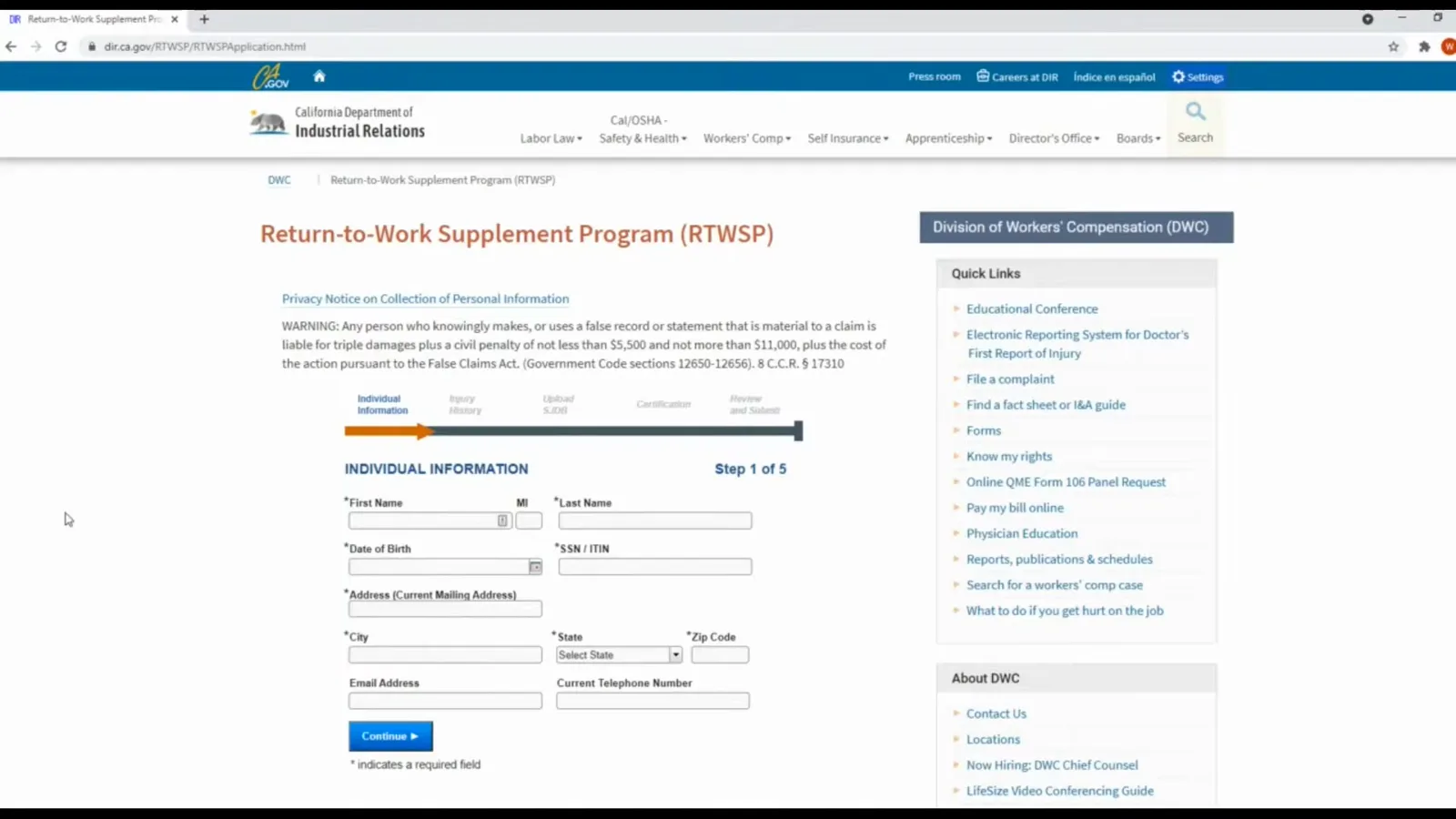
Five steps across the top: Individual Information, Injury History, Upload SJDB, Certification, Review and Submit.Watch at 2:28 - 2
Pull page 6 of the SJDB voucher — the signed proof of service
The upload step will not accept the voucher on its own. What the DWC asks for is the entire SJDB voucher including its proof of service, which sits on the last page of the form — page 6 of 6 — and the DWC FAQ adds one condition that is easy to miss: that proof of service has to be duly signed by the authorized issuing party, meaning the claims administrator or insurer. In the recording the presenter opens the voucher PDF, and the proof-of-service page shows the county, the DWC-AD 10133.32 form number, the date the voucher was served and the signature of the person who mailed it. Scan the whole voucher, last page included, as a single PDF or TIFF before you start filling anything in.
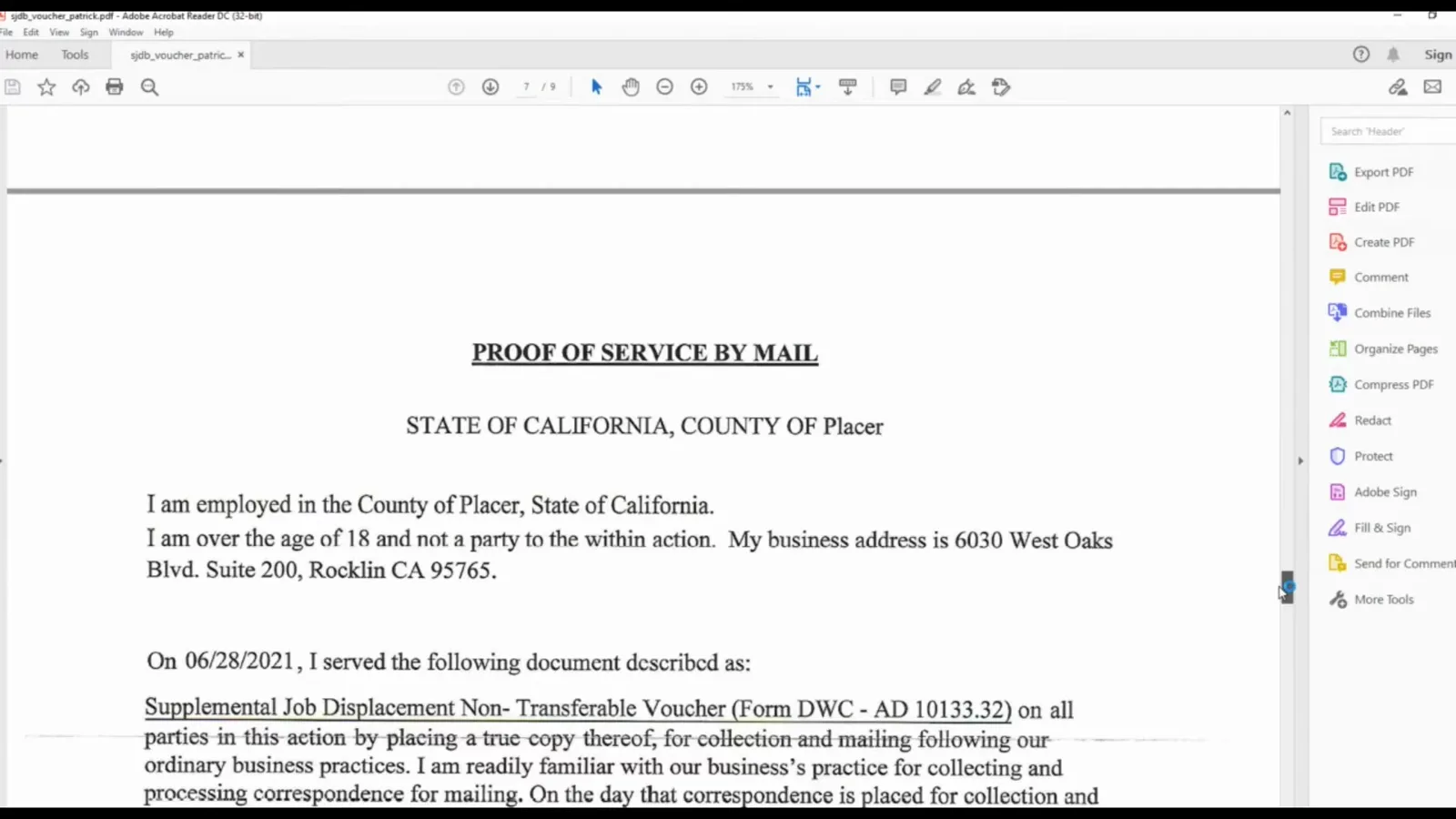
The last page of the voucher is the proof of service, and its date starts the one-year clock.Watch at 4:14 - 3
Fill Step 1 and expect the red "This information is required" tooltips
Step 1 is Individual Information: first name, middle initial, last name, date of birth, Social Security number or ITIN, mailing address, city, state and ZIP code, plus an email address and a telephone number. An asterisk marks the mandatory fields, and the portal warns you field by field rather than all at once — leave an asterisked field empty and move on and a small red tooltip appears underneath it reading "This information is required". In the recording the tooltip lands under Last Name while the cursor still sits in First Name, and Continue refuses to turn the page while anything asterisked is blank. Read the tooltips as a checklist instead of an error to clear.
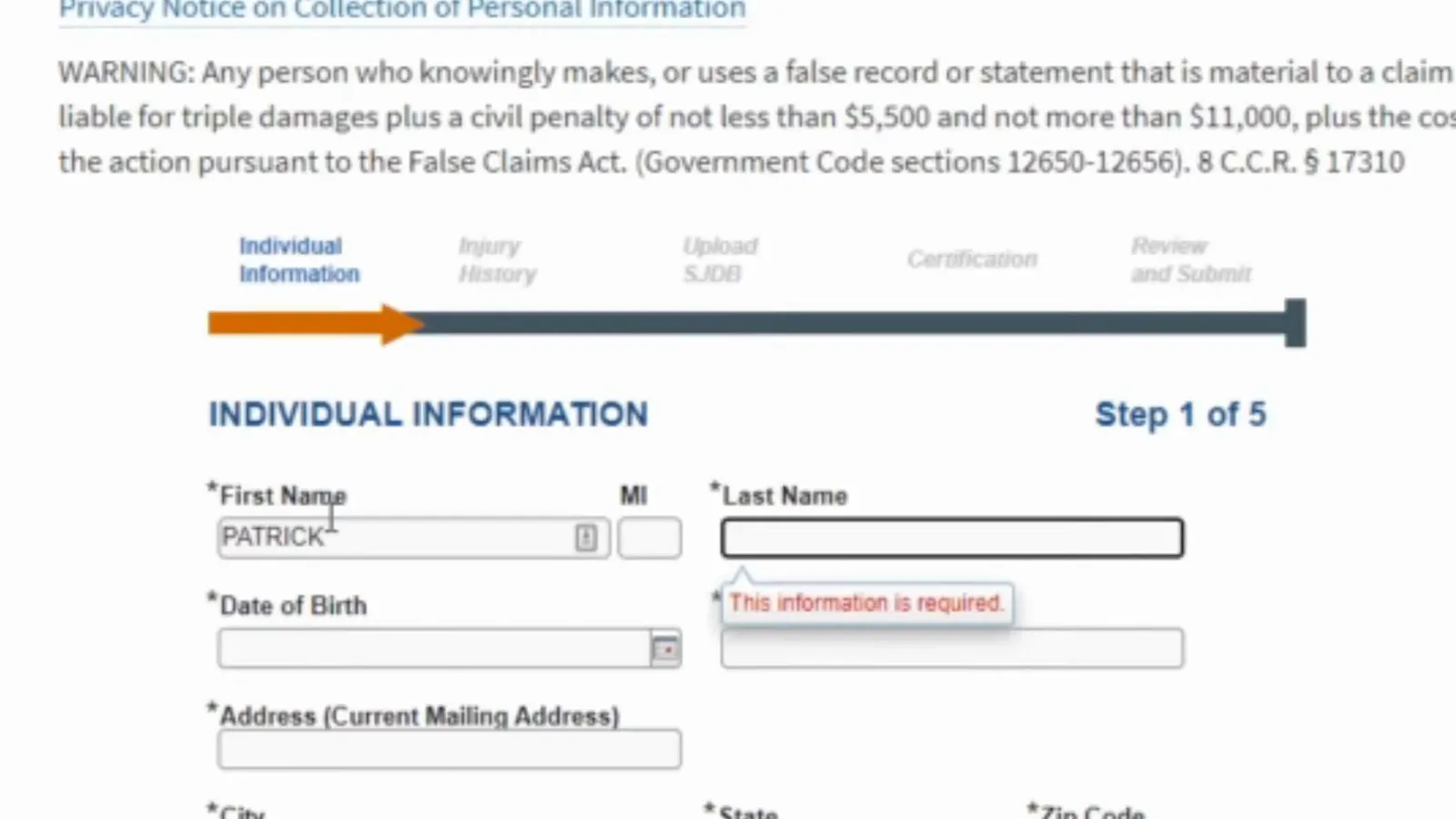
Red tooltips point at whatever is still blank, so they work as a checklist.Watch at 2:36 - 4
Type the Social Security number or ITIN and let the field reformat it
The video types the number as a plain run of digits and the field puts the hyphens back in, so the finished value reads 123-45-6789. An ITIN goes in the same box. This is the identity field the eligibility review matches against your records and the voucher, so it is the one worth double-checking against the document in front of you. The date-of-birth box above follows the portal’s MM/DD/YYYY example and carries a small calendar button if you prefer to pick the date; the state field is a drop-down rather than free text, so type C-A-California at your peril — pick it from the list.
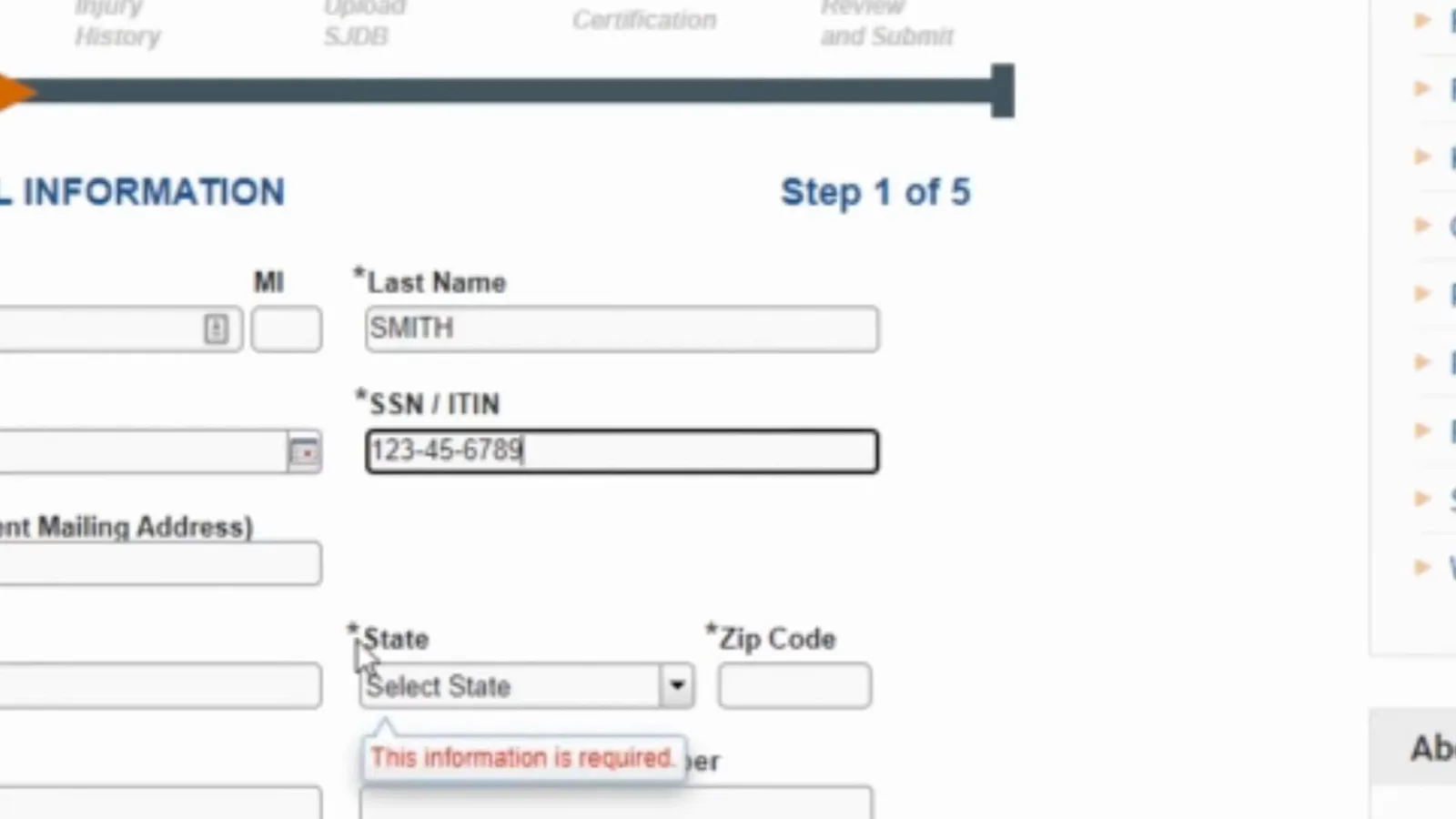
Digits in, hyphens out — the portal formats the number for you.Watch at 2:54 - 5
Fill the mailing address, then decide about email and phone
Address, city, state and ZIP are all mandatory; the recording types 123 Main Street, Hesperia, California 92345. Email address and current telephone number carry no asterisk, so they are technically optional — but give them anyway. The RTWSP unit uses them to reach you if something in the application needs correcting, and the whole point of this form is to get a $5,000 check to the right place. The mailing address you type here is the address the payment follows, so it should be somewhere you actually receive mail, and the phone number goes in the way the portal shows it, with parentheses and a hyphen.
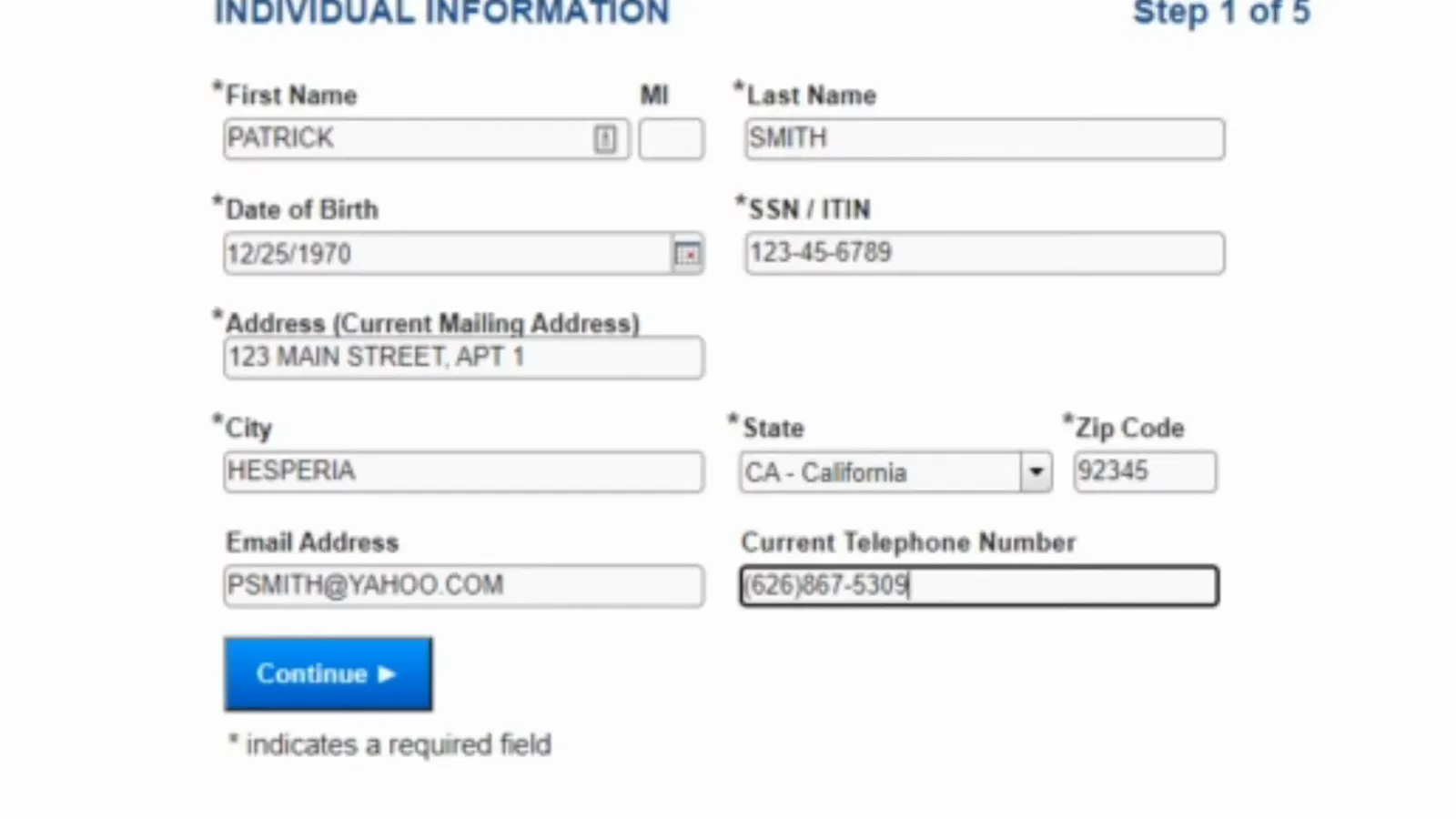
Required: name, birth date, SSN or ITIN, address, city, state, ZIP. Recommended anyway: email and phone.Watch at 3:40 - 6
On Step 2, enter the injury date in the format the portal wants
Step 2 is Injury History, and it opens with the date of injury. The recording types 01/28 and hits the wall immediately: a red tooltip answers "This information is required — Enter the date as shown in this example: MM/DD/YYYY". Two-digit month, two-digit day, four-digit year, slashes included. The question-mark icon beside the field opens the same explanation before you get it wrong. The claim number follows in the next field and you copy it straight off the voucher; because claims administrators create these numbers, they can be letters, digits or a mix depending on the insurer, so do not assume the format.
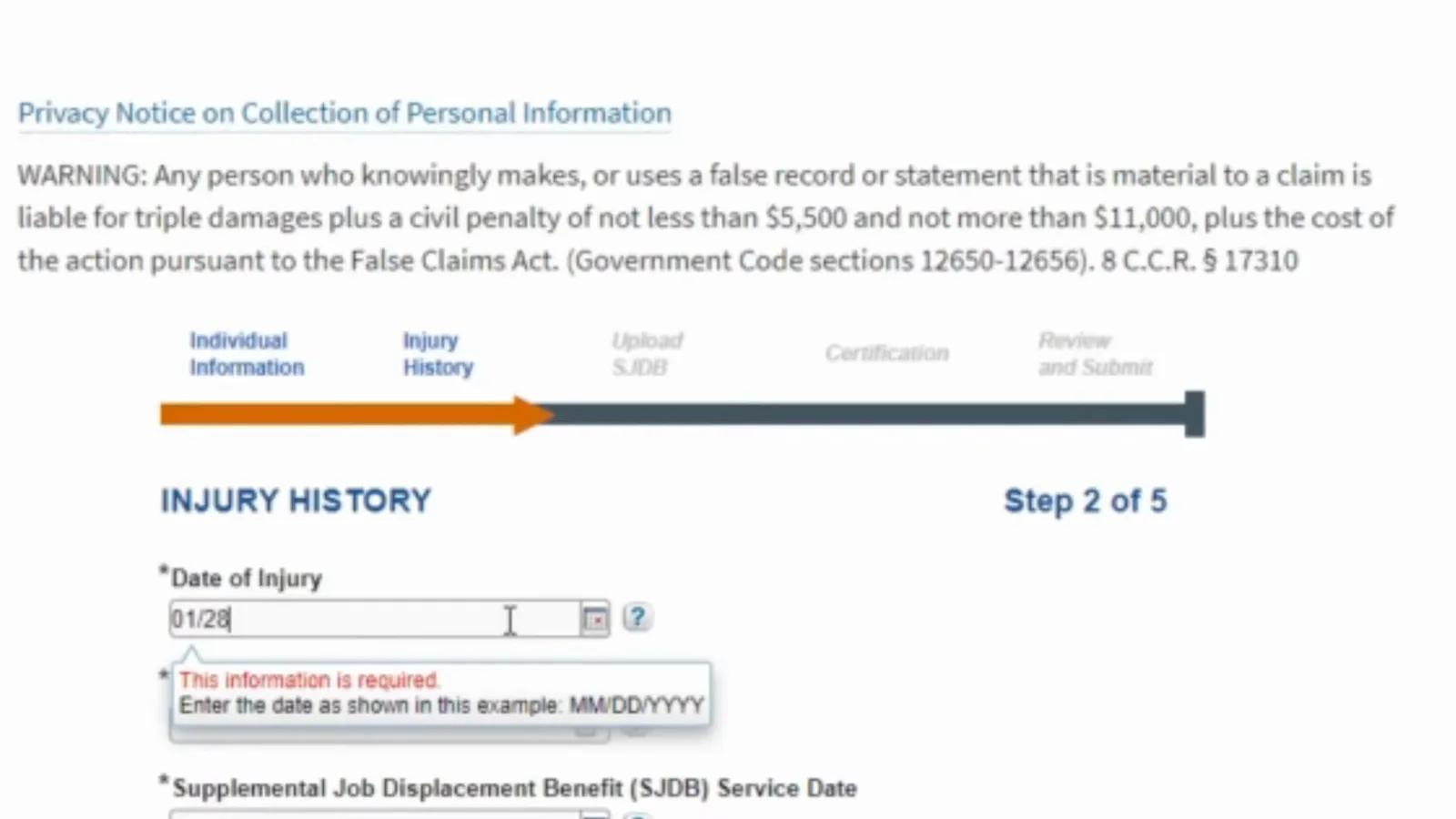
MM/DD/YYYY with the slashes — a partial date stops the form.Watch at 3:56 - 7
Add the SJDB service date, the ADJ number and the prior-payment answer
Three answers finish Step 2. The Supplemental Job Displacement Benefit (SJDB) Service Date is not the injury date and not today — it is the date the voucher was served on you, printed on the proof of service on page 6, and the video reads 06/28/2021 straight off it. The ADJ number is the court’s case number and starts with ADJ. If it is not on any document you have, the ADJ Search button beside the field runs the portal’s own lookup, and the DWC FAQ also takes requests at [email protected] with "Request for ADJ#" in the subject line, or the EAMS public case search does the same job. Last is a yes-or-no question: have you ever received an RTWSP benefit payment before today? The program pays once, so answer it honestly.
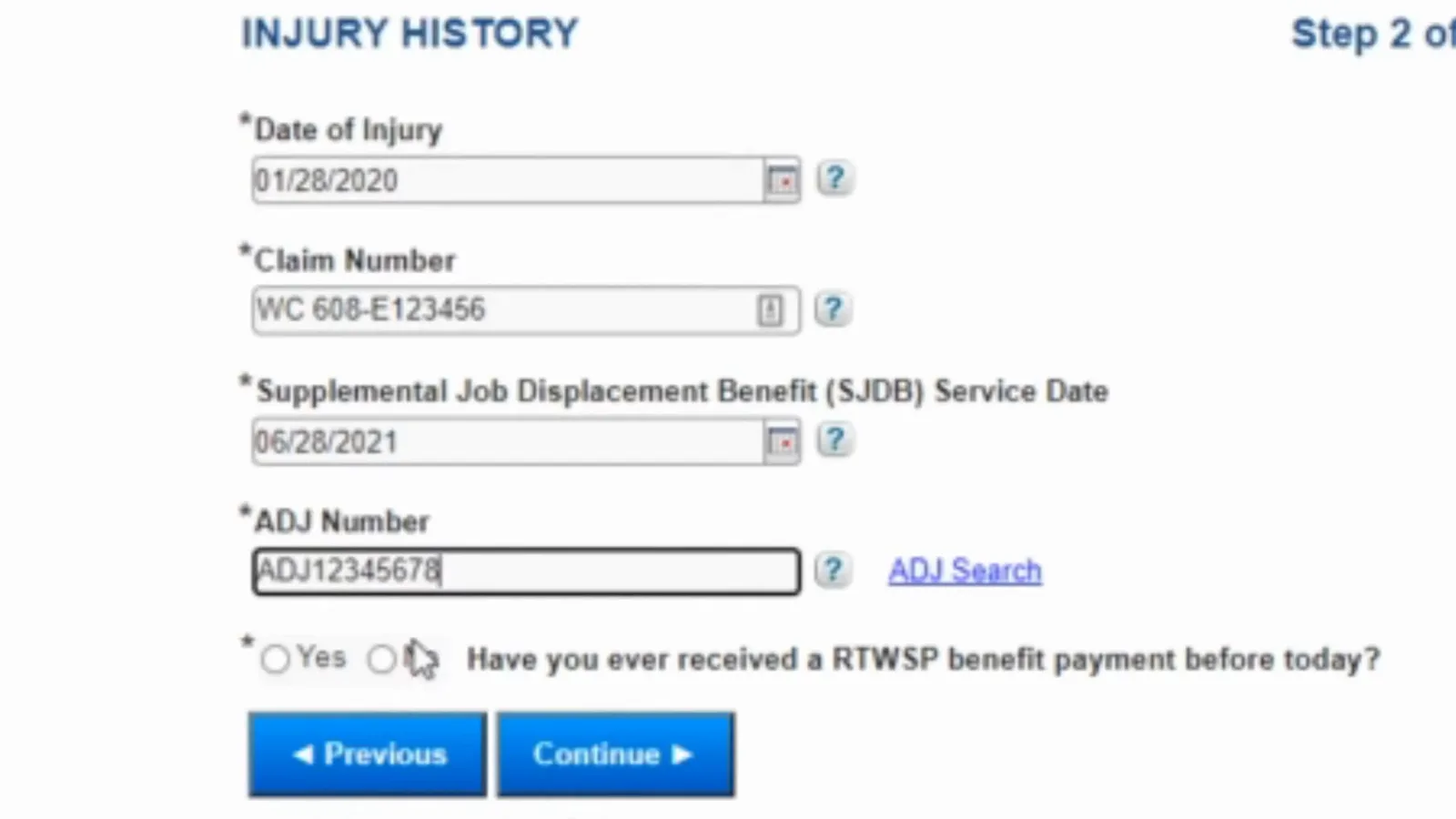
The SJDB service date comes off page 6 of the voucher; the ADJ number is the court number.Watch at 4:40 - 8
Step 3: upload the whole voucher, PDF or TIFF
Step 3 is Upload SJDB, and the page calls it a mandatory step rather than an optional attachment. The tooltip spells out what belongs in it: the entire supplemental job displacement non-transferable voucher form including the duly signed proof of service, uploaded in PDF or TIFF format. One file, one upload — the proof-of-service page has to be inside the same file as the voucher pages. If the voucher arrived on paper, scan every page including the last one before you start, because the portal will not let you continue without the upload, and an application without page 6 is incomplete rather than merely slower.
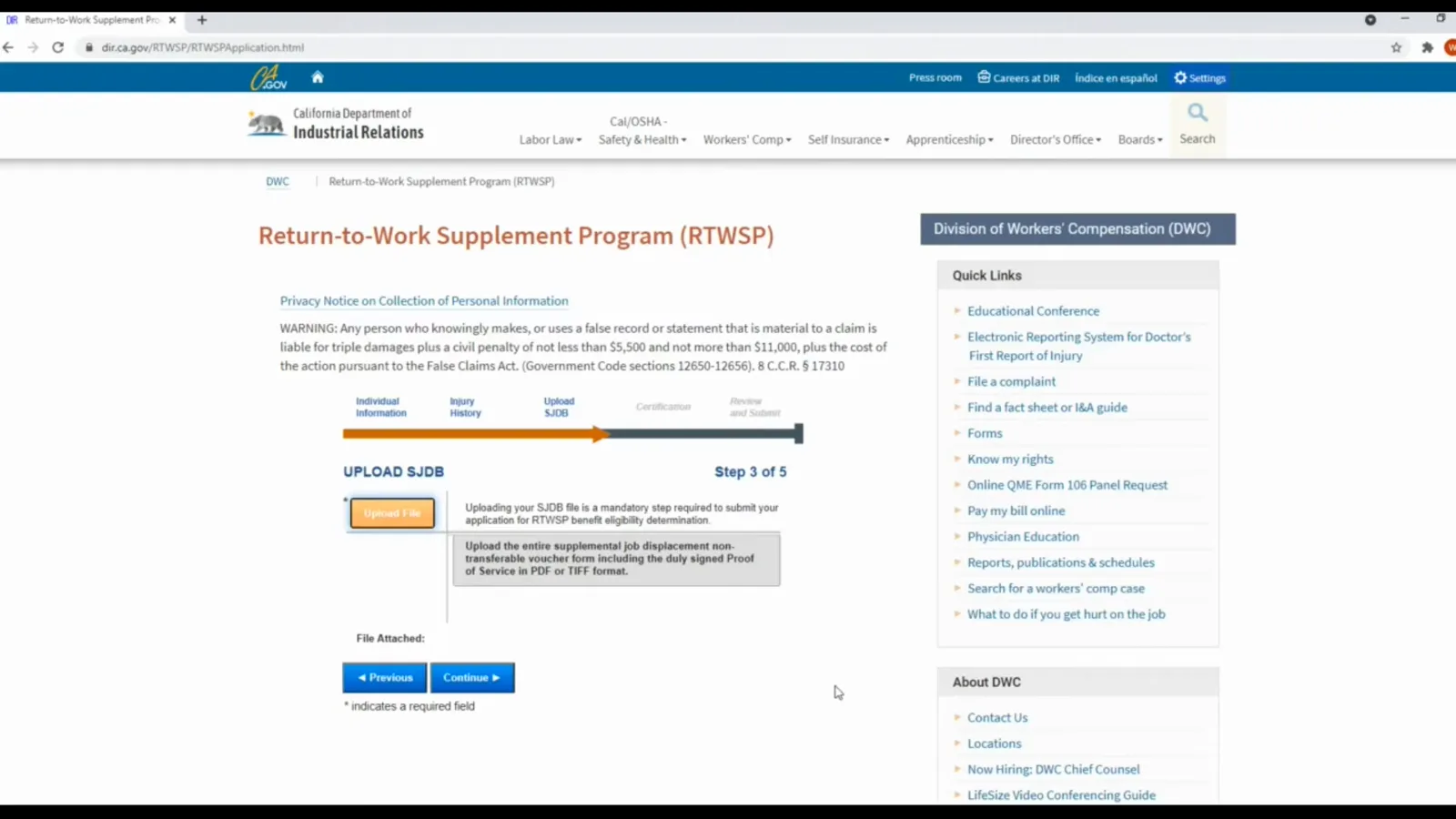
Mandatory: the entire voucher plus the signed proof of service, in one PDF or TIFF.Watch at 4:44 - 9
Confirm the attached file before you press Continue
Once the file is chosen the page reports upload progress and then lists the file by name next to File Attached, so you can see what the portal received rather than what you meant to pick. Read the name, and be sure that the file is the voucher with its proof-of-service page in it, then press Continue. This is the one screen on the application that cannot be fixed by typing: if the wrong file goes in, or a voucher arrives without page 6, the application is incomplete — and the confirmation screen later warns in capital letters not to rush a second submission, because a duplicate slows the review rather than speeding it up.
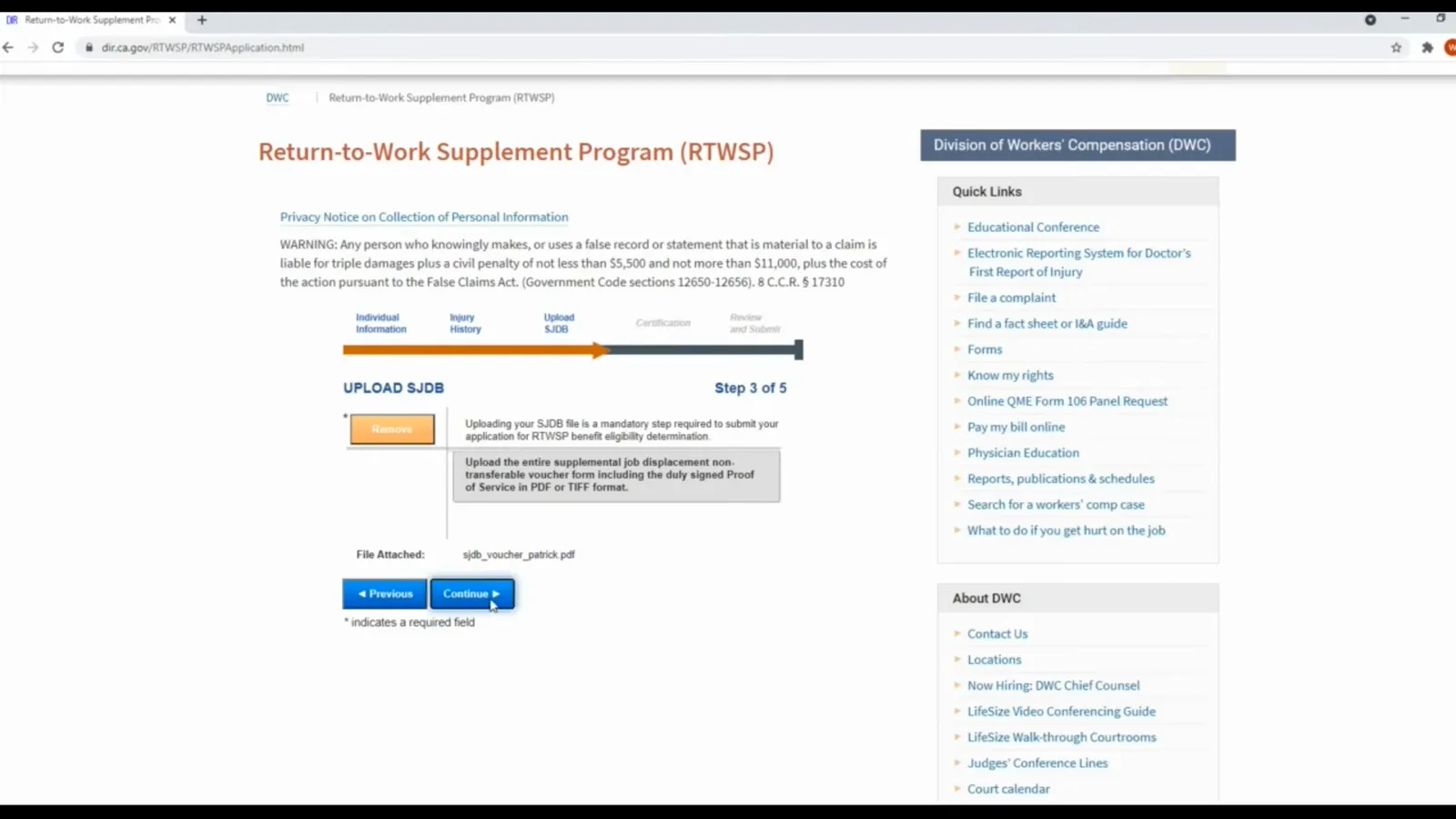
The portal shows the file it actually received — read the name before continuing.Watch at 5:10 - 10
Step 4: pick your residency answer, then certify under penalty of perjury
The certification page asks for two separate things. First the residency certification: choose either that you are qualified to do business in California or maintain a permanent place of business here, or that you are a California nonresident — and the page notes that payments to nonresidents may be subject to state income tax withholding, which is worth reading before you click. Leave the question unanswered and the same red "This information is required" tooltip appears. Second, the penalty-of-perjury certification: a box confirming that what you have entered is true and correct, dated to the day you sign it. In the recording the tooltip fires on the residency question first, which is the order the page wants them in.
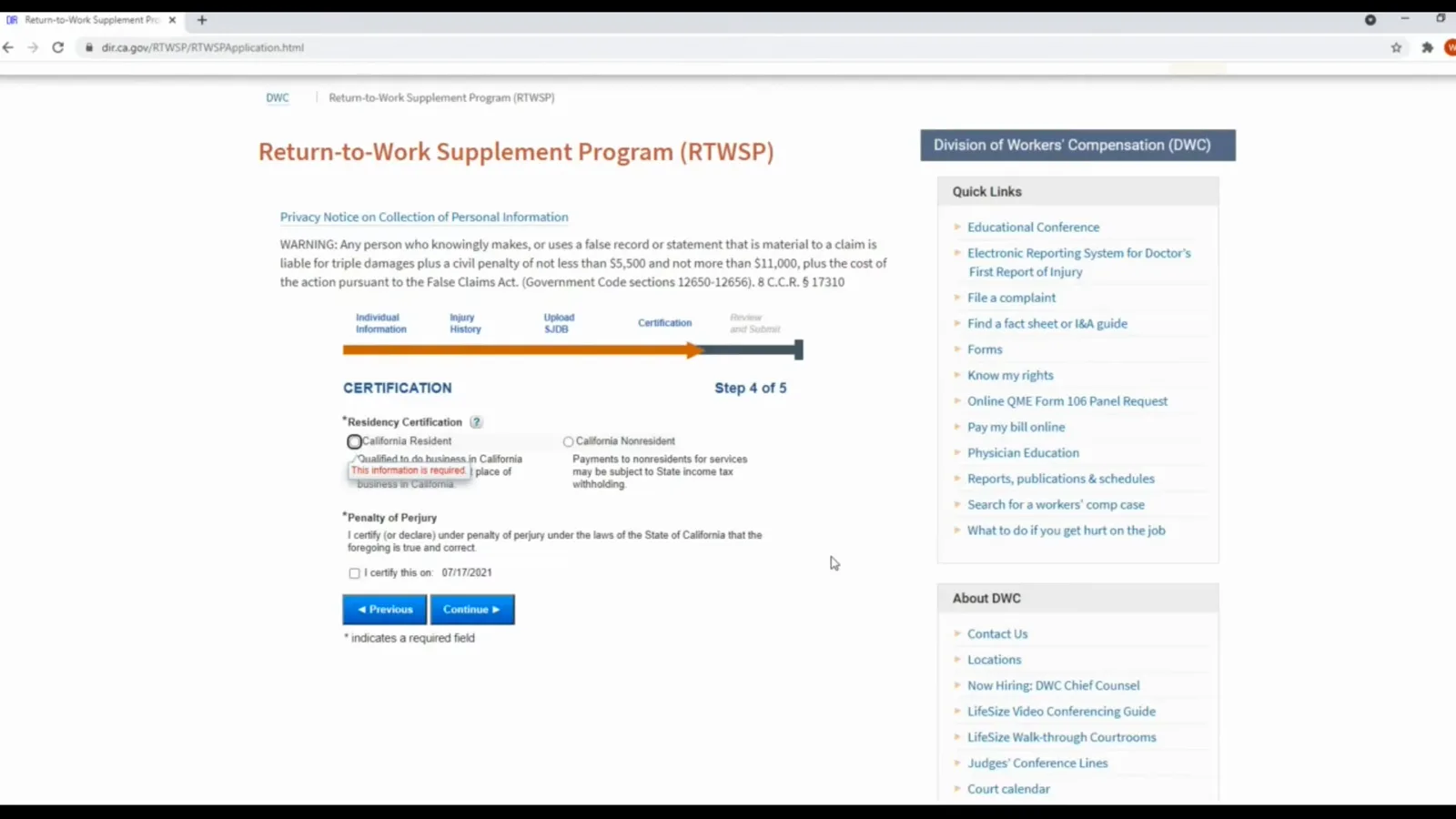
Two answers on one page: your California residency status, and the penalty-of-perjury certification.Watch at 5:12 - 11
Complete both certifications and continue to the review
With the residency option selected and the penalty-of-perjury box ticked, the tooltip clears and Continue turns the page. The certification is stamped with its date — 07/17/2021 in the recording — and the privacy notice at the top of every page of this application spells out why that matters: a knowingly false or fraudulent statement made to obtain workers’ compensation benefits is a felony. If anything you entered on the earlier steps has changed since you started, use Previous here, because the next page is the last look you get before the application leaves your hands.
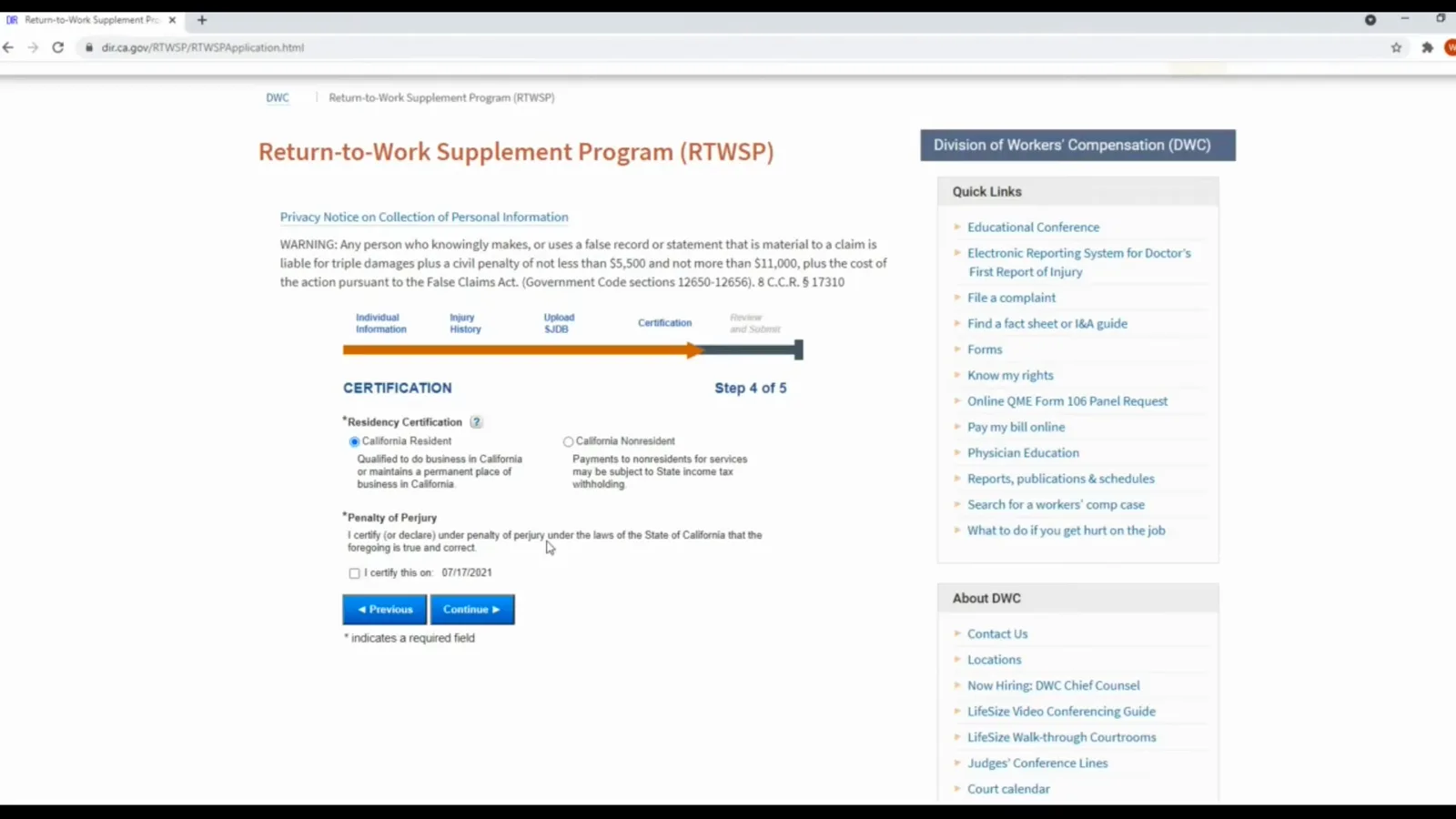
Both answers in place — Continue is the last click before the review page.Watch at 5:18 - 12
Step 5: read the whole review page, then submit
Step 5 gathers every answer on one screen, grouped as Individual Information, Injury History, Upload SJDB and Certification. This is where a wrong ZIP code, a mistyped claim number or a service date that does not match the proof of service on page 6 shows up before it reaches the RTWSP unit. Work down the blocks with the voucher in front of you, check that the ADJ number and the claim number match, confirm File Attached names the voucher, and satisfy yourself that the residency answer is the one you meant. When the page reads correctly, press Submit — there is no saved draft to come back to.
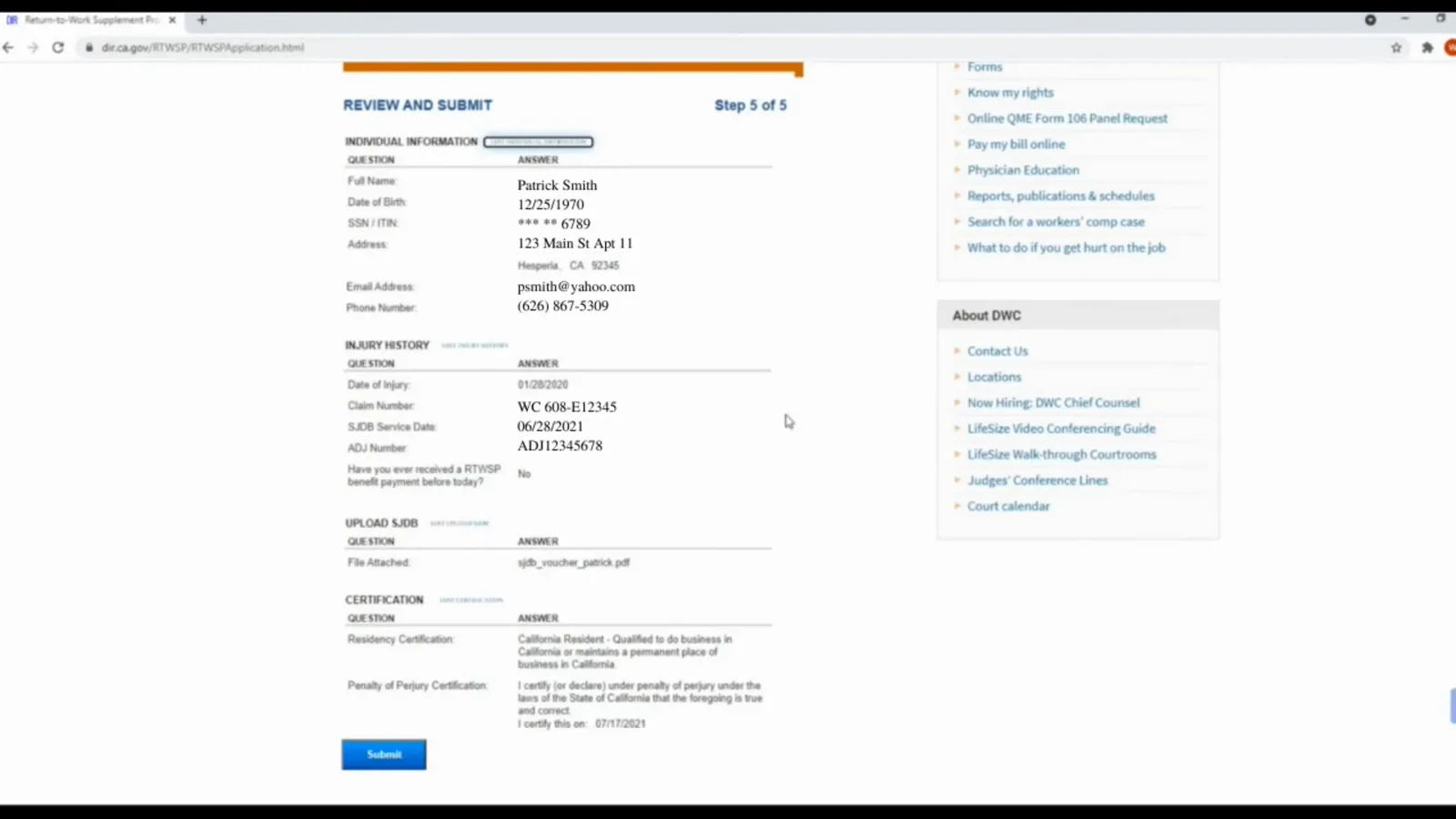
One page, every answer — compare it against the voucher before you submit.Watch at 5:26 - 13
Print the confirmation page and start counting the two deadlines
Submitting produces a confirmation screen with a RTWSP application number — the recording’s is RTW114818 — a link to print the page, and an application package holding the application PDF and the SJDB voucher PDF. The screen says an eligibility determination is made within the next 60 days and that a benefit notice is mailed either way; the DWC page puts the same deadline on it and adds the second one, that the $5,000 is paid within 25 days of the eligibility decision. Print the page now, because the application number is what the RTWSP unit asks for at 510-286-0787 or [email protected]. If the decision comes back no, the DWC FAQ allows an appeal within 20 days of receiving it, filed at a DWC district office with a copy mailed to the RTWSP appeals address in Oakland.
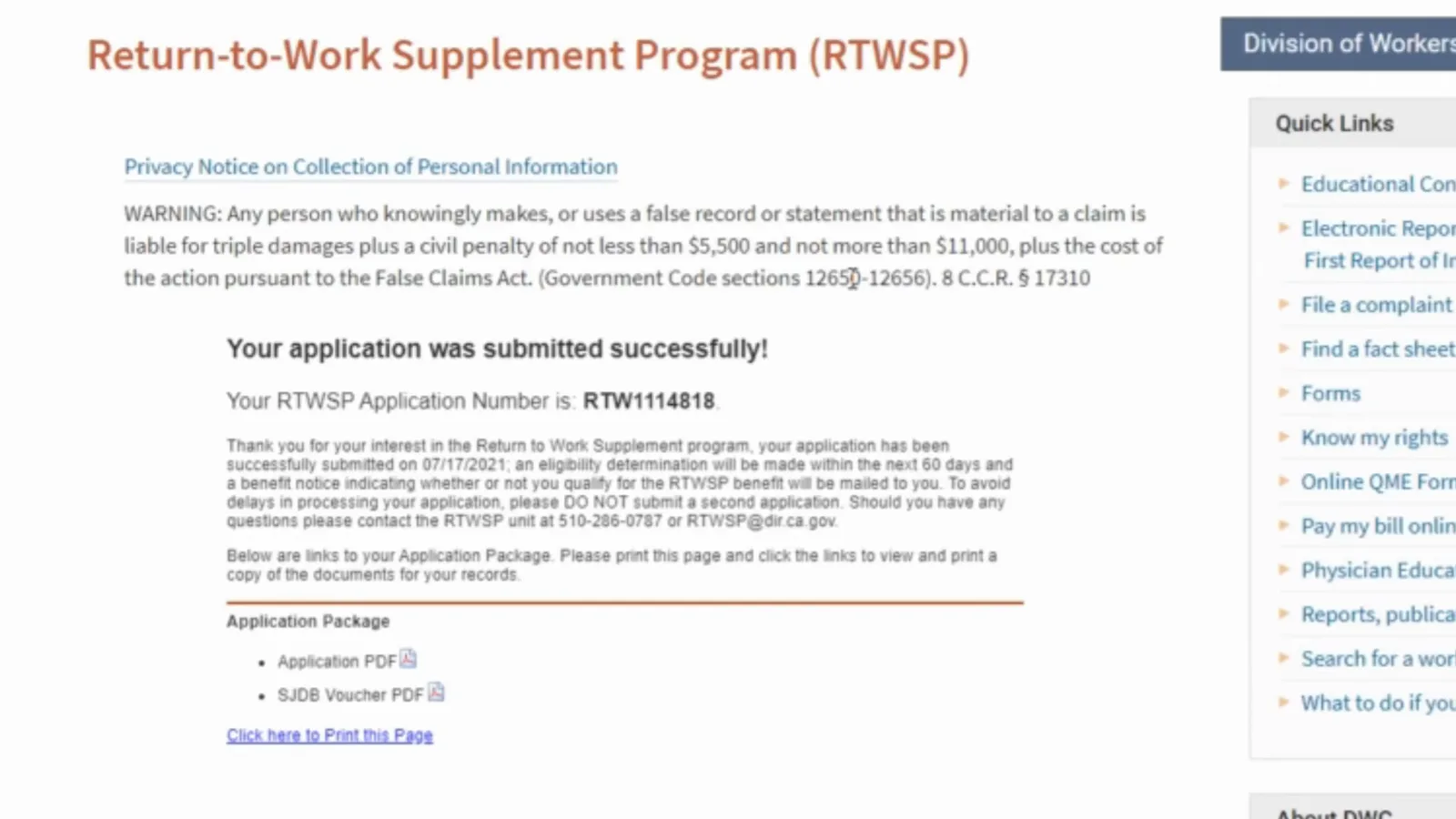
Application number, a printable page, and the 60-day decision clock.Watch at 5:34
Frequently asked questions
- Who qualifies for the $5,000 Return-to-Work supplement?
- The DWC lists three requirements: your date of injury must be on or after January 1, 2013, a claims administrator must have furnished you an SJDB voucher for that injury, and the RTWSP must receive your application within one year from the date the voucher was served on you. The supplement is a one-time payment of $5,000, and the amount can be adjusted by the director of DIR under Labor Code section 139.48. If your injury is older than 2013, or no voucher was ever issued, this program is not the one you are looking for — the voucher itself comes first.
- What if I do not have a computer or internet access?
- The application is online only, but that does not lock anyone out. Every DWC district office has a kiosk near its Information and Assistance office equipped with a computer, a scanner and a printer for injured workers to use, and the Information and Assistance officers are available in person and by phone at 1-800-736-7401. If you already have a consultant handling your SJDB voucher, they will most likely submit the RTWSP application for you; doing it yourself is equally valid and the video walks through that path.
- Where do I find the ADJ number and the claim number?
- The ADJ number is the court’s case number and it appears on most documents filed with the DWC. You can look it up with the EAMS public case search, use the ADJ Search button beside the field inside the application, or e-mail [email protected] with "Request for ADJ#" in the subject line. The workers’ compensation claim number is a different number: it is issued by the claims administrator when the injury claim form is filed, so you copy it from the SJDB voucher forms the insurer sent you, not from the DWC.
- Why will the upload step not accept my voucher?
- Because the portal wants the whole document, not just the pages that describe your benefit. The upload must contain the entire SJDB voucher including the proof of service that sits on the last page, page 6 of 6, and it must be a single PDF or TIFF. The DWC FAQ adds that this proof of service has to be duly signed by the authorized issuing party — the claims administrator or insurance company — so a voucher whose last page is unsigned or missing is the usual reason a file gets held up. Check that page before you start the application.
- How long until the money arrives?
- The DWC says a decision on a completed and timely filed application is made within 60 days of receiving it, and the $5,000 payment is made within 25 days of that eligibility decision. The confirmation screen in the recording states the same 60-day review window and adds that a benefit notice is mailed to you either way. The video’s own experience is that decisions often come faster than the deadline, but plan the 60 days rather than the rumour, and keep the application number so you can ask the RTWSP unit at 510-286-0787 or [email protected] where your case stands.
- What happens if the RTWSP says I am not eligible?
- You can appeal. According to the DWC FAQ you may file an official appeal within 20 days of receiving the eligibility determination, at any DWC district office. The appeal has to include the ADJ number of the SJDB voucher you submitted with the RTWSP application, your full name, and a clear and concise statement of the facts your appeal is based on, and a copy of the officially filed appeal is mailed to the RTWSP appeals address in Oakland. Appeal forms are available in Spanish as well as English, and the district offices can check the status of an appeal you have filed.
Keep reading
Educational information only, not legal advice. These steps describe the DWC Return-to-Work Supplement Program application as the source video demonstrates it, and that recording dates from July 2021, so screens and labels can change. Eligibility, deadlines and payment timing are set by the DWC: confirm your own application with the RTWSP unit at [email protected] or 510-286-0787, or with the Information and Assistance officer at your DWC district office.