Video walkthrough
How to Use a Workers Comp Settlement Calculator
This page is the operating manual, not the formula guide. Eleven steps follow one settlement calculator from the very first typed number to the demand and offer log, and every screenshot links to the exact second of the video it came from.
The short answer
- A basic settlement calculator has five hand-typed inputs: the settlement amount, the attorney fee percentage, costs, and the liens you have to repay.
- Colors are the manual. Green cells are yours to edit, the yellow bottom cell is the answer (the client net), and red cells recalculate themselves.
- The reverse column starts from the take-home the client wants and tells you what the settlement has to be; costs and liens still live on the basic side.
- Keep the demand and offer log beside the calculator — the mean column is the midpoint between the two sides, often where the case actually lands.
- At a 40% fee a $100,000 settlement leaves $60,000 before deductions, and every $5,000 of costs or liens takes another $5,000 off the client net.
Source video
Settlement Calculator Walkthrough
Matthew Doebler — channel upload (internal firm training recording)
Screenshots are frames from the video above; the written steps are ours, checked against the official workers compensation resources linked here. The spreadsheet belongs to the presenter — copy the workflow, not his numbers. www.dol.gov/general/topic/workcomp
Step-by-step walkthrough
Eleven steps in the order you would actually do them. Each screenshot deep links to the second of the video it was taken from.
- 1
Duplicate the shared sheet before you type anything
Open the calculator through the link you were given, then use File > Make a copy before you enter a single number. Two things go wrong if you skip this: the next person who opens the shared link sees your client data, and the next person who types into the shared link overwrites it. Google Sheets puts its own File menu inside the spreadsheet, and the app menu bar at the top of your screen has a File menu too — use the one inside the spreadsheet — then rename the copy something like "settlement calculator for Smith" so the template stays blank.
- 2
Read the two columns before you touch a cell
The left half of the sheet is the settlement calculator and the right half is a demand and offer log. The calculator itself splits into a Basic column, which starts with a settlement amount and returns the client net, and a Reverse column, which starts with the client net and tells you what the settlement has to be. Hiding the top rows (the contact block and the save-a-copy note) is free and is exactly what the presenter does to keep attention on the numbers. Hiding the Reverse column is a different story: that is a protected range, so the sheet warns you first — see the next step.
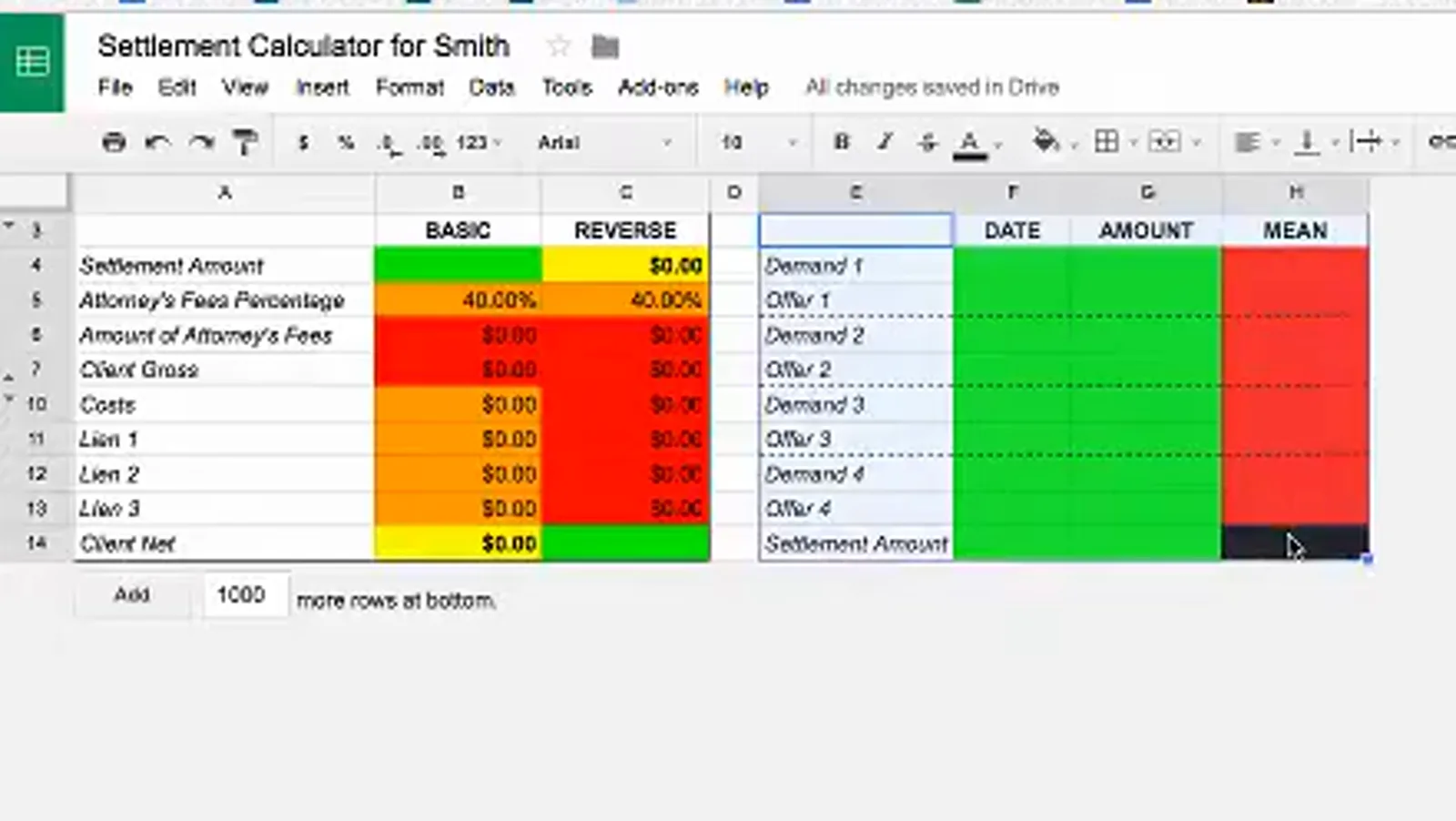
Left: the calculator. Right: the negotiation log. Nothing is filled in yet.Watch at 5:00 - 3
Expect a "Heads up" warning on the protected cells
Some cells and columns are protected so they cannot be changed by accident. Touch one — or try to hide the Reverse column — and Google Sheets interrupts with "Heads up! You're trying to edit part of this sheet that shouldn't be changed accidentally. Edit anyway?" Press OK only when you meant it, and expect the same dialog every time you change a fee percentage later.
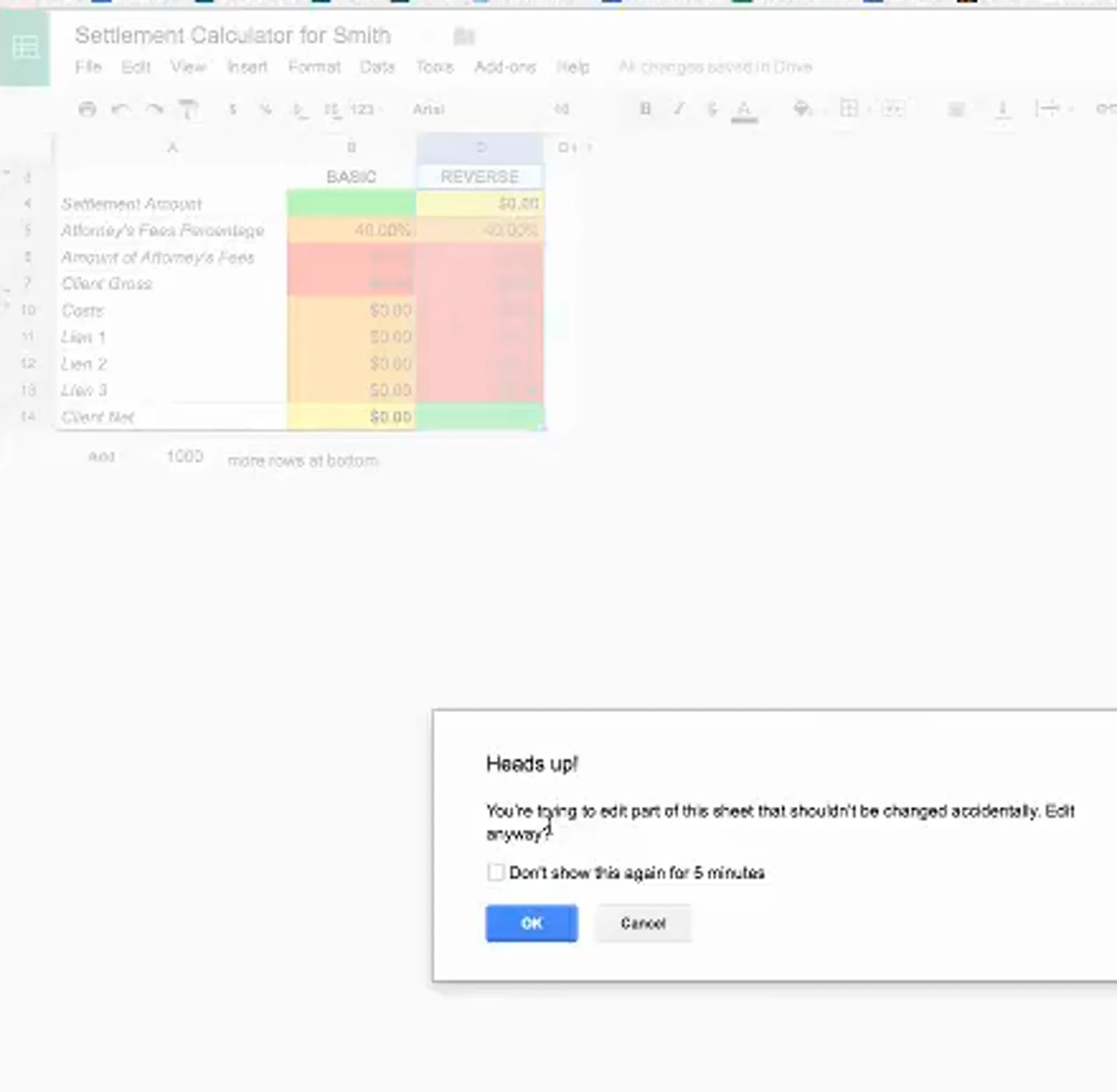
Not an error — it is the sheet asking whether you really mean it.Watch at 5:40 - 4
Type the settlement amount and read the yellow answer
The color code is the whole manual. Green cells are inputs you are supposed to play with. The yellow cell at the bottom is the answer: the client net. Red cells are calculated and locked — with a 40% fee, a $100,000 settlement produces $40,000 of attorney fees and a $60,000 client gross, and the yellow client net is $60,000 because no costs or liens have been entered yet. Change the green cell to $90,000 and the yellow cell drops to $54,000 without you touching anything else.
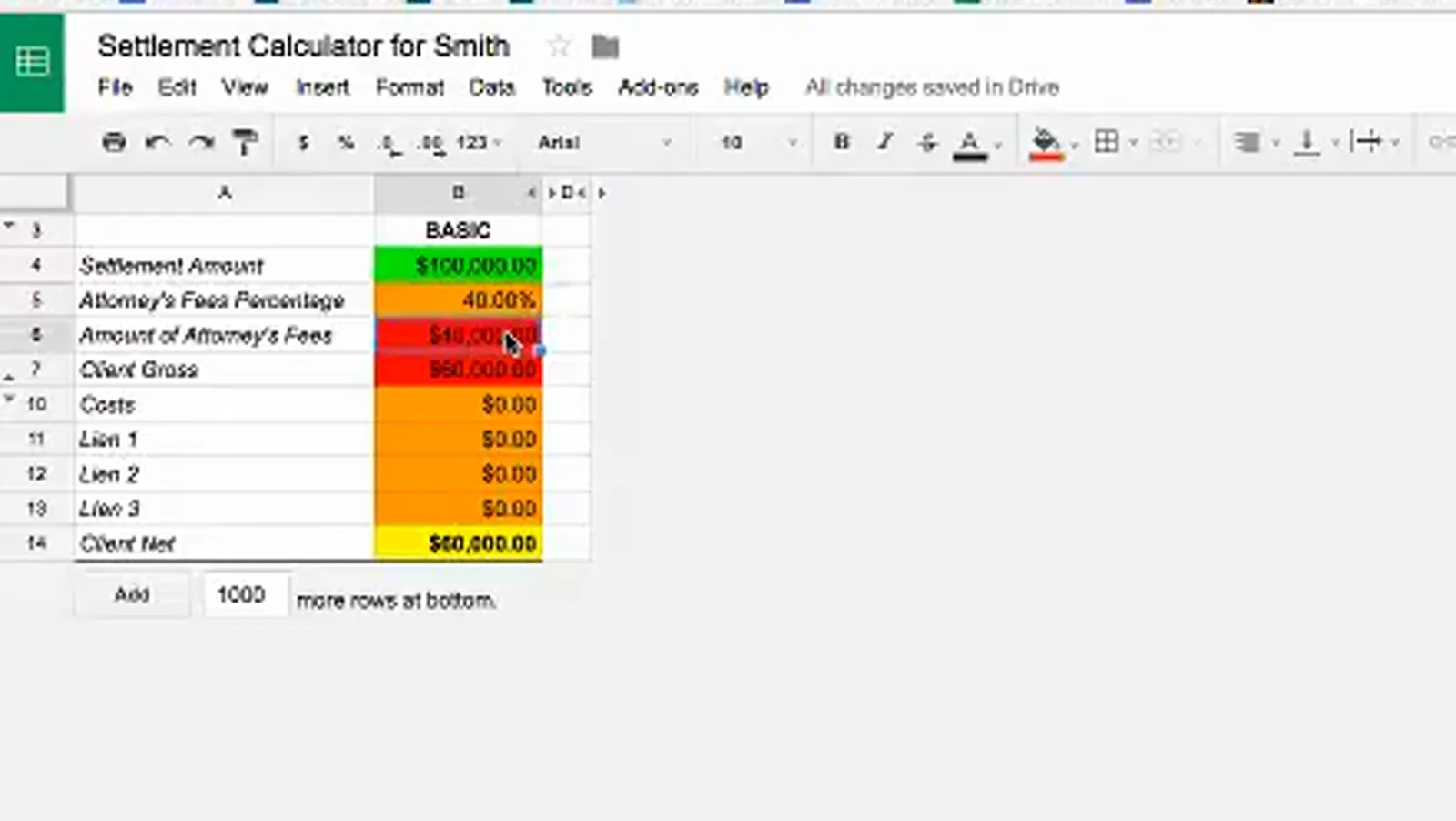
Green in, yellow out: $100,000 becomes a $60,000 take-home before costs and liens.Watch at 7:00 - 5
Change the fee percentage when your fee is not 40%
The dollar amount of the attorney fee is a red cell, so you cannot type into it. Change the percentage above it instead: highlight 40.00%, type 33.33 and press Enter, and after the "Edit anyway?" warning the fee, the client gross and the client net all recalculate. On a $90,000 settlement a 33.33% fee takes $29,997 and leaves a $60,003 net, which is $6,003 more for the client than the 40% default. Reverse the change the same way when you just wanted to see the effect.
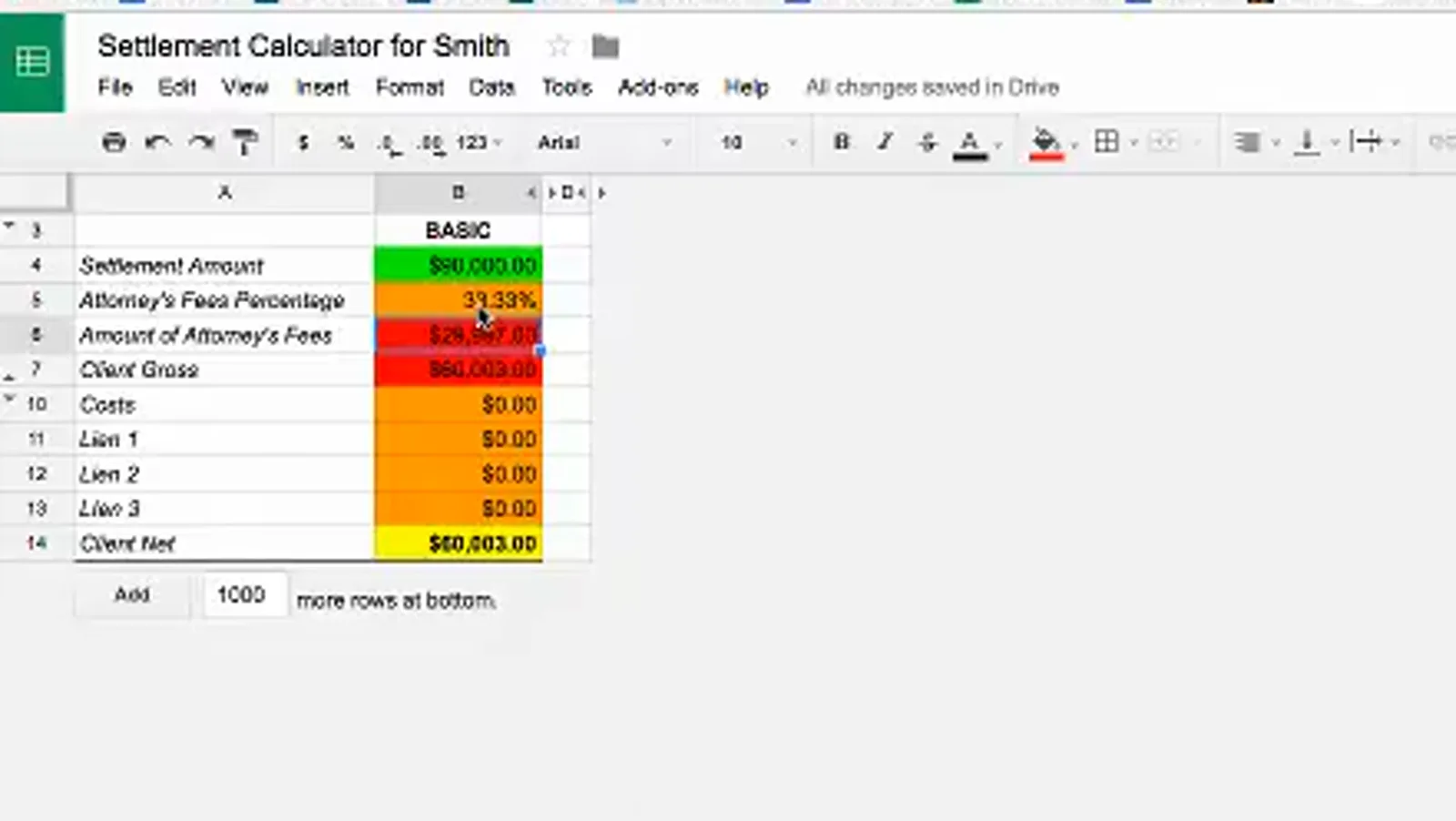
The fee is not typed in dollars — it is whatever the percentage produces.Watch at 8:35 - 6
Enter costs as plain numbers
Costs are entered by hand — the sheet does not pull them from a separate cost tab. Do not type the dollar sign, the comma or the decimal point; type 5000 and press Enter and it renders as $5,000.00. The yellow client net updates immediately: $54,000 becomes $49,000, because costs come straight off the bottom line.
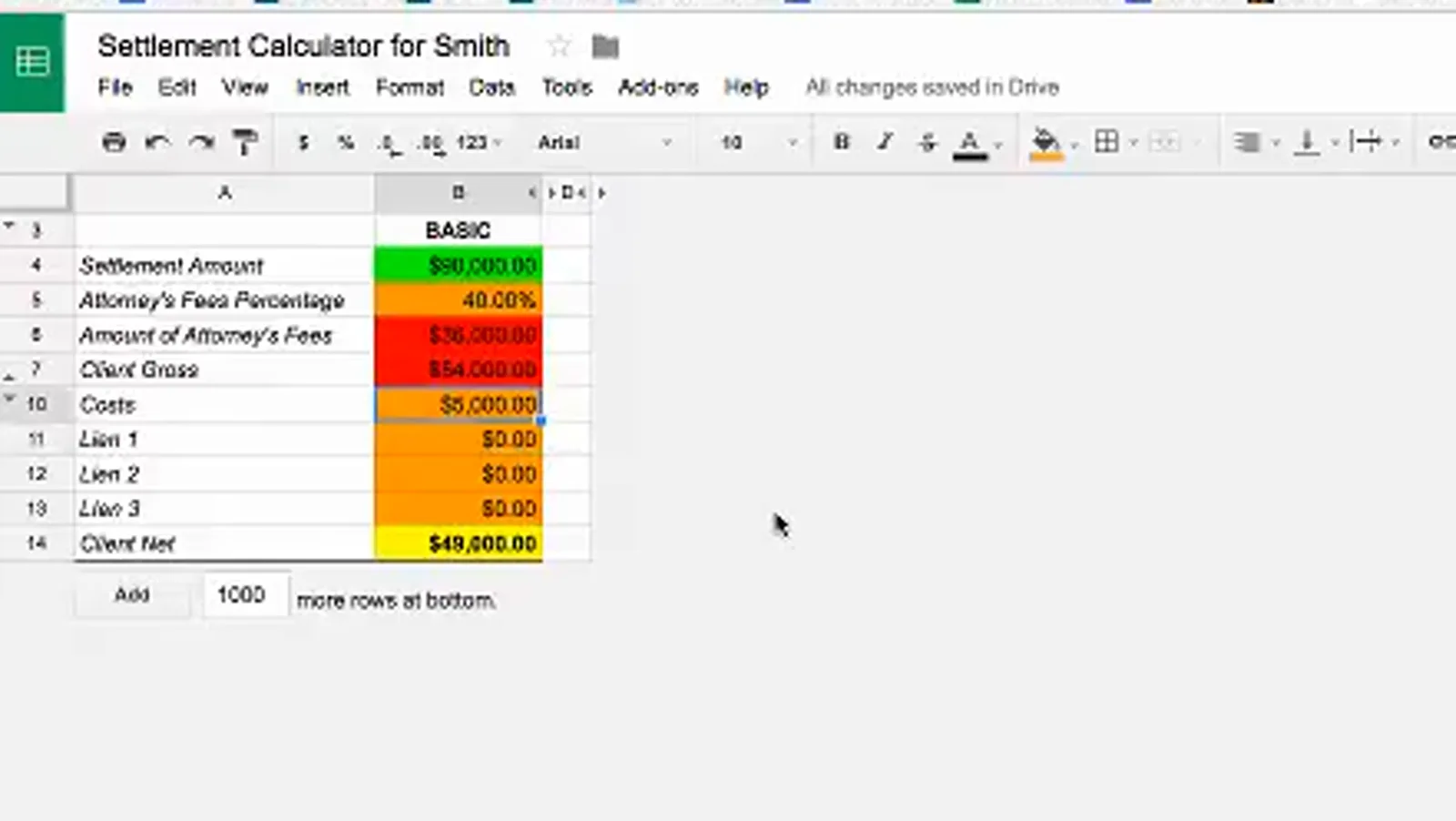
Type 5000, not $5,000.00 — Google Sheets adds the formatting itself.Watch at 9:35 - 7
Rename the lien rows and enter what you are repaying
There are three lien rows. Use the label cells to rename them — the presenter turns Lien 1 into Medicare Lien and Lien 2 into Private Lien so the sheet still makes sense weeks later — then type the amounts. A $3,000 Medicare lien and a $1,000 private health lien take $49,000 down to $45,000. If you only have two liens, leave the third row at zero instead of deleting it.
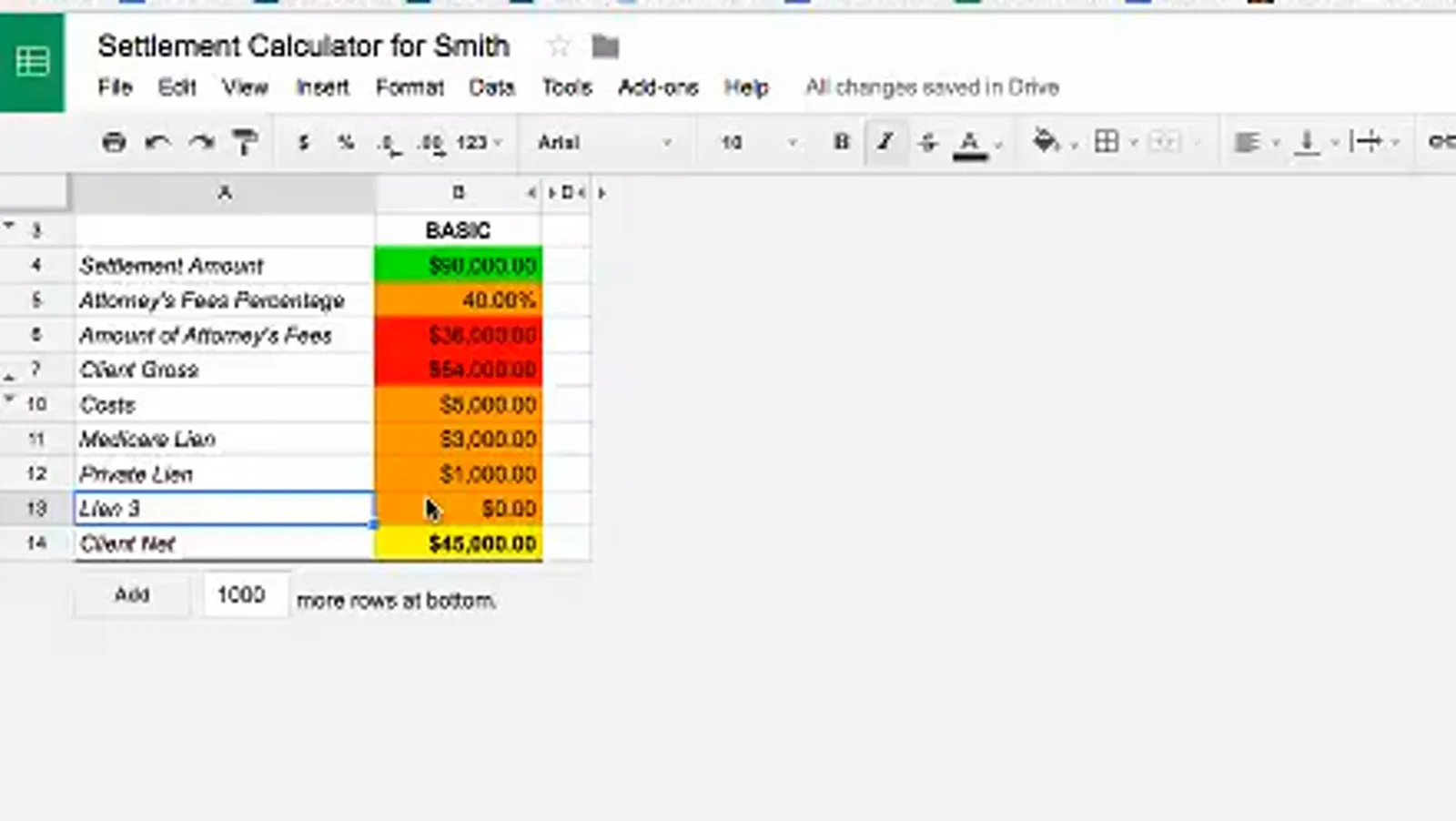
Rename Lien 1 and Lien 2 to whatever you are actually repaying.Watch at 11:12 - 8
Work backwards from the net the client wants
The Reverse column starts where the Basic column finishes. When a client asks what the case has to settle for to put a set amount in their pocket, type that amount into the green client net cell on the reverse side: $30,000 in the presenter's example, which needs a $63,333.33 settlement at a 40% fee. The costs and liens in the Reverse column are red — they are copies of the Basic column, so if you want to lower costs or eat part of a lien to make the deal work, you change that number on the Basic side and the Reverse column follows.
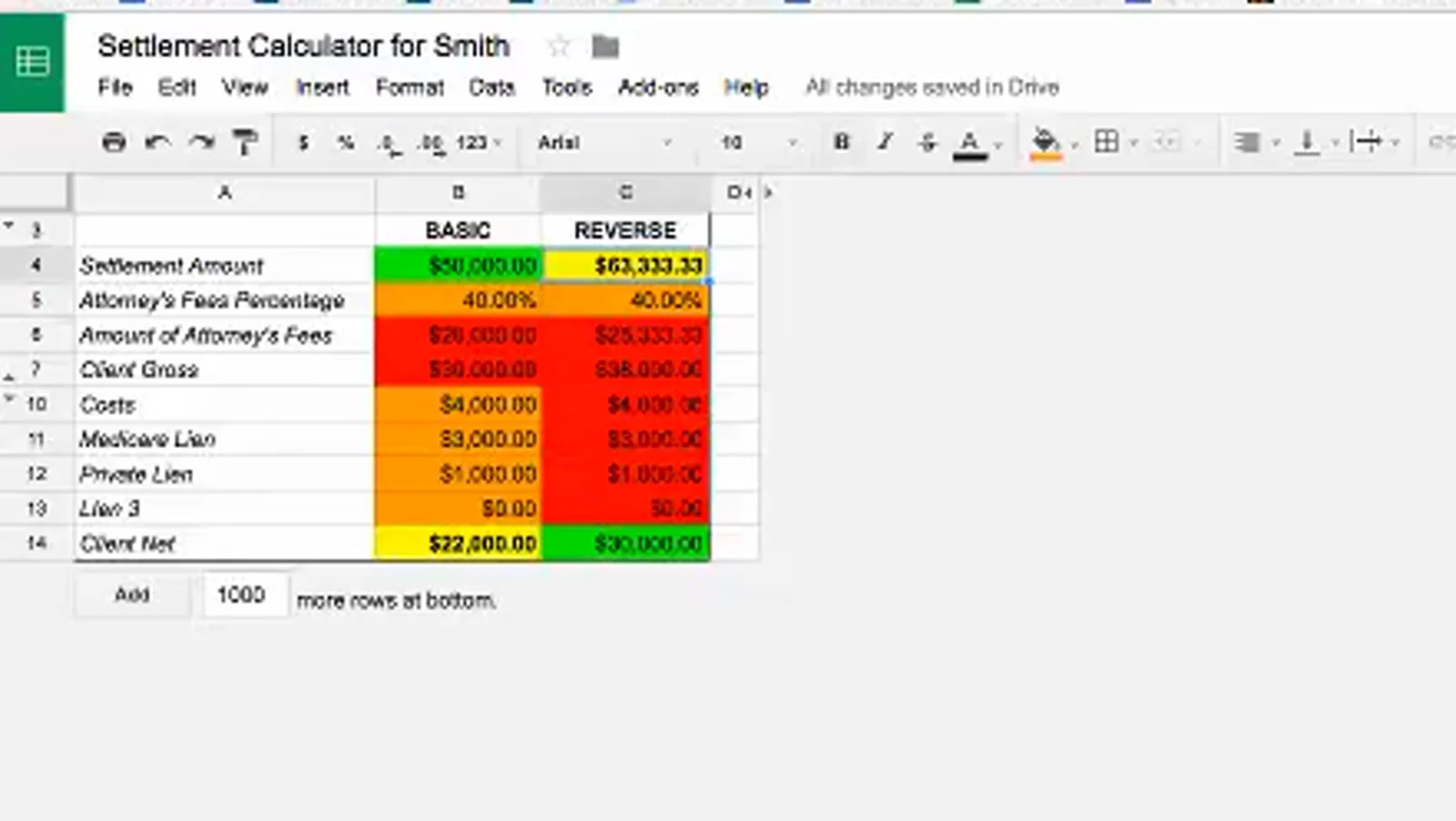
Client says "I want $30,000 in my pocket" — the sheet says $63,333.33.Watch at 15:40 - 9
Trim the fee to close the gap
Once the reverse calculation is running you have two numbers to play with: the client net target and the fee percentage — the fee cell in the Reverse column is editable even though it is locked on the Basic side. Dropping the fee from 40% to 35% cuts the settlement needed for that same $30,000 take-home from $63,333.33 to $55,461.54. Move the two sliders until the settlement figure is one the defense might actually agree to.
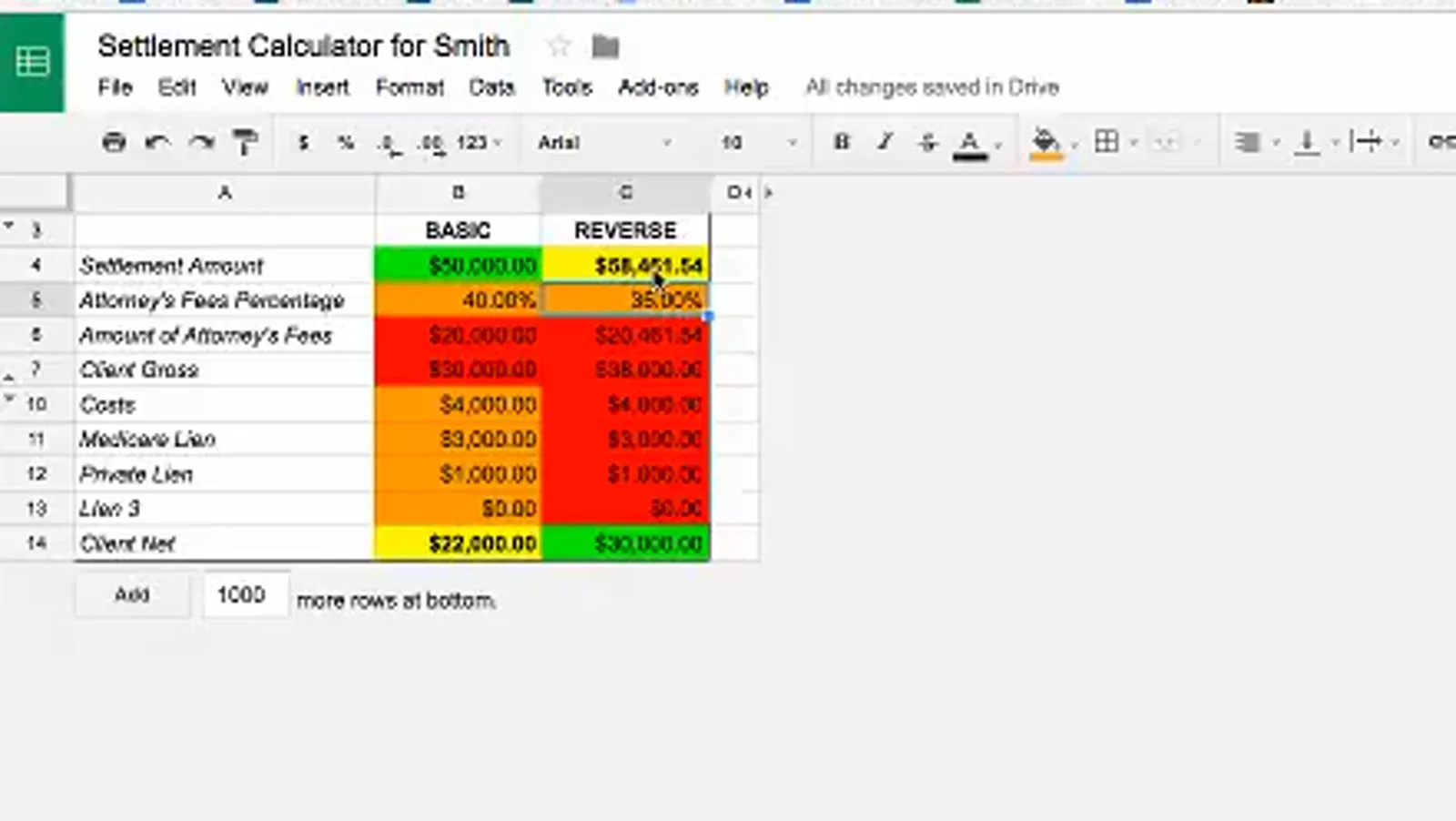
Two dials, one target: drop the fee and the required settlement falls with it.Watch at 16:40 - 10
Log every demand and counter-offer, and watch the mean
The log stands apart from the calculator and feeds nothing into it. Each demand row gets a date, an amount, and the offer that came back; the Mean column does the arithmetic you would otherwise do on your phone: a $150,000 demand against a $10,000 offer means an $80,000 midpoint. Log the date even though it calculates nothing — it is what lets you look back over a two-week negotiation and see which way the midpoint is drifting. The whole point is having the demand history and the net calculations in one place, so the two can argue with each other before your next phone call.
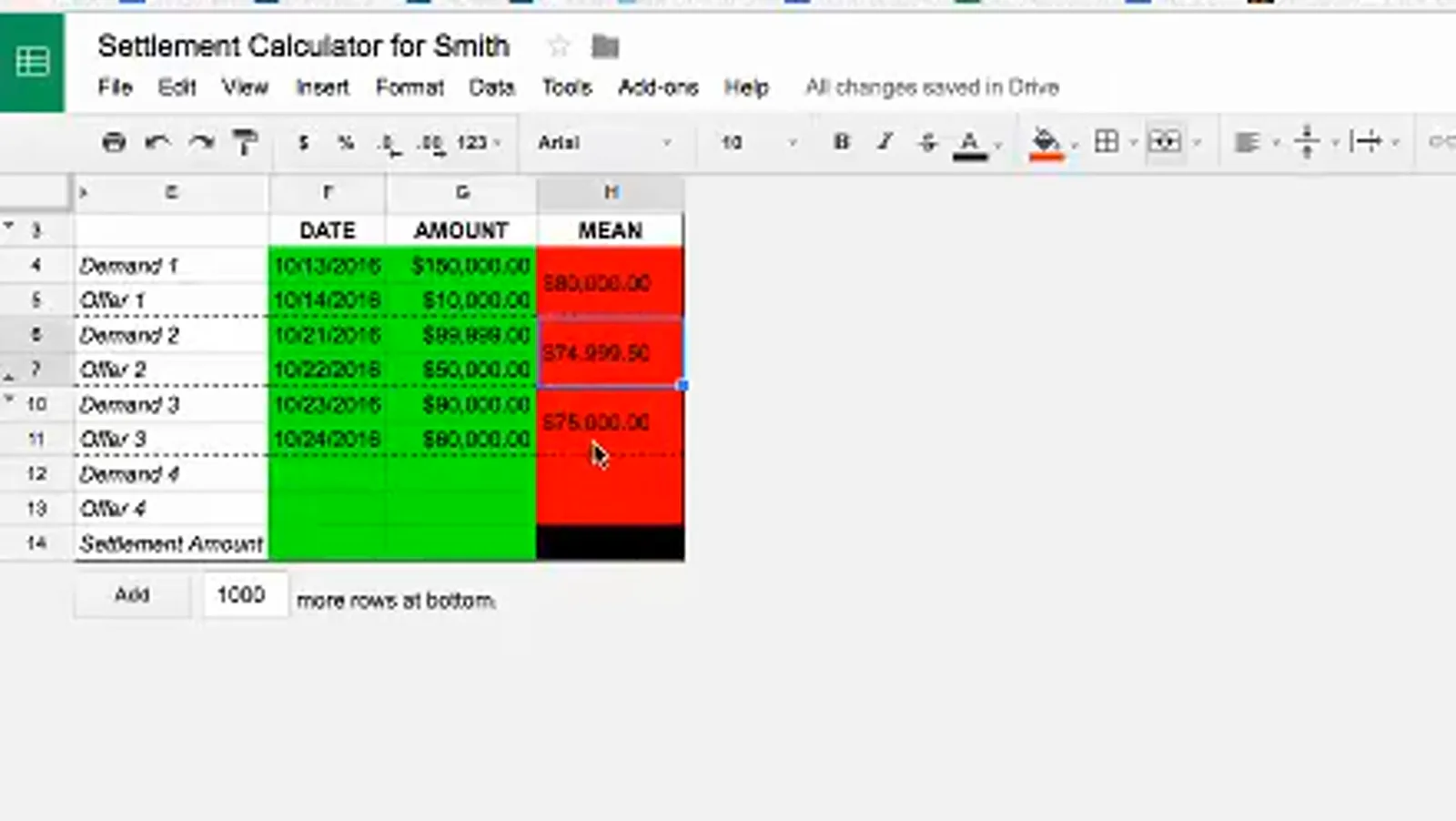
The Mean column is where the two sides would meet if they split the difference.Watch at 20:50 - 11
Re-run the numbers before every negotiation call
The log and the calculator are meant to be used together. Pull the last demand and the last offer off the log, type the offer into the Basic column, and look at the yellow cell before you get on the phone. On the presenter's own numbers a $10,000 offer pushes the client net negative — the fees and liens on the claim add up to more than the settlement — which is only fixable by moving the fee percentage or the lien amounts. Work out your reserve price from the mean, then decide the next demand against the net it produces.
FAQ
- Do I need Google Sheets to run this kind of settlement calculator?
- The calculator in the walkthrough is a Google Sheets template, so the File > Make a copy habit and the protected-cell warnings are Sheets behavior. The layout is what matters: one input block on the left, one answer cell at the bottom. Rebuild the same rows in Excel and the arithmetic still holds — you just save a copy with File > Save As instead.
- Why can I not type into the attorney fees amount cell?
- Because it is a red cell: it is calculated from the settlement amount and the fee percentage, so the sheet protects it. Change the percentage cell above it — 40% is the template default, 33.33% is the alternative the presenter demonstrates — and the dollar figure follows. Your own fee agreement and state rules decide which percentage is correct for a claim.
- What is the reverse calculator for?
- It answers the client question "what do I have to settle for to walk away with X?". You type the target net into the green cell in the Reverse column and the sheet returns the settlement required at the current fee percentage. Costs and liens in that column are locked copies of the Basic column, so you change them on the basic side and the reverse side updates itself.
- What does the mean column in the demand log actually calculate?
- The midpoint between your demand and the offer on the row: a $150,000 demand against a $10,000 counter-offer gives an $80,000 mean. It is a reference point for tracking how far apart the two sides are over time, not a valuation of the claim, and it does not feed into the calculator.
- Why does the client net go negative on a low settlement number?
- Because costs and liens are fixed deductions. In the walkthrough a $10,000 offer leaves the yellow client net below zero once the fee, costs and lien repayments are counted — which means the deal only works if the fee percentage or the lien amounts move. That is exactly why the presenter checks the net before quoting a number.
- Can I reuse this calculator for any state or injury?
- It is a fee, cost and lien worksheet, not a state benefit formula, so it works anywhere you can supply those four inputs. The settlement amount itself still has to come from your state schedule, impairment rating and wage records — that is what the state guides and the formula article cover.
Keep reading
Educational information only, not legal advice. The spreadsheet in this walkthrough is the presenter's own template, and fee percentages, costs and lien balances differ by claim, state and fee agreement.