Video walkthrough
How to Submit a WSIB Claim Online in Ontario
Ontario does not take claim documents by email. This walkthrough follows the official WSIB Ontario screen recordings through the whole online path: finding and saving the form, the wsib.ca/submit hand-off, creating an online services login, and the four-step upload that puts the document on the claim file. Thirteen steps, every screenshot deep-linked to the second it came from.
The short answer
- Claim documents go through wsib.ca/submit, not email. WSIB says documents submitted online are on file within minutes.
- Download the WSIB form and save it first — the listing page cannot be filled or submitted. The forms are fillable PDFs, so type into them.
- You need a WSIB Online services account: verify your email with a code, then create a password before you can send anything.
- The upload is four steps — add claimant information, submit documents, review, confirmation — and it files the document against a claim that already exists.
- Five documents maximum per submission, and a multi-page document must be saved as one file before you attach it.
Source video
Submitting documents online (WSIB Ontario)
WSIB Ontario — official channel (three recordings: Submitting documents online; Learn how to download, fill out and submit forms; Learn how to submit a claim for WSIB benefits)
Screenshots are frames from three videos published by the official WSIB Ontario channel — Submitting documents online (zOPLOosdxdY), Learn how to download, fill out and submit forms (QsPWQiY00ZA) and Learn how to submit a claim for WSIB benefits (CNb7CSunTN8) — and the written steps are ours, checked against the WSIB submission and forms pages linked here. This is the official WSIB Ontario online flow, described for general information: it is not legal advice, and the interpreter service and benefit entitlements it mentions come from WSIB itself. The account shown in the recordings is WSIB's own demonstration account (claim number 32001501, file name 32000501_RESER.pdf); those identifiers are not a real claimant's. www.wsib.ca/en/submit
Step-by-step walkthrough
Thirteen steps in the order you would actually do them. Each screenshot deep links to the second of the WSIB recording it was taken from.
- 1
Start at wsib.ca and open the Submit claim documents link
WSIB Ontario takes claim documents through its own website rather than by email. On the wsib.ca homepage the "We're here to help" panel answers the three things people arrive to do — report an injury or exposure, submit claim documents, and register your business — and Submit claim documents is the one you want. The same destination sits under all three audience menus along the top: Businesses, Injured or ill people and Health care providers. An injured worker and a health care provider filing a Form 8 take different links and land on the same submission page.
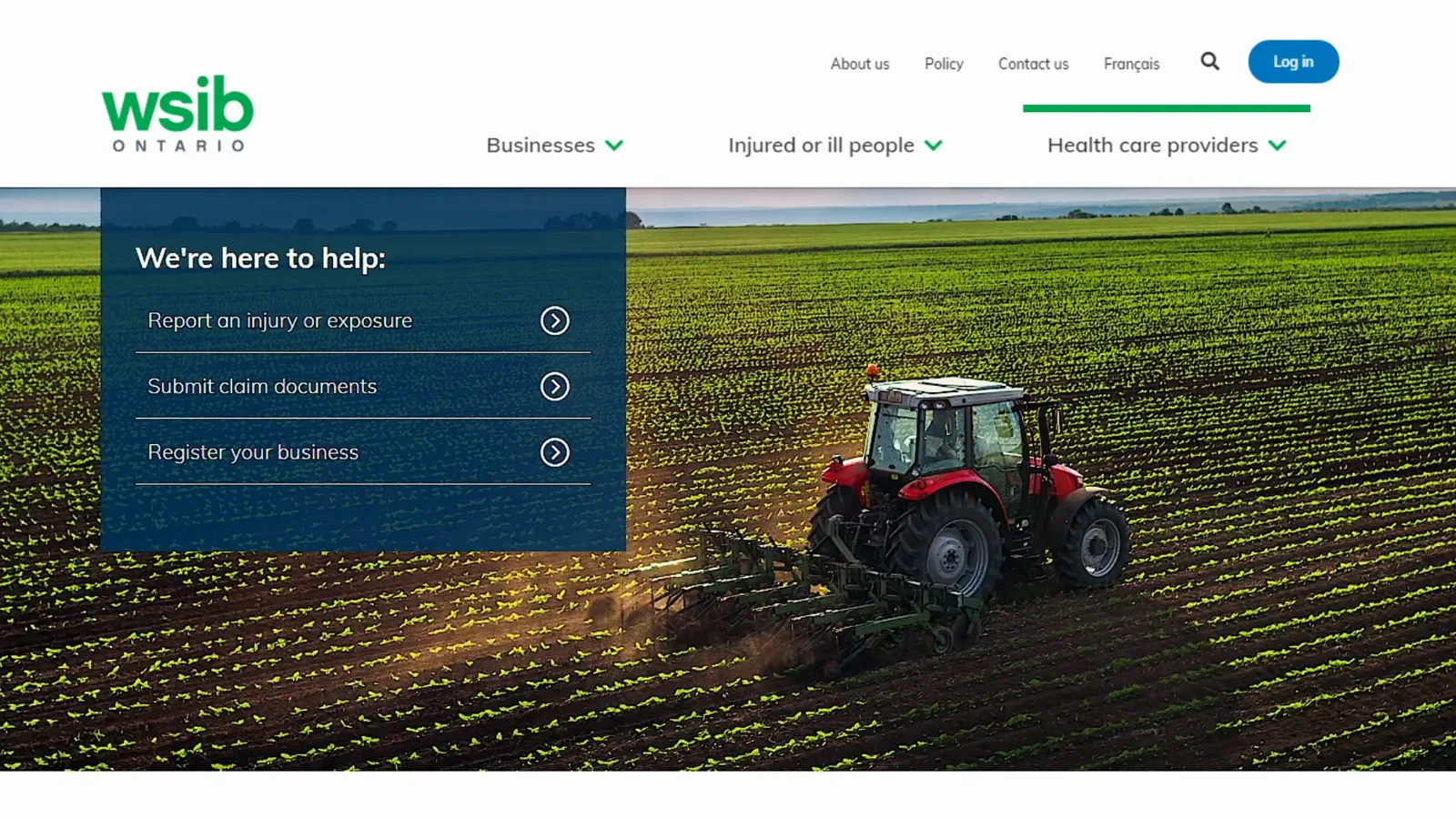
Three doors into WSIB: report an injury, submit claim documents, or register a business.Watch at 0:22 - 2
Find the form you need under Forms → Overview
If the document you have to file is a WSIB form, take it from WSIB rather than an old copy from last year. Open your audience menu — the recording uses Health care providers, which is the menu a clinic or physician uses — and choose Forms. A second panel opens with Overview at the top, and the Overview page behind it is the current index of accepted forms, grouped by category: report a patient's work-related physical injury or illness, update us on a patient's recovery and return to work, bill us for your services, treatment and programs, request additional health information, request a treatment extension, and order forms. The page also carries an Upload a claim document shortcut that jumps straight to the submission page.
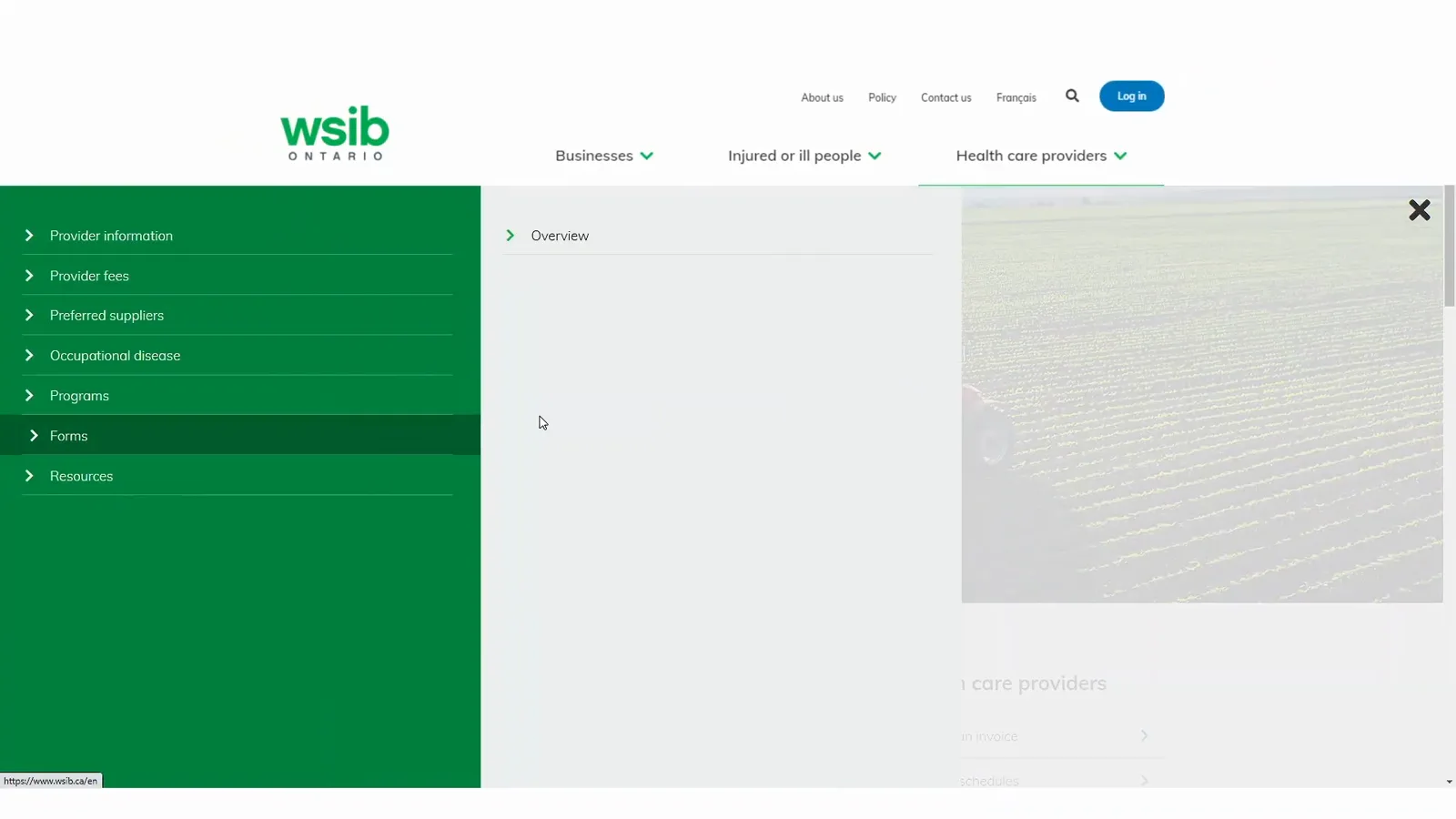
Forms → Overview is the index of every form WSIB currently accepts.Watch at 0:26 - 3
Right-click the form link and save the PDF before filling it
The order matters, and it is the opposite of what most people try first: you cannot fill in or submit a WSIB form from the page that lists it. Right-click the form link — Health professional's report – Form 8 in the recording — and choose Save link as… from the menu, which also offers Open link in new tab, Open link in new window, Open link in incognito window and Copy link address. The wording of the download option varies slightly depending on your browser, and the file lands in your downloads folder unless you pick somewhere else in the save dialog.
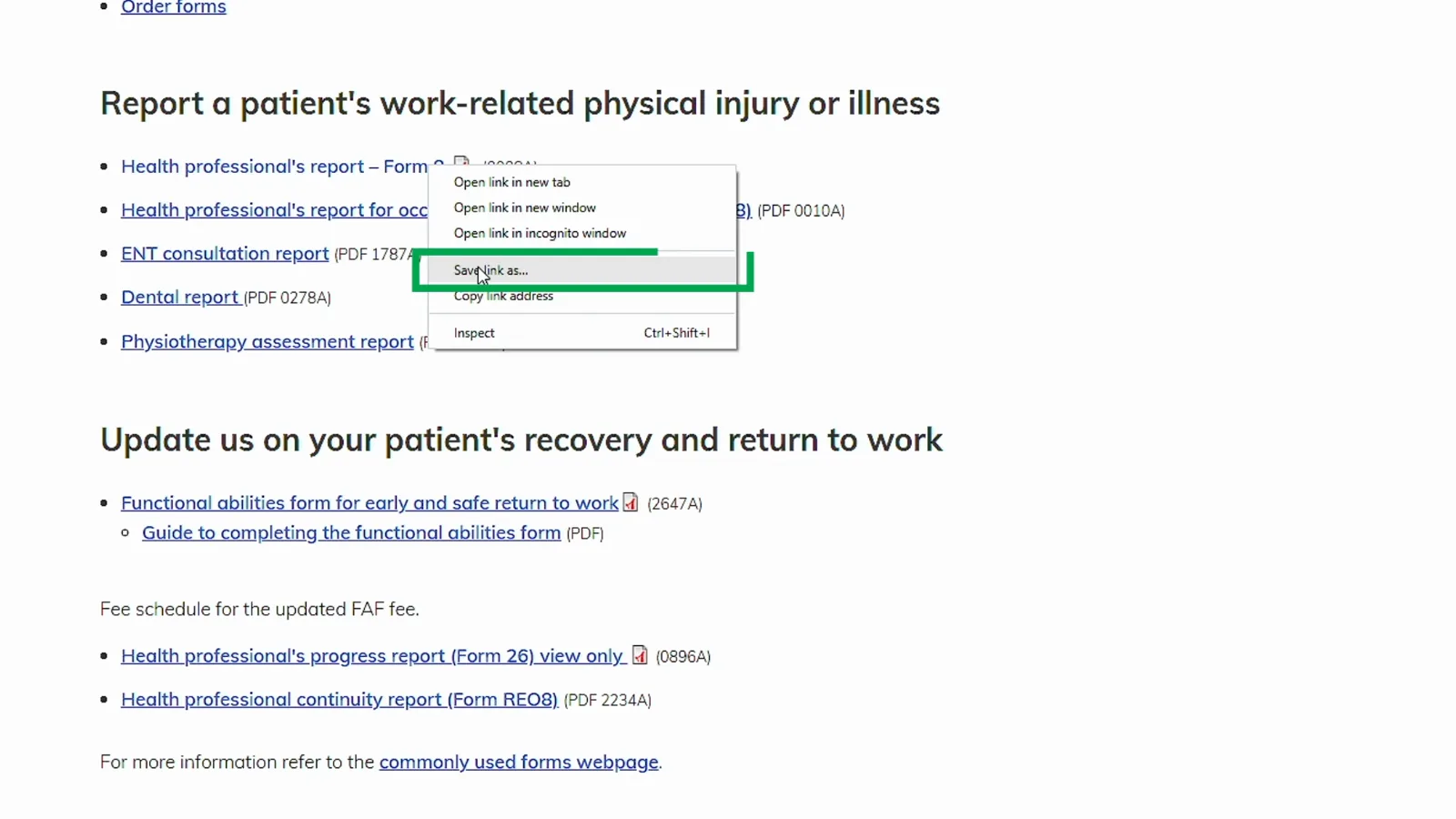
Save link as… downloads the PDF. The web page itself is not fillable.Watch at 0:32 - 4
Open the saved PDF and type straight into the form
WSIB's forms are fillable PDFs, so whoever completes the form — the worker, the employer, or a health professional for the Form 8 — types into it instead of printing and handwriting. The Form 8 opens with the claim number box at the top, above Section A Patient and Employer Information, Section B Incident Dates and Details with the date of injury, and Section C Clinical Information with a Left/Right tick box for each injured area. Type your claim number if you already have one; if the claim is still new, fill the rest and let the employer or WSIB supply it. Nothing has been sent anywhere yet — you are preparing a file to upload.
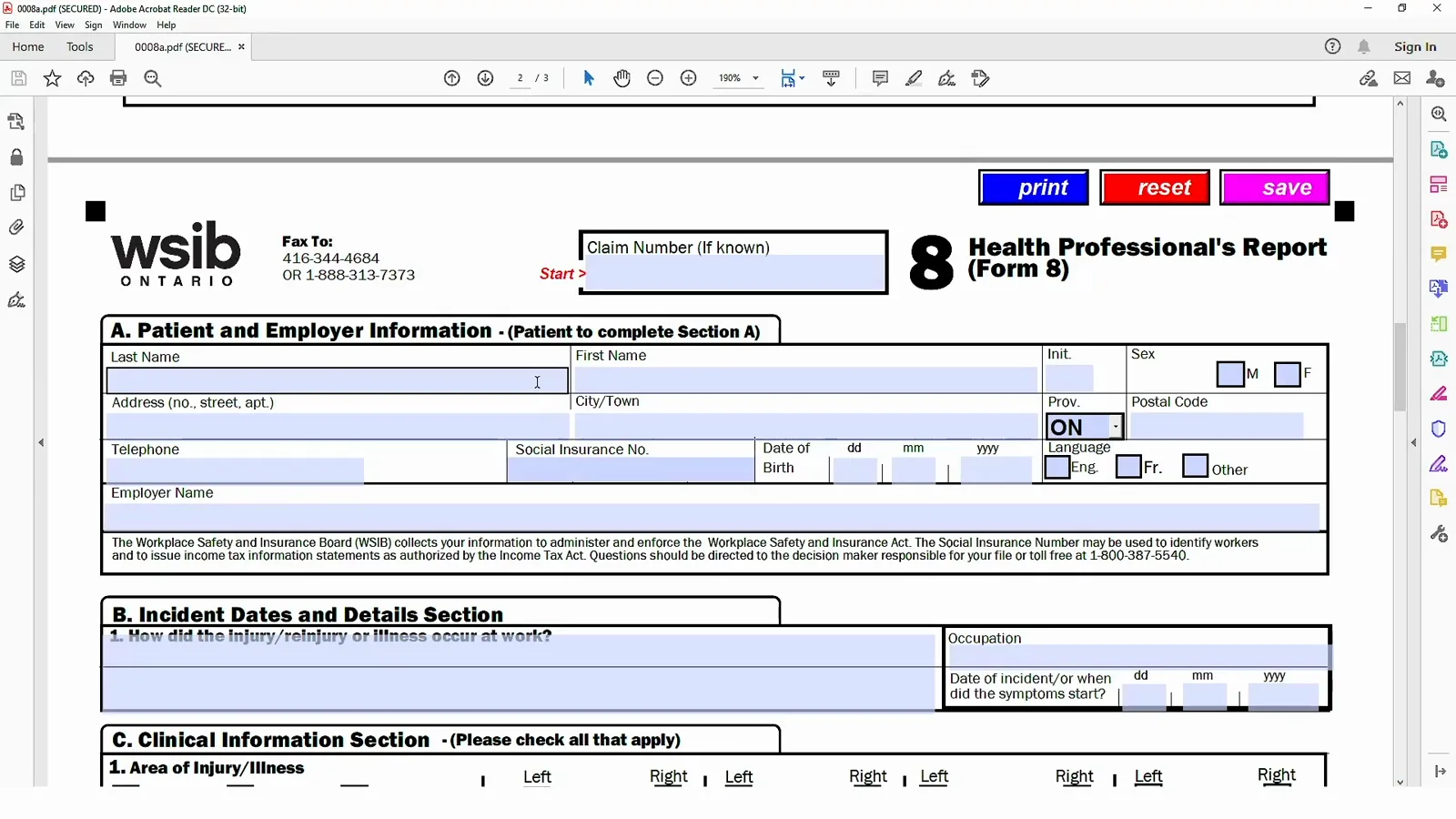
A fillable PDF, so the form is typed rather than printed and handwritten.Watch at 0:48 - 5
Save the completed form under a name you will recognise
After the last field, save the file. In the recording the reader is open in Acrobat, so saving opens a Save As dialog with the folder breadcrumb This PC > Desktop > WSIB documents, the file name 0008a_Filled and the type Adobe PDF Files (*.pdf) — the original downloaded file is called 0008a.pdf, so the filled copy gets a new name instead of overwriting the blank form. WSIB's own advice is to keep WSIB documents together in their own folder so you can find the file again, because the online submission asks you to attach the same file you just prepared.
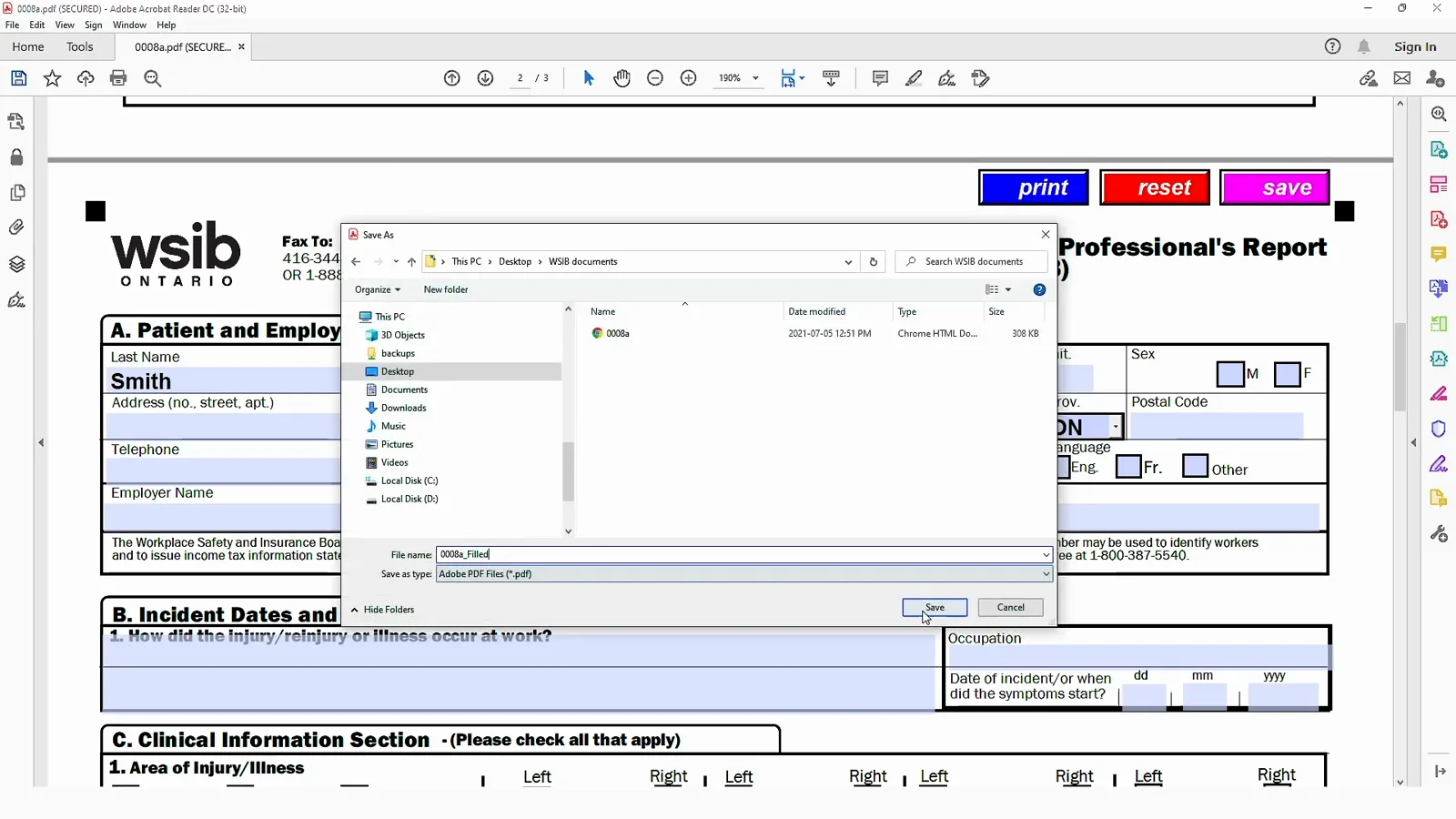
Save it where you can find it again — the upload step asks for this exact file.Watch at 0:58 - 6
Open wsib.ca/submit and read what you may send
The submission address is wsib.ca/submit, the same page the Submit claim documents link opens, and its first line gives the practical reason to use it: when you submit documents online they will be on file within minutes, so WSIB can help sooner. Under What can I submit? the page accepts any claim document — forms, letters, reports and receipts — from any computer, tablet or smartphone, 24/7. Two points are easy to miss: do not submit direct deposit information here, because banking details belong in your online services account, and do not submit Freedom of Information requests or documents, which go through the FOI request form or WSIB's privacy officer instead. A paper document is fine as long as you photograph it clearly or scan it first, and keep the original receipt on file.
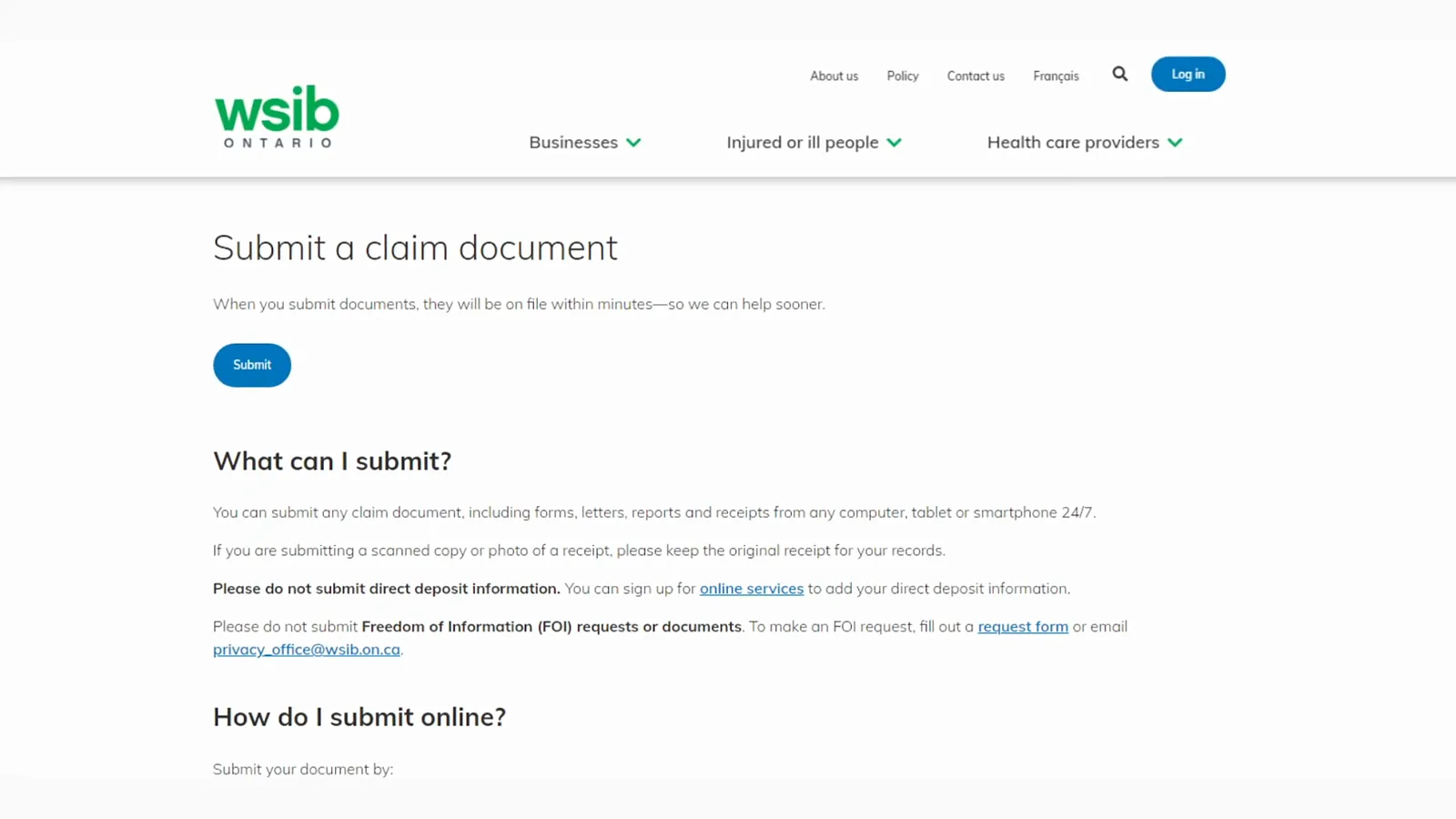
One submission page for forms, letters, reports and receipts — 24 hours a day.Watch at 1:00 - 7
Sign in, or sign up for an online services account
Submitting hands you over to WSIB Online services. The Submit documents and reports page carries a Log in panel on the right — email address, password, and a forgot-password link — and directly under it a New user panel with a Sign up button for anyone who has never had an online services account; the page says plainly that to submit claim documents or reports online you need an account. The Support panel on the left sends you to the frequently asked questions page for document submissions if something will not work, and gives the toll-free number for urgent and after-hours situations.
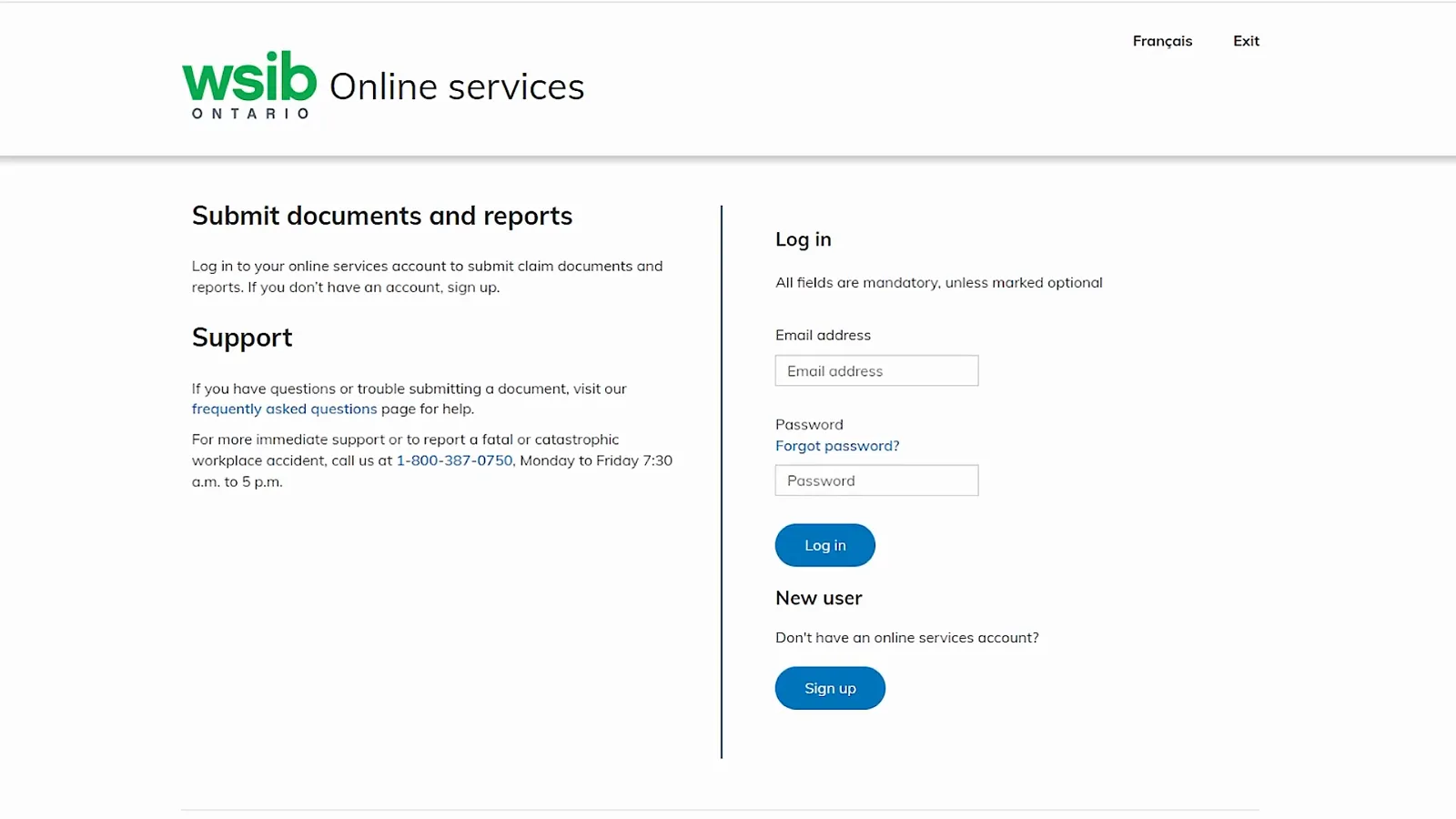
No account yet? The New user panel on the right is the way in.Watch at 0:12 - 8
Verify your email address to unlock the account
WSIB added a login step to online services for security, so a first-time filer creates an account before anything can be submitted. The screen opens with the sentence "We need to verify your email address before you can create an account": type the email address that will be your login, then press Get verification code, and WSIB emails you a code. The same page holds the Create password and Re-enter password boxes, a checkbox agreeing to the WSIB terms of use, and the Log in button for the moment the account is live. Do not close the tab while you wait for the message — the code is time-limited.
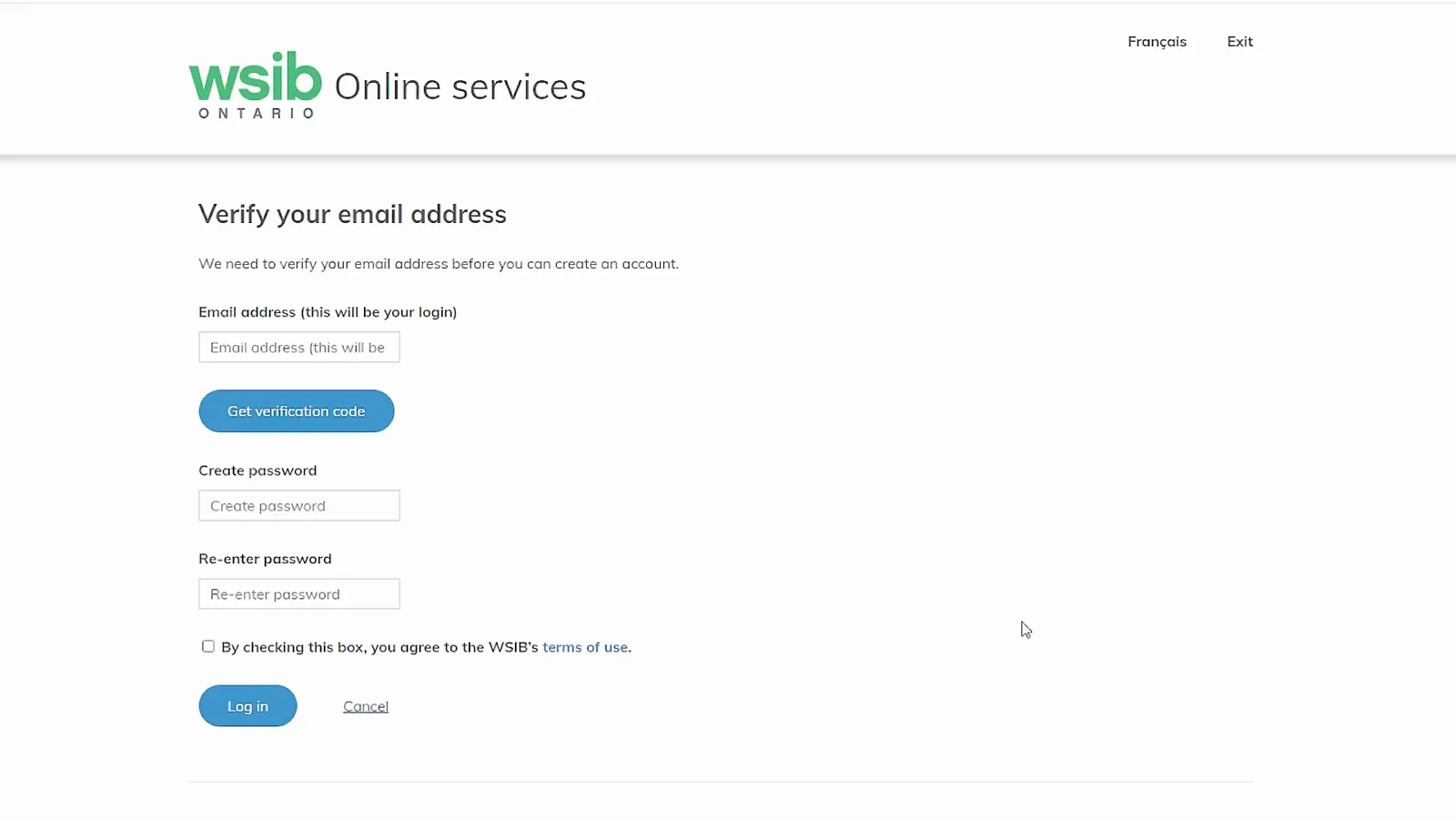
One email, one code, one password — then the account exists.Watch at 0:20 - 9
Step 1 of 4: pick the submission type and identify the claim
Inside the account the submission is a four-step form and the steps run left to right — 1 Add claimant information, 2 Submit documents, 3 Review, 4 Confirmation — and you cannot move ahead until the current step is complete. All fields are mandatory unless marked optional. Step 1 opens with the fork that shapes everything after it: are you submitting a document for an existing claim, or reporting a new injury or exposure? The recording submits a document for an existing claim, which is why the next field asks for the eight-digit claim number on the claim registration letter; last name and date of birth identify the injured worker. Pick the other option and the form takes the new-injury path instead.
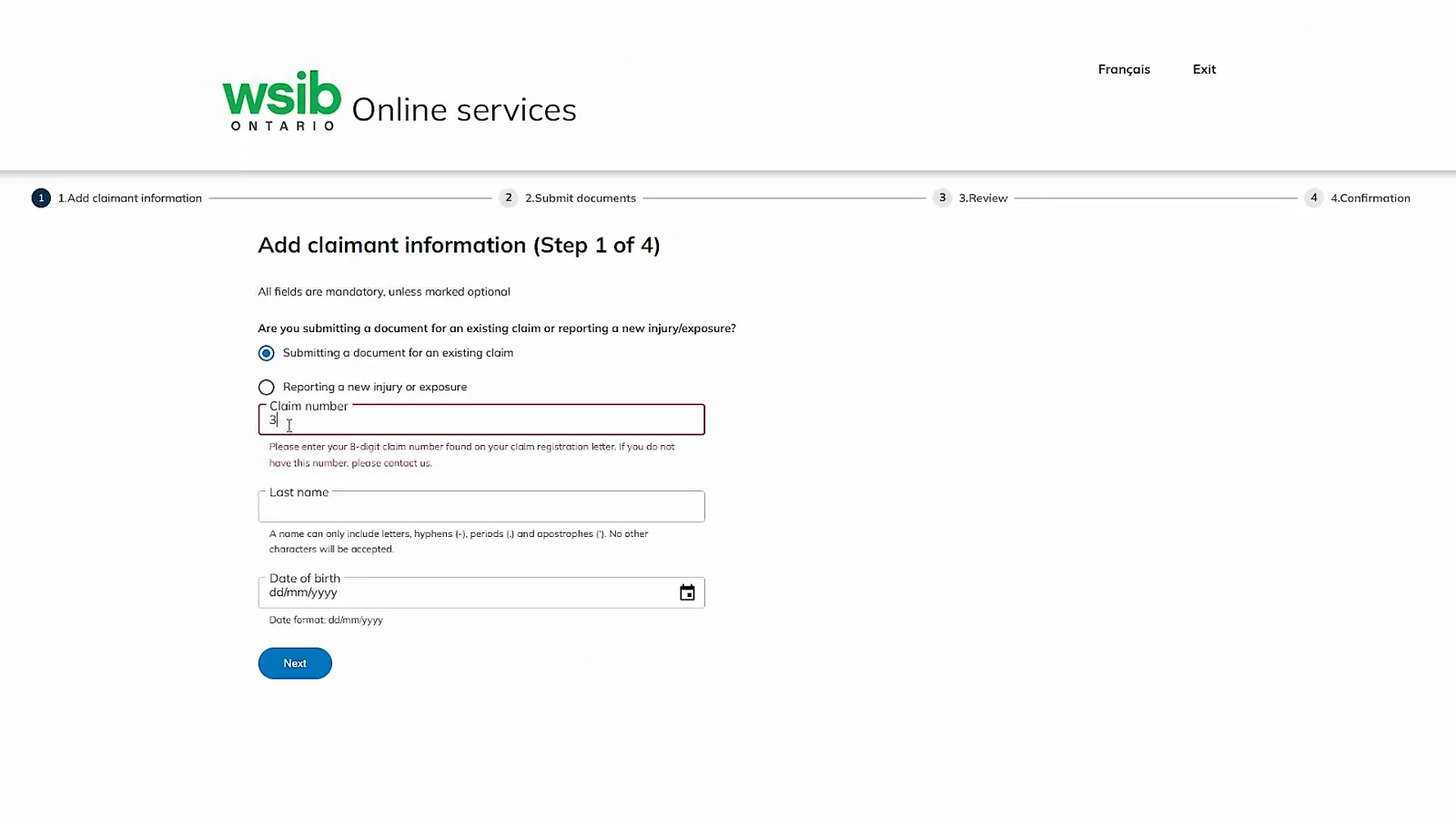
The Step 1 fork — existing claim or new injury — decides what the rest of the form asks.Watch at 0:32 - 10
Step 2 of 4: attach the file you prepared
Step 2 is the upload, and the page restates the order you have just followed: 1. fill out and save the form you need — the page repeats the three form libraries by audience, forms for injured or ill people, for businesses and for health care providers — then 2. attach and submit the form. It also states the limit that decides how you prepare the file: you can submit up to five documents at once, and if one document runs to several pages you must save them as one file before submitting. Press Attach or drag the file onto the box, and read the last warning again — do not put direct deposit information in a claim document.
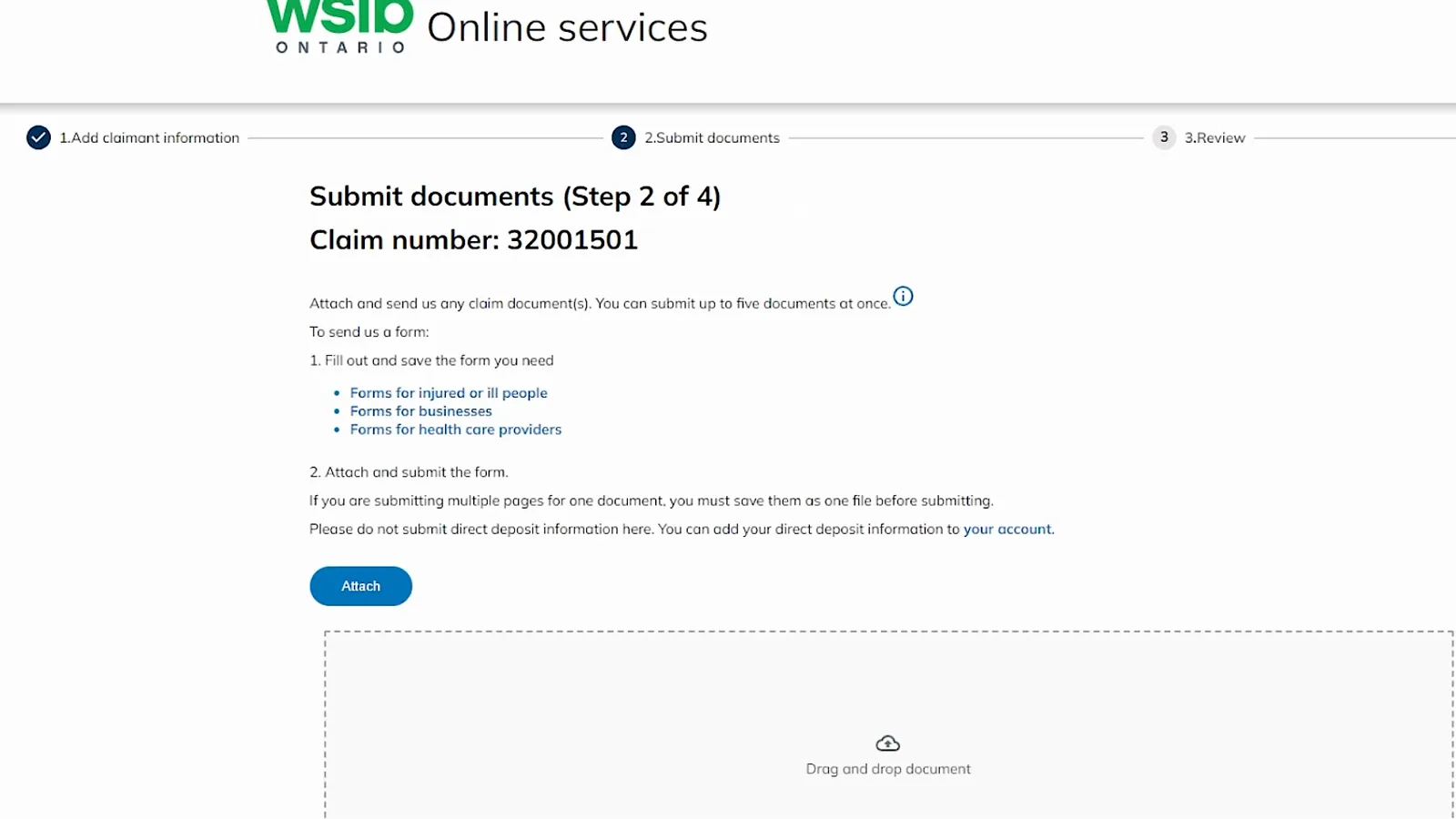
Multi-page document? Merge it into one file — the portal will not take it in pieces.Watch at 0:36 - 11
Tell WSIB which document you just attached
Once the file is in, the page shows its name and size, a submission progress bar that reads 100%, and two questions about what you sent. Is this a WSIB form? takes a simple yes or no. What document is this? is a drop-down list of the forms by their official names, so you select the exact one rather than typing a description: the list in the recording runs through the hearing aid and hearing services replacement forms, initial assessment reports, the intent to object forms for employers and for workers, the loss of retirement income claim forms, the low back injuries program of care and outcomes summary, and the mild traumatic brain injury program of care reports. Choose one and press Next.
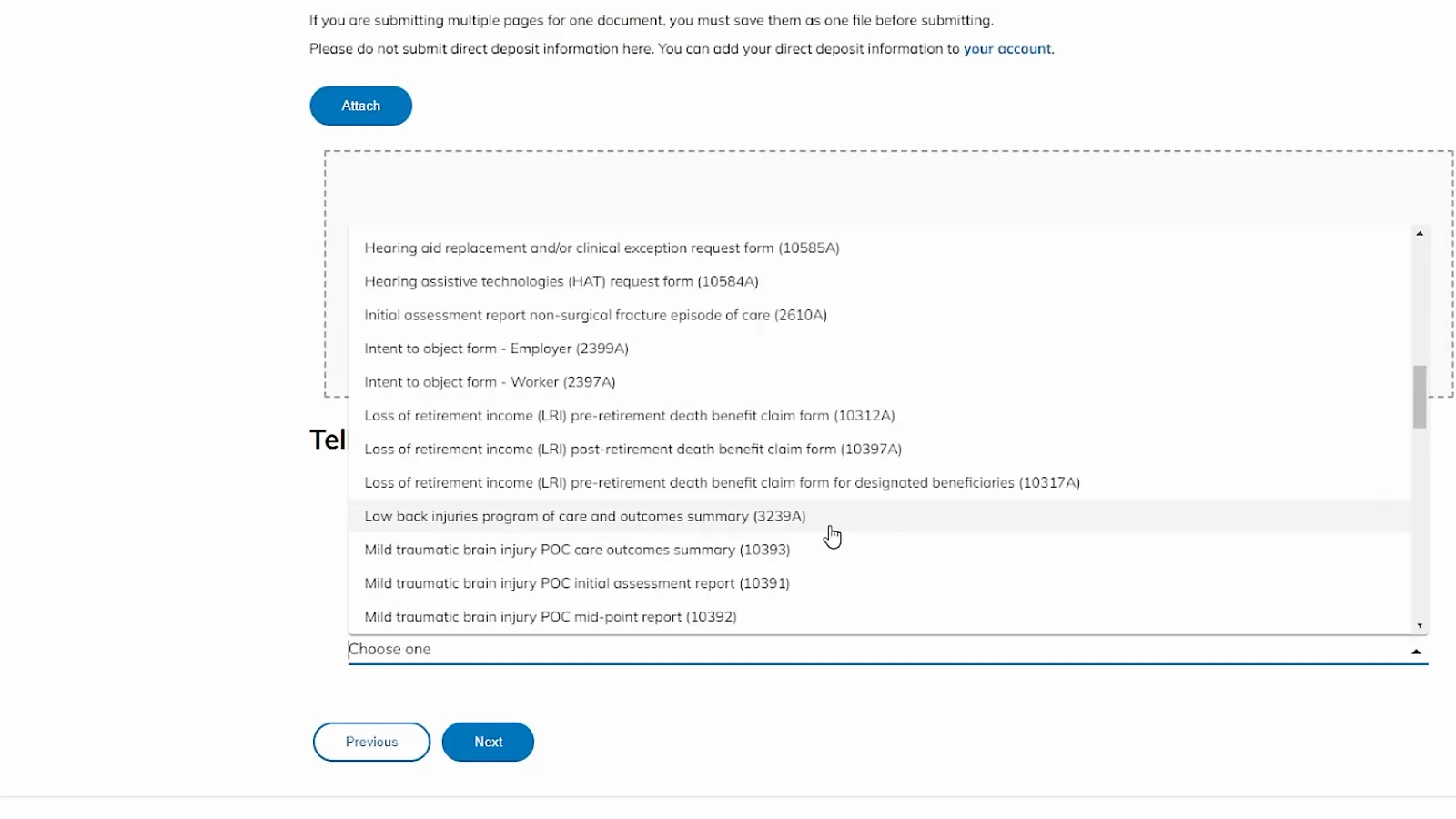
Pick the form by name from the list instead of describing it in your own words.Watch at 0:39 - 12
Step 3 of 4: review the file, tick both boxes and submit
Step 3 is the last chance to catch a wrong attachment while it is still yours to fix. WSIB shows the form or document name, the file name and its size, and the claim number the document will be filed against. Under that sit two checkboxes: one asks whether to send you a confirmation email, and the other is the declaration — by checking this box, you agree to the WSIB's terms of use. The recording ticks both and presses Submit. Note what this step does and does not do: it files a document against a claim that already exists; it does not create a claim or decide anything about benefits.
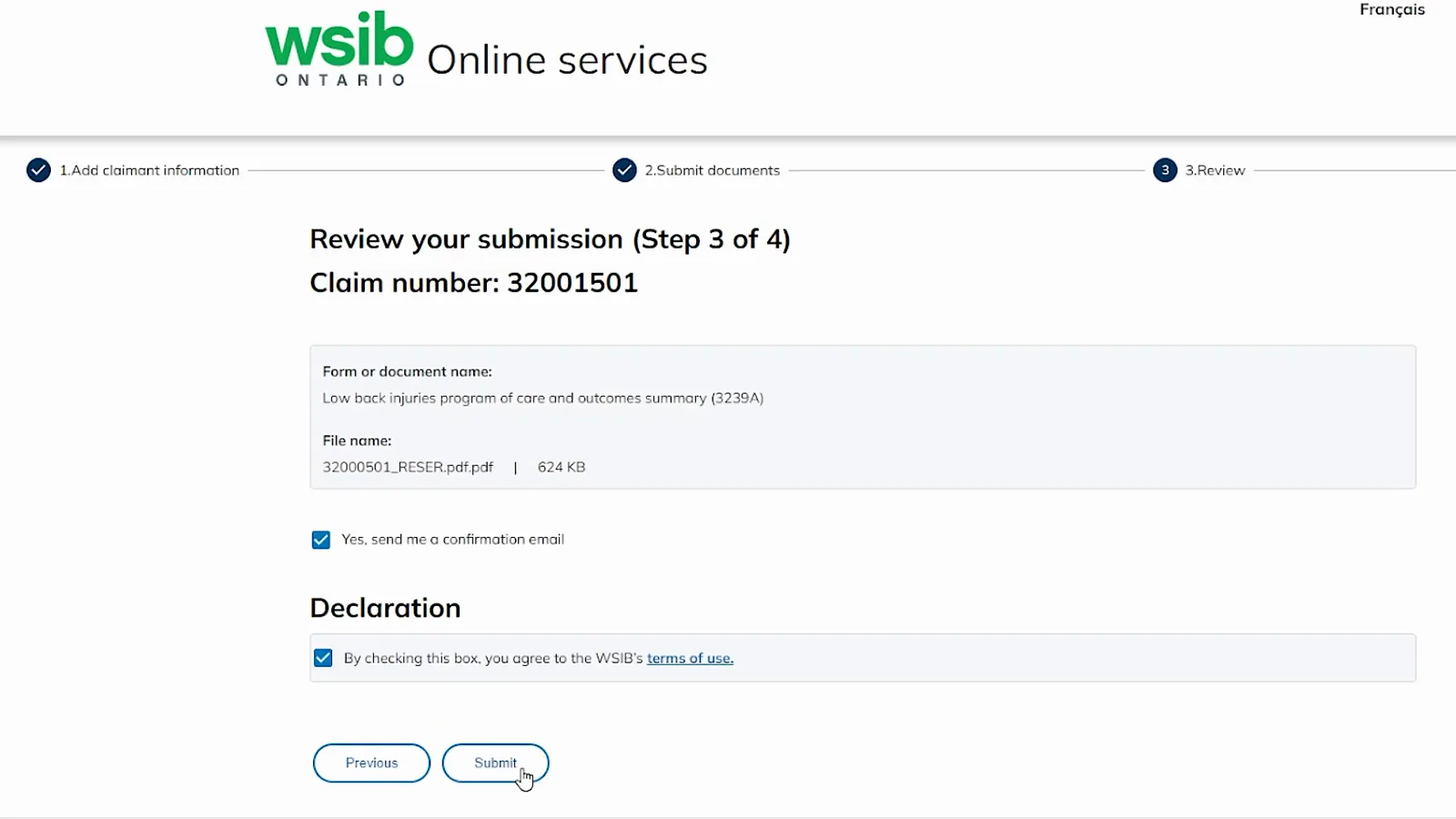
Last look before it reaches the claim file: check the file, then tick both boxes.Watch at 0:42 - 13
Step 4 of 4: save the confirmation
The last screen is your receipt. It confirms that the document has been submitted and added to the claim file, and says WSIB will review it and contact you with updates or questions — consistent with the promise on the submission page that documents are on file within minutes. Three links sit underneath: Print or save a summary of your submission, which is how you keep proof of what you sent and when, Submit another document if you have more to send, and the route back to your other online services or the WSIB homepage. Save the summary before you close the tab; the confirmation page itself does not come back later.
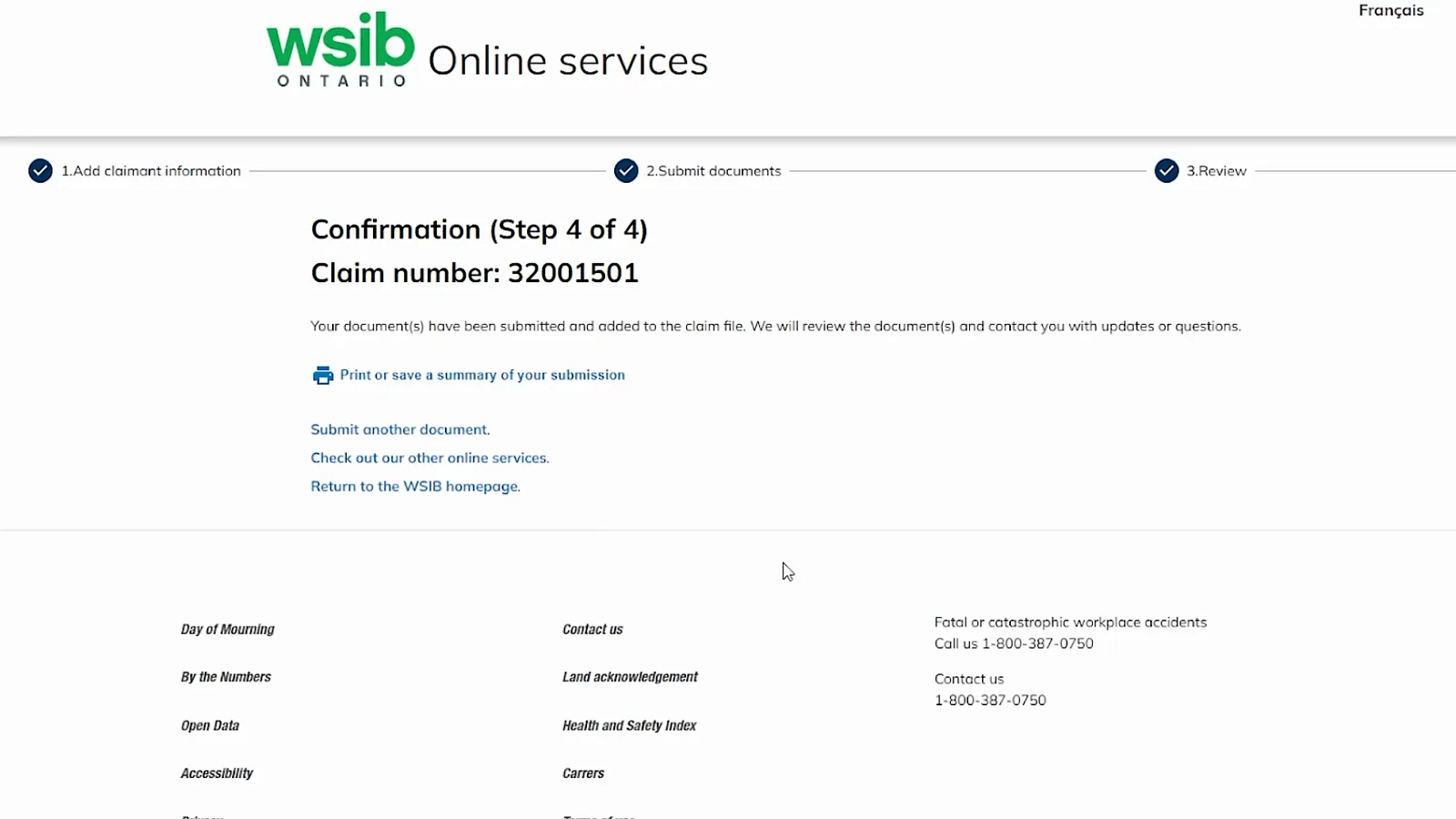
The receipt is the point of Step 4 — save a summary before you close the tab.Watch at 0:43
FAQ
- Do I really have to download the form before I can submit it?
- Yes. WSIB's own instruction is to download and save the form first, because the page that lists the forms is an index, not a form. Right-click the form link and choose Save link as…, save the PDF, open it and type your information directly into it, save the completed file, and only then attach that file at wsib.ca/submit.
- I am not fluent in English — can WSIB help me file a claim?
- Yes, and this is worth knowing before you struggle with the form. WSIB says it provides translation services and can help you fill out the forms you need to file a claim for benefits. Call 1-800-387-0750, Monday to Friday, wait until the recordings finish and press one; tell the person who answers that you need an interpreter and which language, and they will connect you with one.
- Can I submit a paper document instead of a PDF?
- Yes. The submission page accepts a photographed or scanned paper document — take a clear picture with your phone or tablet, or scan a copy — and you can still send it through wsib.ca/submit. Keep the original receipt or document on file as the page asks, and remember that a multi-page document has to be sent as one file.
- What can I send through wsib.ca/submit, and what should I not?
- Any claim document: forms, letters, reports and receipts, from any computer, tablet or smartphone, 24/7. Two things do not belong there: direct deposit information, which you add to your online services account instead, and Freedom of Information requests or documents, which go through the FOI request form or WSIB's privacy officer ([email protected]). The page states both exclusions itself.
- Is reporting a new injury the same as submitting a document for an existing claim?
- They are the two answers to the first question of Step 1, and they lead down different paths. Submitting a document for an existing claim is the path shown in the walkthrough: it asks for the eight-digit claim number from the claim registration letter. Reporting a new injury or exposure is for a claim that does not exist yet, so the form asks about the injury itself instead of a claim number.
- Does submitting the form mean my claim is approved?
- No. Step 3 files a document against a claim that already exists, and the confirmation says only that the document was added to the claim file and will be reviewed — WSIB then contacts you with updates or questions. Whether a claim is allowed, and what benefits it produces, is decided separately; the Ontario calculator page linked below covers what the benefit side looks like once a claim is in place.
Keep reading
Educational information only, not legal advice. This page describes the WSIB Ontario online submission flow as shown in WSIB's own videos on the date they were recorded; WSIB changes its portal and its forms over time, so confirm the live screens at wsib.ca before you rely on a step. Entitlements, time limits and the claim itself are governed by Ontario law and by your own claim file.