DWC Form 106 walkthrough
How to request a QME panel online in California
In a represented California case the initial QME panel request is not mailed — it goes through the DWC online Form 106 system, which issues the panel the moment you submit. This walkthrough follows the DWC’s own screen recording of that form, page by page, from the claim header to the printable panel package.
The short answer
- A represented initial QME panel request runs through the DWC online Form 106 panel request system in eight pages, and an online panel issues immediately on submission — there is no paper form to mail and no waiting for the Medical Unit to assemble a list.
- Have the claim number, the date of injury and an EAMS UAN ready. The portal only accepts dates of injury of January 1, 2005 or later, and Applicant Attorney Firm Name is your EAMS UAN, which must exist before you start: the DWC FAQ says a newly assigned firm name can take up to 10 business days to be posted, so register before you need it.
- The Labor Code section you choose rewrites page 1. Section 4060 asks for compensability and the objected report’s dates, 4061 for permanent disability or future medical treatment, and 4062 opens the widest list — work restrictions, return to work, apportionment, diagnosis and causation — plus the question of whether the written objection went out within 20 days.
- Two requirements are easy to miss and both are mandatory: affirm both declaration statements (penalty of perjury and the promise to serve every party within one business day), and upload the objection letter or request for a compensability exam as a single PDF or TIFF file of 10 MB or less.
- Getting the panel is not the end. The requesting party must serve the panel request form, the documentation and the panel itself on all parties with a proof of service within one business day, and a duplicate, premature or thinly staffed request comes back as a Medical Unit letter instead of a panel.
Source video
QME Training Video
California Department of Industrial Relations (DIR), Division of Workers’ Compensation (YouTube channel: CaliforniaDIR)
Screenshots are frames from the video above — the DWC’s own training recording of the Online QME Form 106 Panel Request System, which the DWC Medical Unit page links to as its official training video. Every frame on this page was checked by eye and comes from the screen recording of the form itself; no presenter shot, caption slide, channel bug or third-party slide-deck watermark is used. The written steps are our own, and the October 1, 2015 start of the online process, the immediate panel and the proof-of-service duty were cross-checked against the DWC page: www.dir.ca.gov/dwc/MedicalUnit/OnlineQMEForm106/OnlineQMEForm106PanelRequest.html
Requesting a QME panel online, step by step
Fourteen steps through the eight pages of the DWC online Form 106 panel request system, from opening the blank form to the issued panel and the notices that can replace it. Every screenshot is a still from the source video and links to the exact second it was taken.
- 1
Open the online Form 106 panel request and read the eight-step bar
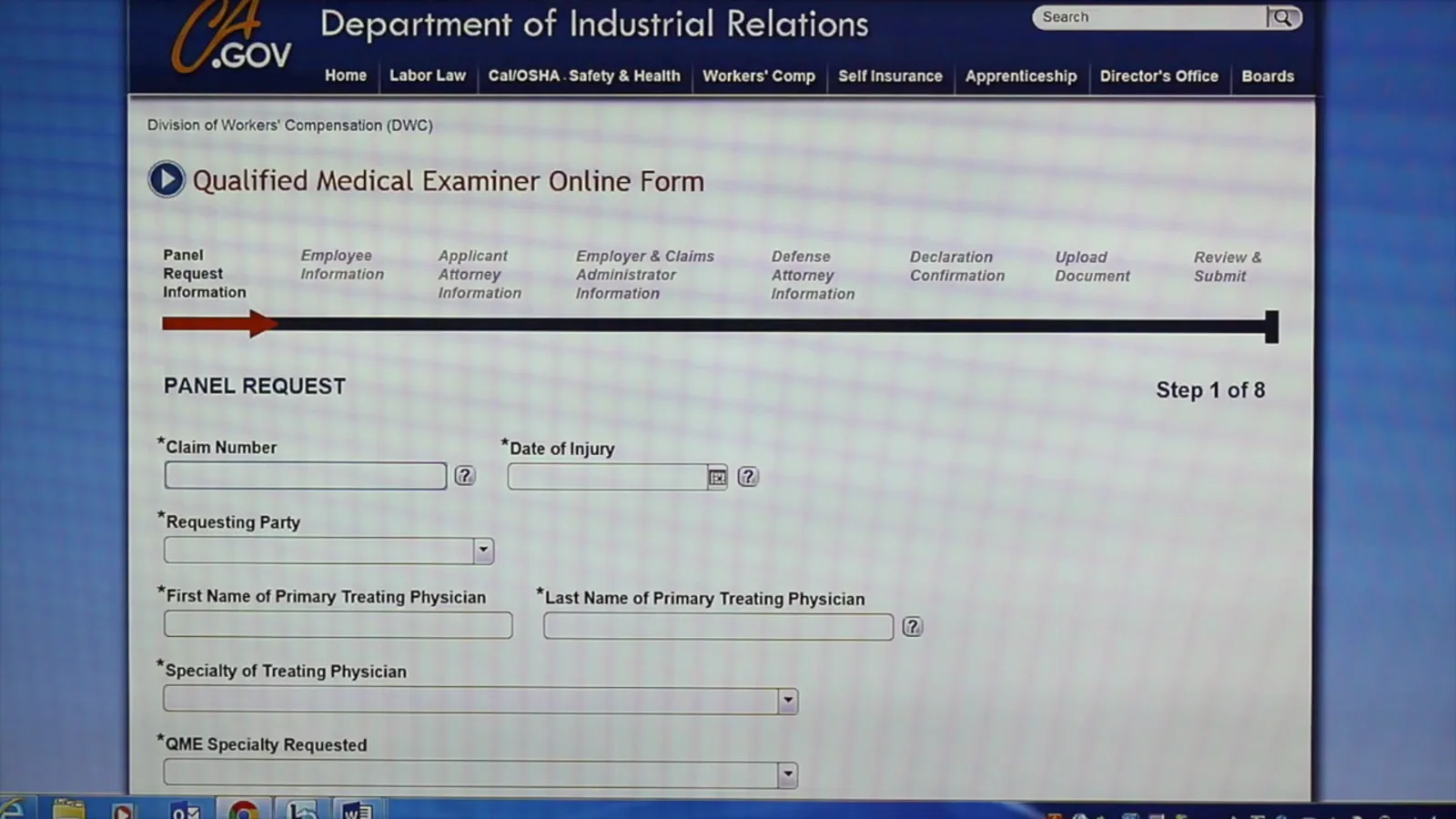
A represented initial QME panel request goes through the DWC online Form 106 panel request system, which the training video opens from the DWC Medical Unit web page. The header reads "Step 1 of 8" and a row of eight page buttons shows what is coming: Panel Request Information, Employee Information, Applicant Attorney Information, Employer & Claims Administrator Information, Defense Attorney Information, Declaration Confirmation, Upload Document, Review & Submit. You cannot move to the next page until the current one is finished, an asterisk marks every mandatory field, and a question mark beside a field opens a tool tip explaining what that field wants. The DWC moved represented initial panel requests onto this system on October 1, 2015, and an online panel now issues as soon as the request is submitted.
Eight pages, left to right — you cannot skip ahead.Watch at 0:20 - 2
Fill the claim header: claim number, injury date and requesting party
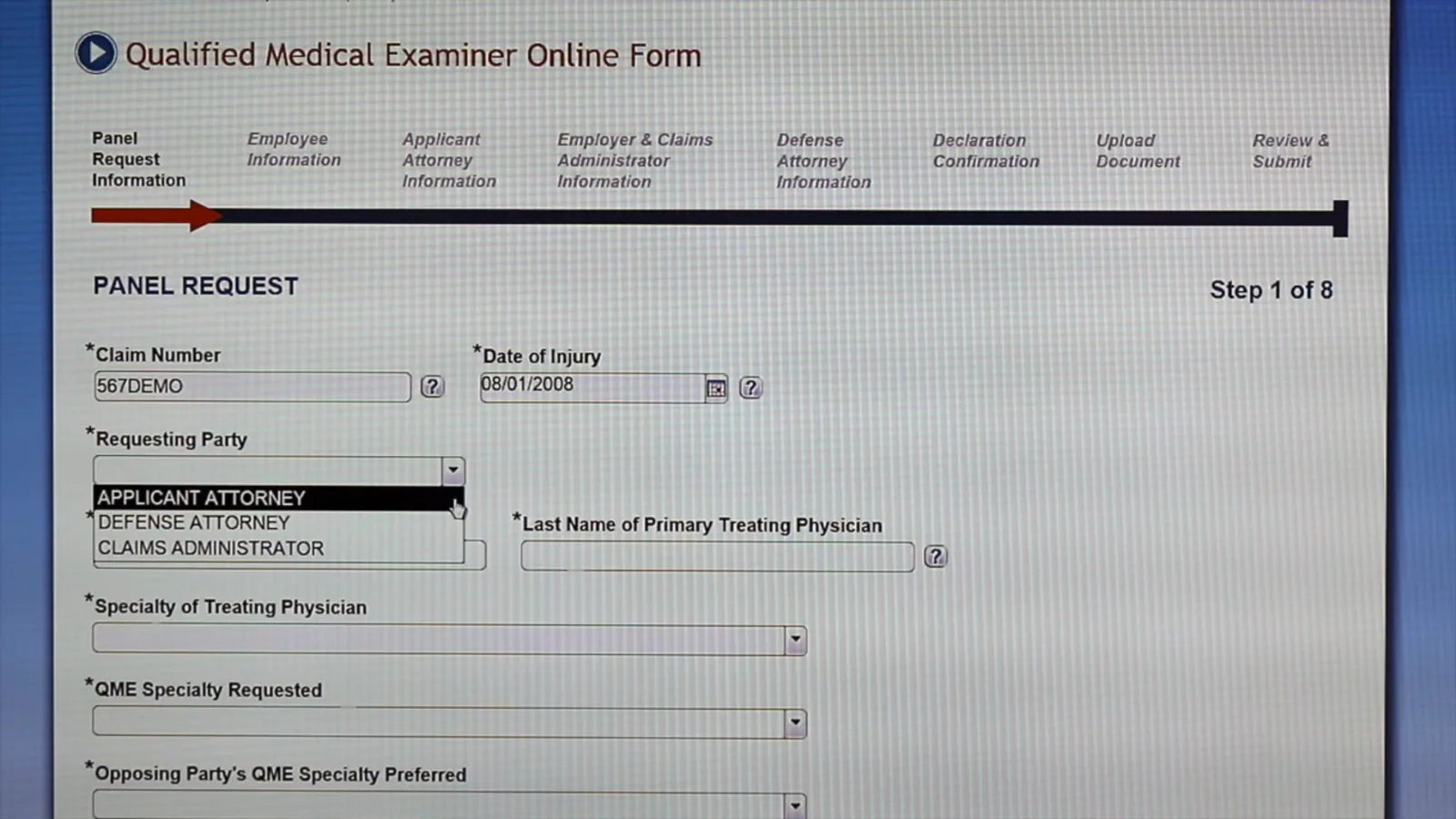
The top of page 1 collects the claim number and the date of injury; you can type the date or use the calendar widget beside it. The Requesting Party drop-down offers exactly three answers — Applicant Attorney, Defense Attorney or Claims Administrator — and the one you choose decides which later pages are optional. Below it sit the treating physician’s first and last name, and the video’s own tip: if you do not know the treating physician, enter UNKNOWN in both the first-name and last-name fields rather than leaving them blank. Specialty of Treating Physician, QME Specialty Requested and Opposing Party’s QME Specialty Preferred are alphabetical drop-downs that jump when you type a letter of the alphabet, and the two specialty fields put UNKNOWN at the very bottom of the list.
Three kinds of filers — the choice decides which later pages are optional.Watch at 1:15 - 3
Pick the Labor Code section, then the dispute type it unlocks
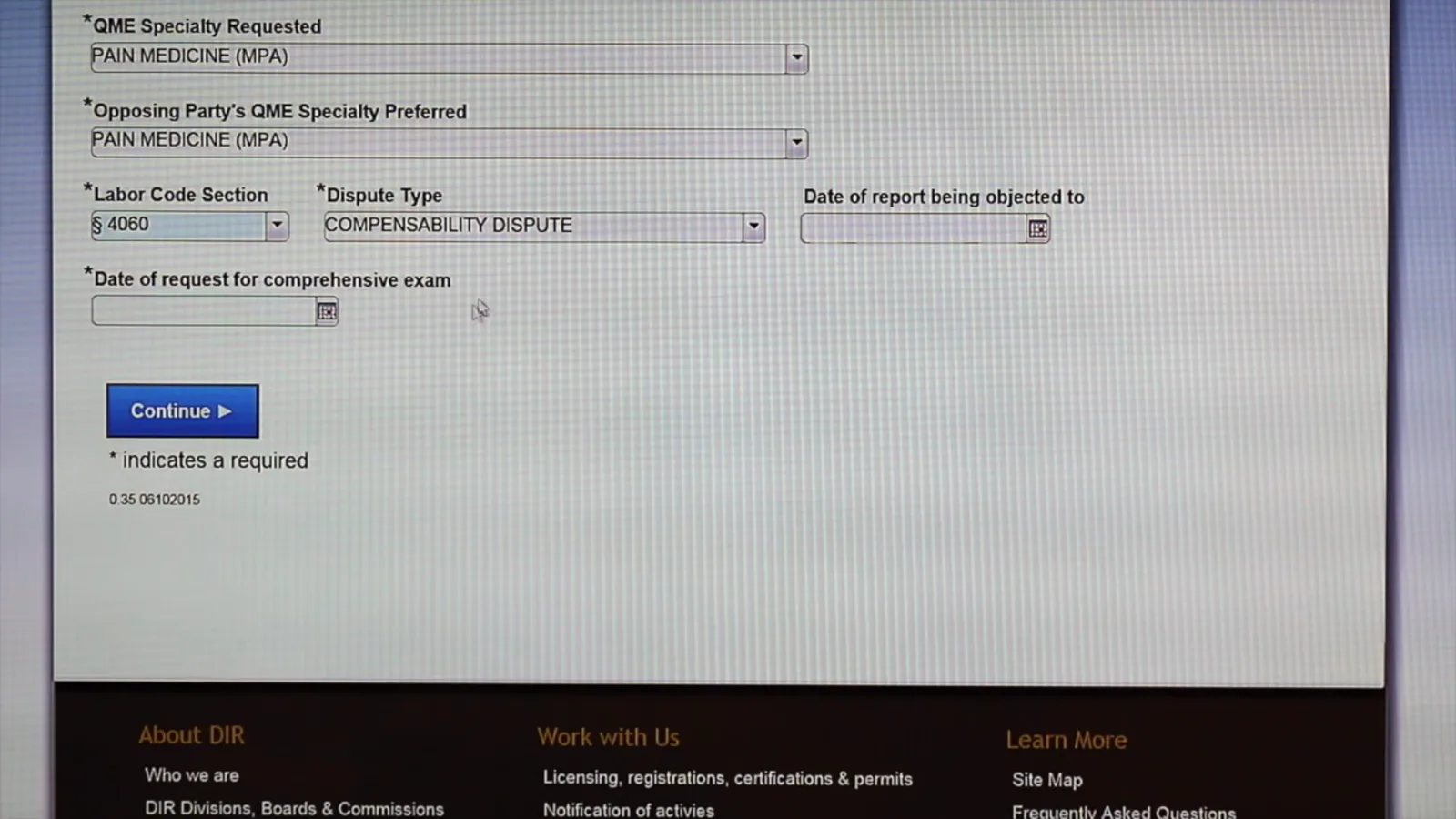
Labor Code section is the hinge of page 1, because everything under it changes with your choice. Choose 4060 and the dispute type is compensability, and the form then asks for the date of the report being objected to and the date of the request for a comprehensive exam. Choose 4061 and the dispute types are permanent disability and future medical treatment, with the date of the objection communication. Choose 4062 and the list widens to temporary disability, permanent and stationary status, work restriction, ability to return to work, apportionment, diagnosis and causation, and it adds one more question about timing: was the written objection communicated within 20 days of your receipt of the report you are objecting to? Answer no and the form asks you to select a reason — mutual agreement satisfies it, while good cause requires a written explanation of up to 2,000 characters.
The Labor Code section you pick rewrites the rest of page 1.Watch at 2:20 - 4
Know the 2005 date-of-injury rule before you start typing
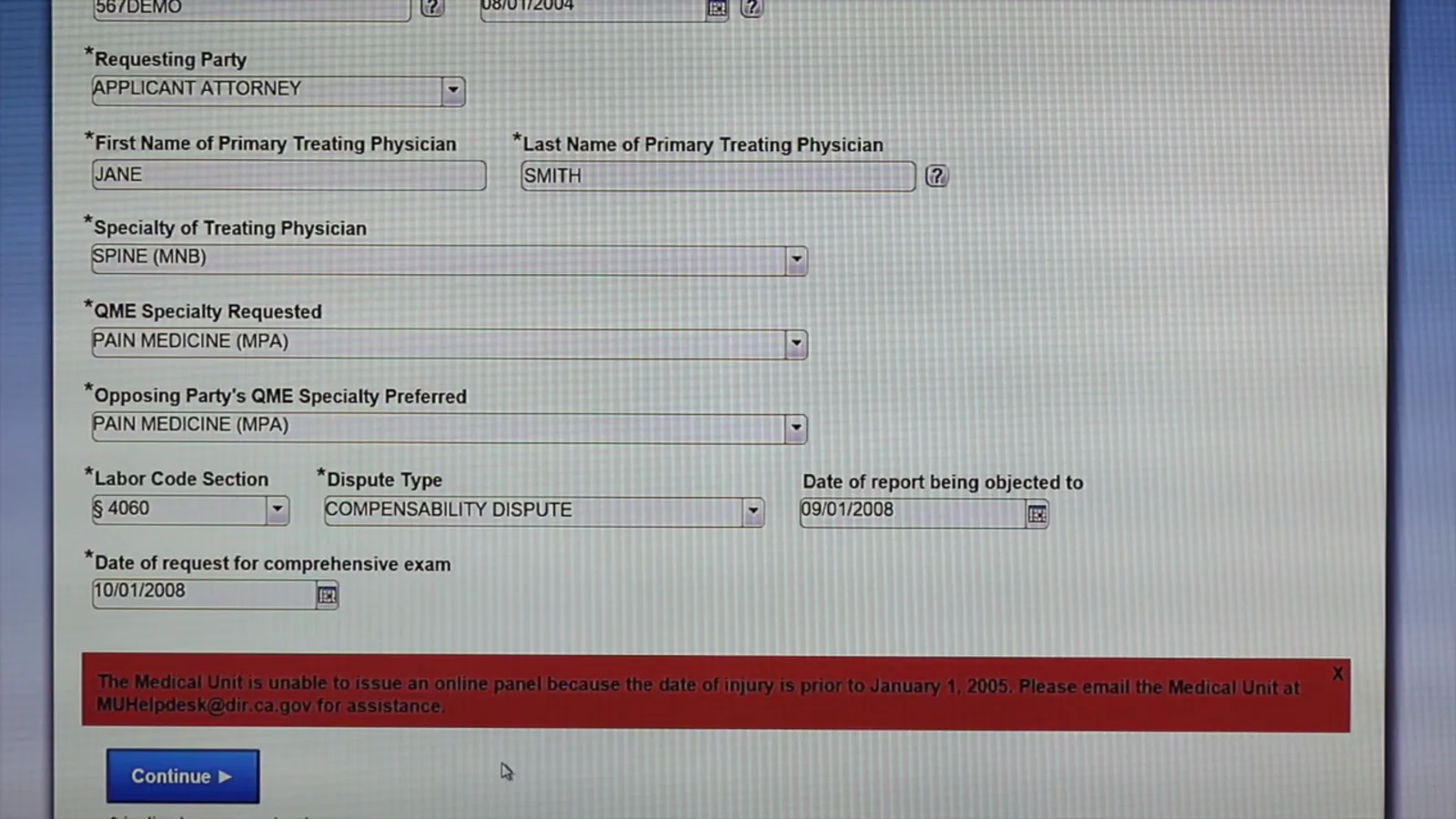
This online system handles represented initial panel requests only for dates of injury of January 1, 2005 or later. The recording proves the limit on purpose: it changes the date of injury to a pre-2005 date and presses Continue, and the form answers with a red banner saying the Medical Unit is unable to issue an online panel because the date of injury is prior to January 1, 2005, then tells the filer to e-mail the Medical Unit at [email protected] for assistance. If your date of injury falls before 2005, the panel request does not come out of this portal and you need the Medical Unit rather than a retry.
An injury before 1/1/2005 cannot use this system at all.Watch at 4:10 - 5
Let the ZIP code fill in the city and state on page 2
Page 2 takes the injured worker’s first name, middle name, last name, mailing address, city, state and ZIP code. City and State are disabled on purpose: you enter the ZIP code and the system populates them for you. When several cities share one ZIP code, a drop-down appears so you can choose the correct city instead of accepting a default. The address typed here is the one the panel geographies are built around, so it should be an address where the worker actually receives mail.
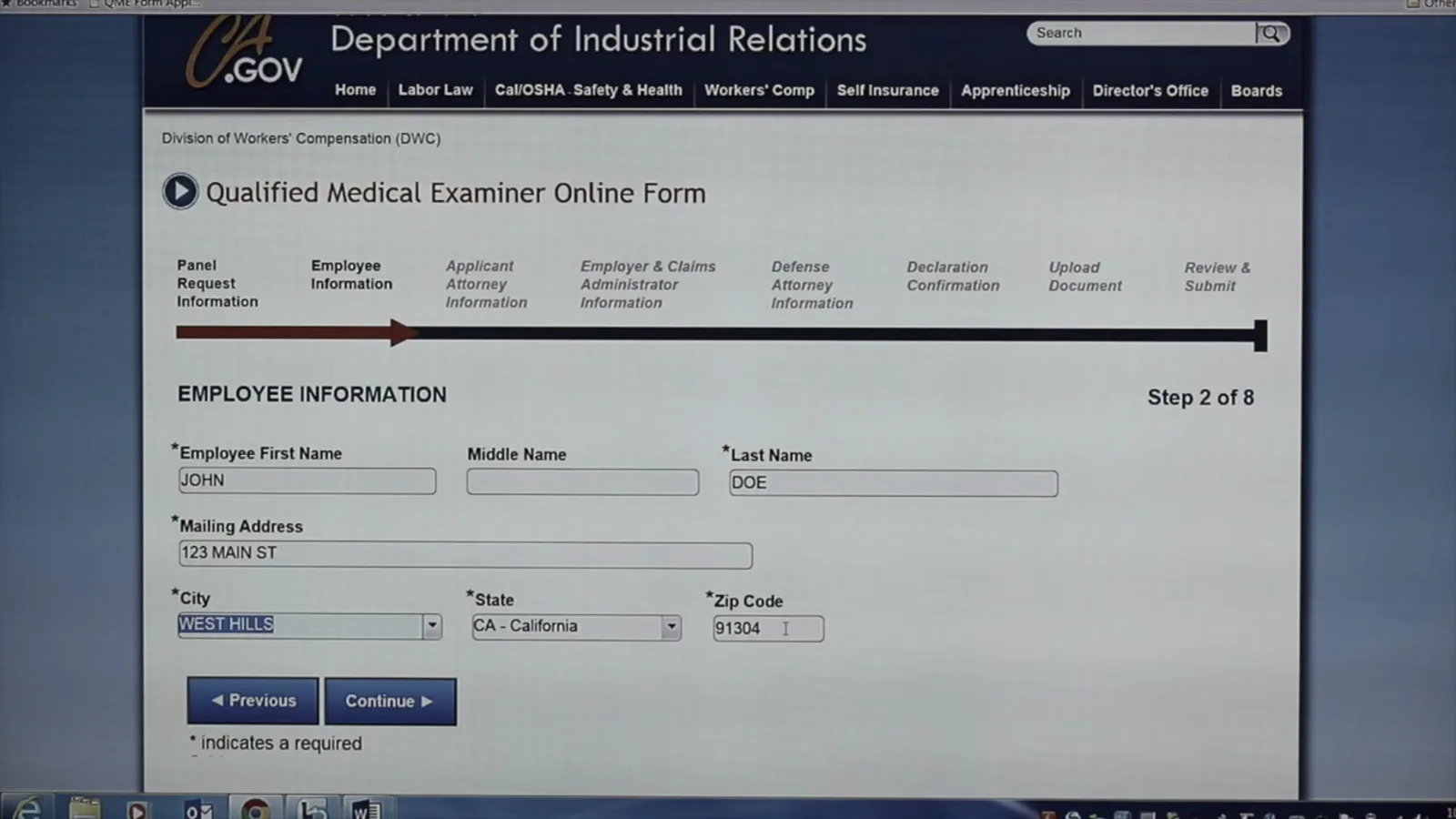
Type the ZIP; the city and state fill themselves in.Watch at 5:00 - 6
For an out-of-state address, answer the geographical agreement question
Type a ZIP code outside California and a new question appears underneath: is there an agreement between the parties as to the geographic area for this panel request? The tool tip beside it gives the rule — in order to have a panel in the state of California, the request needs a ZIP code for the employee, for the alternate address, or for the applicant attorney. Answer yes and the form opens an alternate-address block. Answer no and, when the panel is issued, it defaults to the applicant attorney’s ZIP code. The recording demonstrates the out-of-state path and then swaps the Las Vegas ZIP for a California one to carry on.
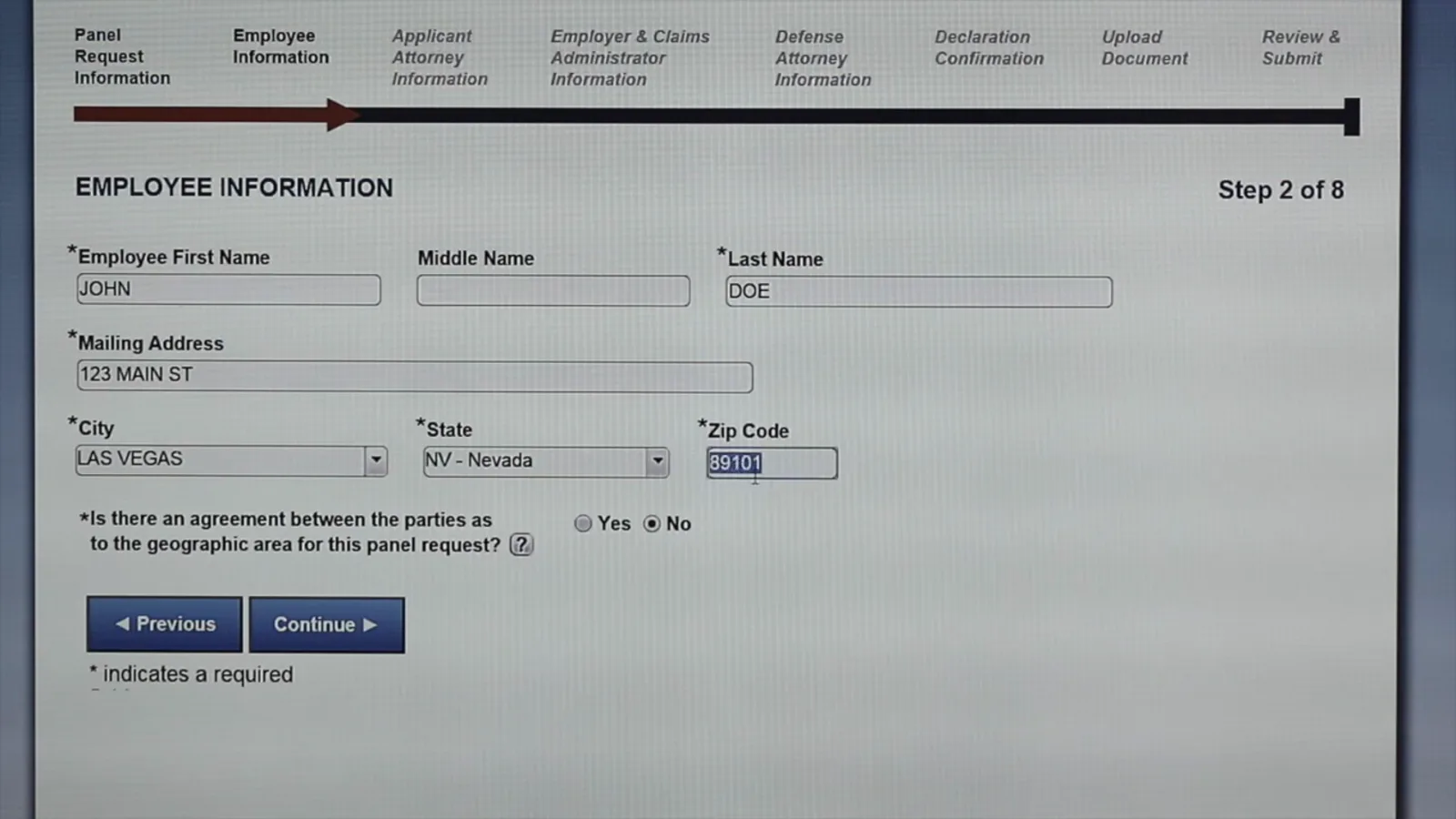
Out-of-state ZIP: the agreement answer decides which ZIP anchors the panel.Watch at 5:40 - 7
Add the applicant attorney and the EAMS UAN behind the firm name
Page 3 is the applicant attorney’s name, phone number, e-mail and firm. E-mail carries no asterisk, so it is not mandatory; the firm name is. Applicant Attorney Firm Name really means your EAMS UAN, and the tool tip under the field is blunt — you must have an EAMS UAN to use this system, and if you do not have one you register on the DWC website. The waiting period is the part filers miss: the DWC FAQ says a newly assigned firm name is posted within 10 business days of the request, so register well before you need the panel and do not count on next-day turnaround. The firm list behaves like the specialty lists, alphabetical with letter-jump, and the UAN Search button looks a firm up by its number when you already know it.
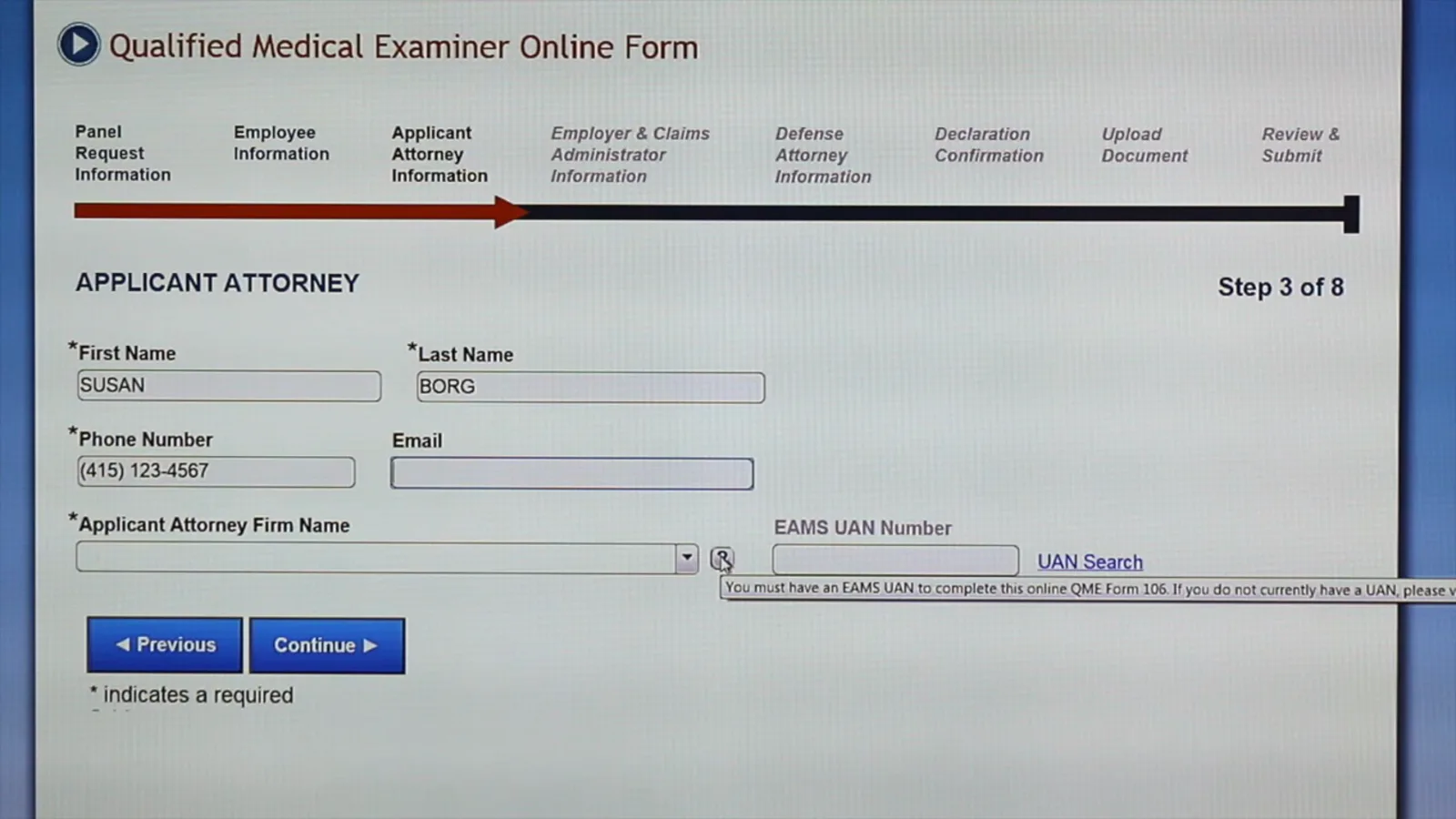
No EAMS UAN, no online panel request.Watch at 6:15 - 8
Complete the employer and claims administrator page
Page 4 names the employer and the claims administrator. The phone number auto-formats while you type, and too many digits produce an error message telling you that you typed too many digits rather than quietly truncating the number. E-mail is optional here too. Claims Administrator Company Name is another EAMS UAN field, filled from the same alphabetical pick-list or by number through UAN Search. The next page, Defense Attorney Information, carries no asterisks anywhere: it is optional when the applicant attorney or the claims administrator initiates the request, even though the recording fills it in to show the fields.
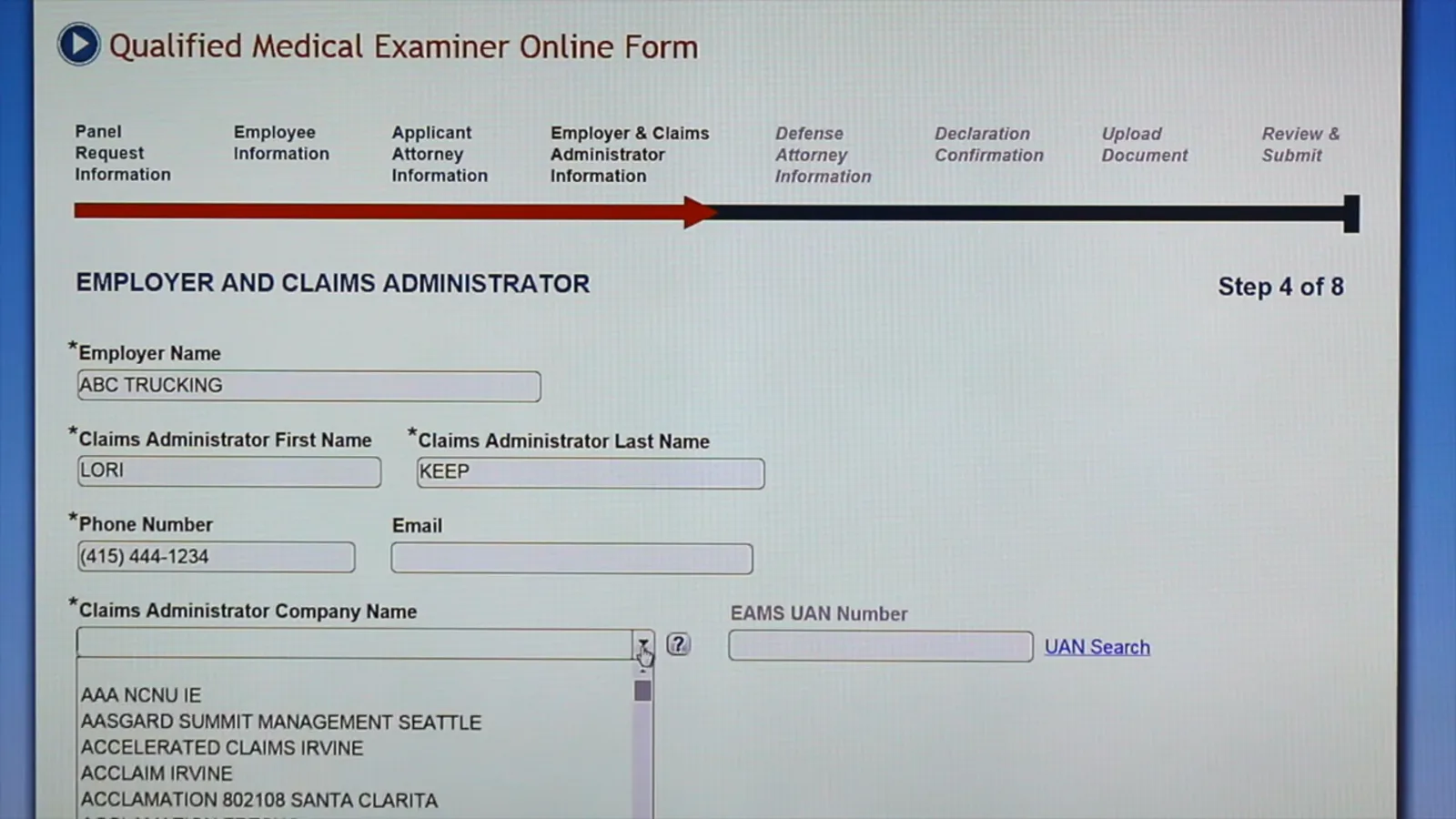
The phone box formats itself — and rejects extra digits.Watch at 7:20 - 9
Affirm both declaration statements — one is not enough
Page 6 is the declaration, and it holds two separate statements that are both required. The first certifies, under penalty of perjury under the laws of the State of California, that the information provided in the eForm is true and correct. The second is the agreement that, by clicking Agree, you will serve a copy of the panel request form, the panel list and the uploaded documents on all parties within one business day. The recording checks only the first statement and presses Continue; the form answers with a red error saying that certifying both the penalty of perjury and the agreement to serve the QME panel on all parties is a mandatory step of the online QME request process. If any part of the declaration is unclear, the form directs you to the Medical Unit.
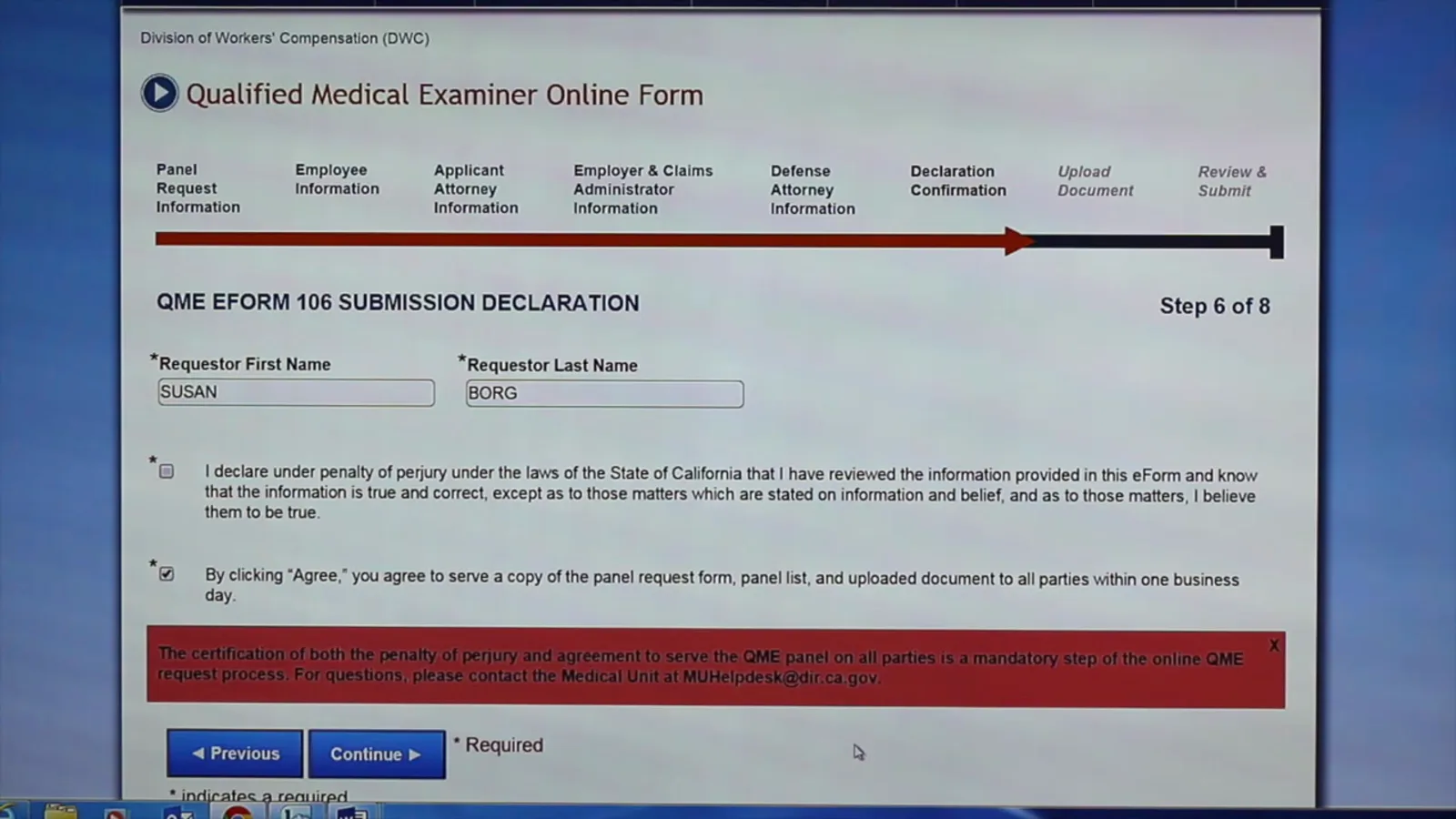
The portal refuses a half-signed declaration.Watch at 8:40 - 10
Upload the objection letter or the request for a compensability exam
Page 7 is the mandatory upload. You attach either the letter of objection or the request for a compensability exam, and the page states the limits plainly: a single file, only in PDF or TIFF format, no larger than 10 MB. Once the file is added, its name appears as a blue link next to File Attached, so you can confirm exactly what you attached before continuing. A panel request will not be submitted without this supporting document, which is why the page calls the upload a mandatory step.
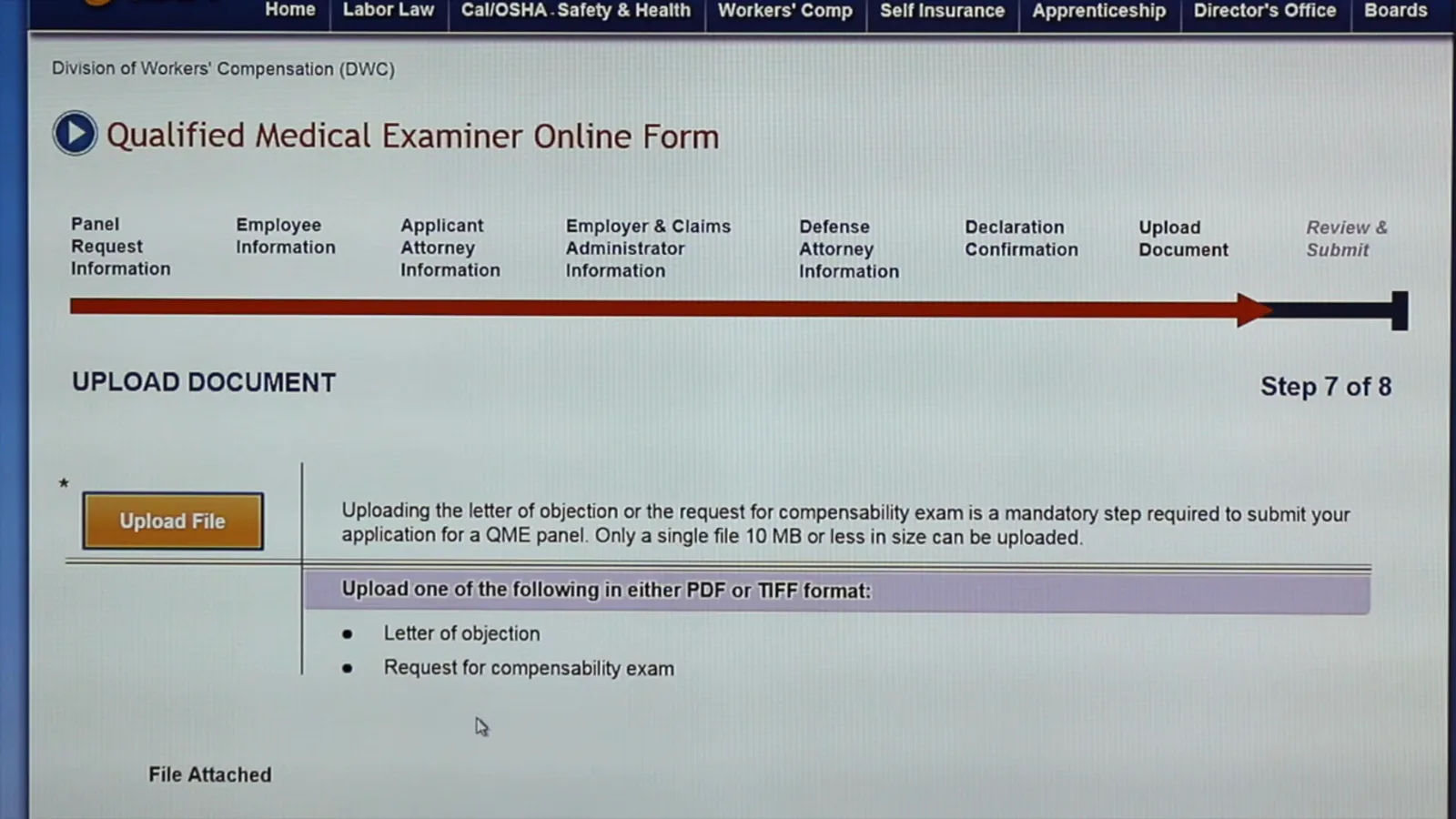
One file, PDF or TIFF, 10 MB maximum.Watch at 9:05 - 11
Review every page, then submit the request
Page 8 repeats everything you entered, section by section, so a wrong claim number or a missing UAN is caught before the request reaches the Medical Unit. Each section header carries a blue link that jumps straight back to that page for an edit, and the eight page buttons across the top still work as well. When the review page is right, submit. Because the online panel issues immediately, the last duty lands on the requesting party: the DWC requires the panel request form, any required documentation and the QME panel itself to be served on all parties with a proof of service within one business day.
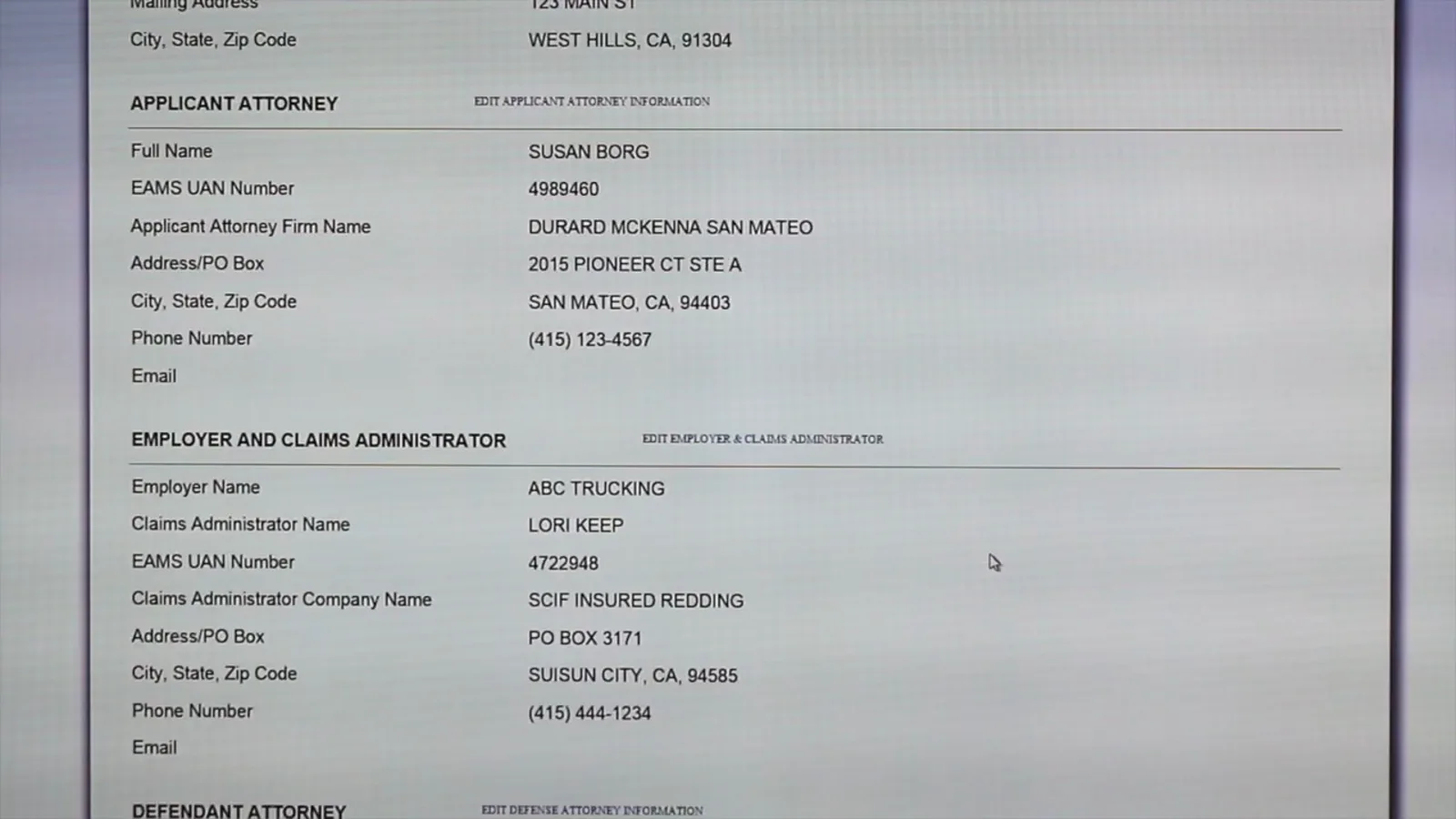
Every earlier answer, on one page, with links back.Watch at 9:30 - 12
Read the issued panel: three QMEs and their addresses
The panel comes back as soon as you submit. It looks like the paper panels the Medical Unit used to issue — the same three qualified medical evaluators, each with a name, a practice address, a specialty, a practice start year and a telephone number — except that it arrives in the browser instead of the mail. The recording’s issued panel carries a panel number and three physicians in the requested specialty. That list is the point of the whole request, so it is worth reading every address and specialty before the panel is served.
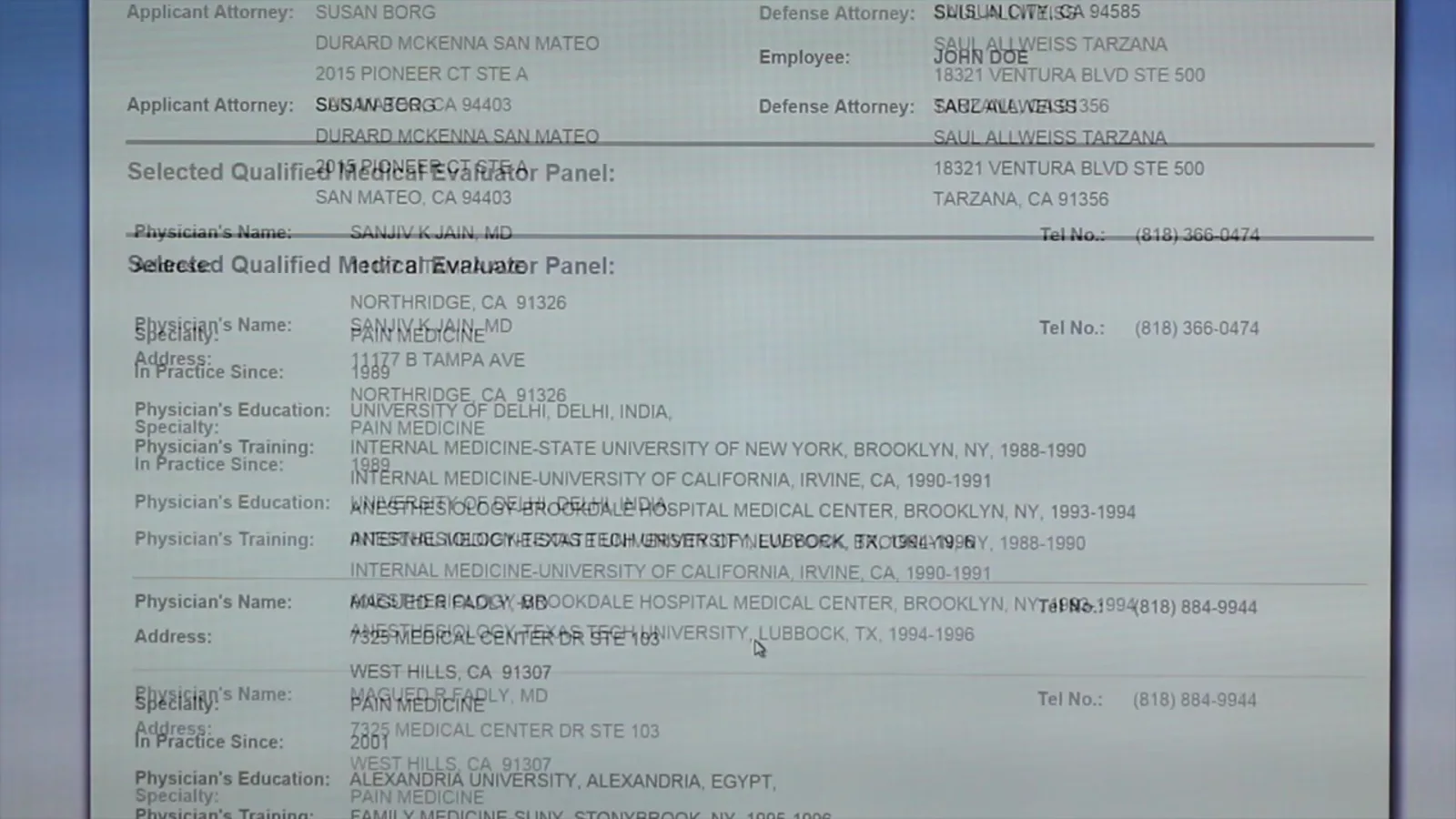
Three names, issued on the spot.Watch at 10:00 - 13
Print the panel package and serve it on every party
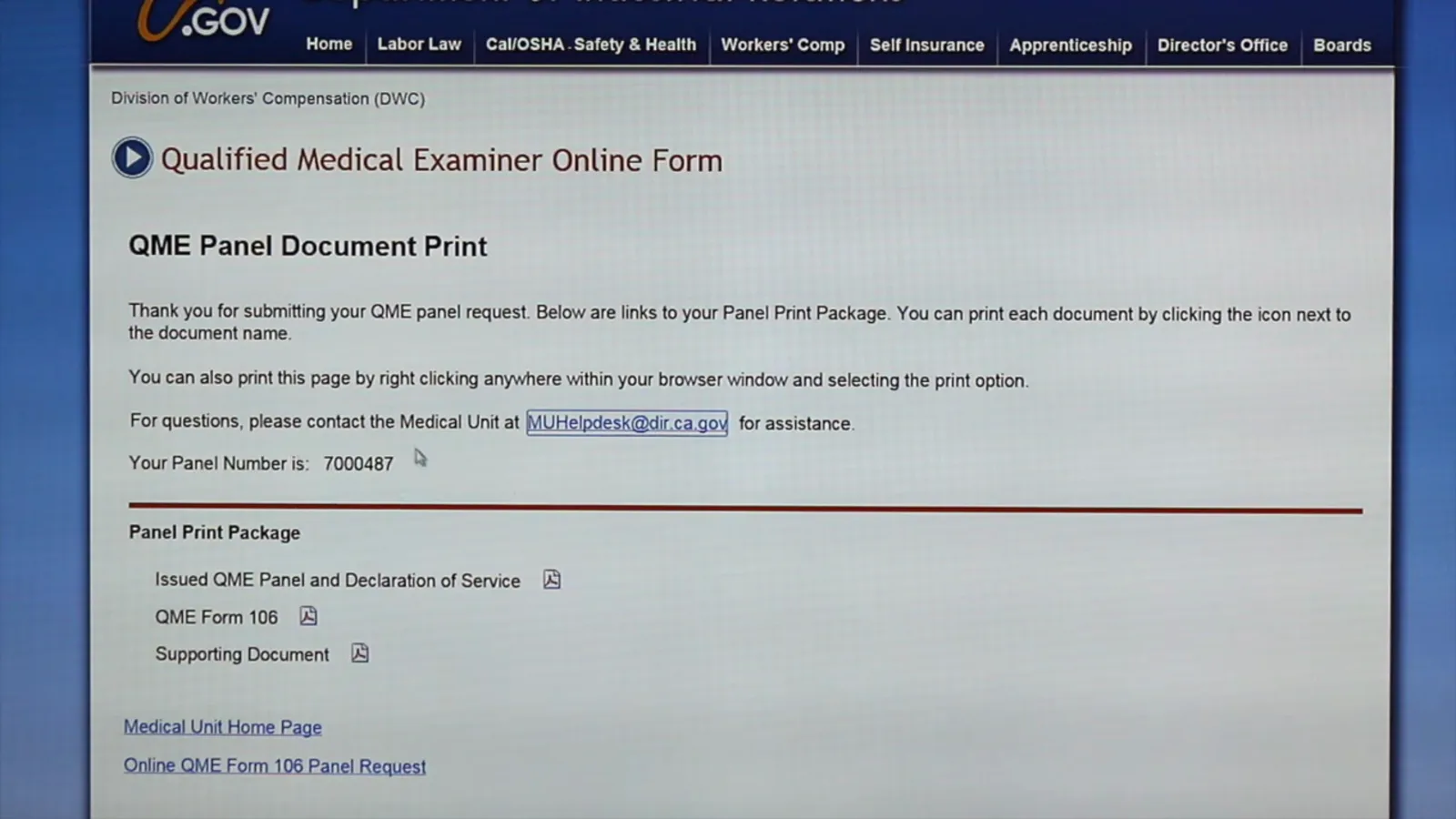
The final screen hands over the package. The recording shows a panel number and three attachments you can open, print or save: the issued QME panel together with the declaration of service, the QME Form 106 showing every input from the request, and a copy of the supporting document you uploaded. A declaration-of-service page comes first as a courtesy — it pre-populates the parties on the claim, lets you add more, and produces the proof of service the DWC requires within one business day. Two links at the bottom of the print page lead back to the Medical Unit home page and back to the start of the form for another request.
Three attachments: the panel, your Form 106, and your upload.Watch at 10:45 - 14
Understand the three ineligibility notices
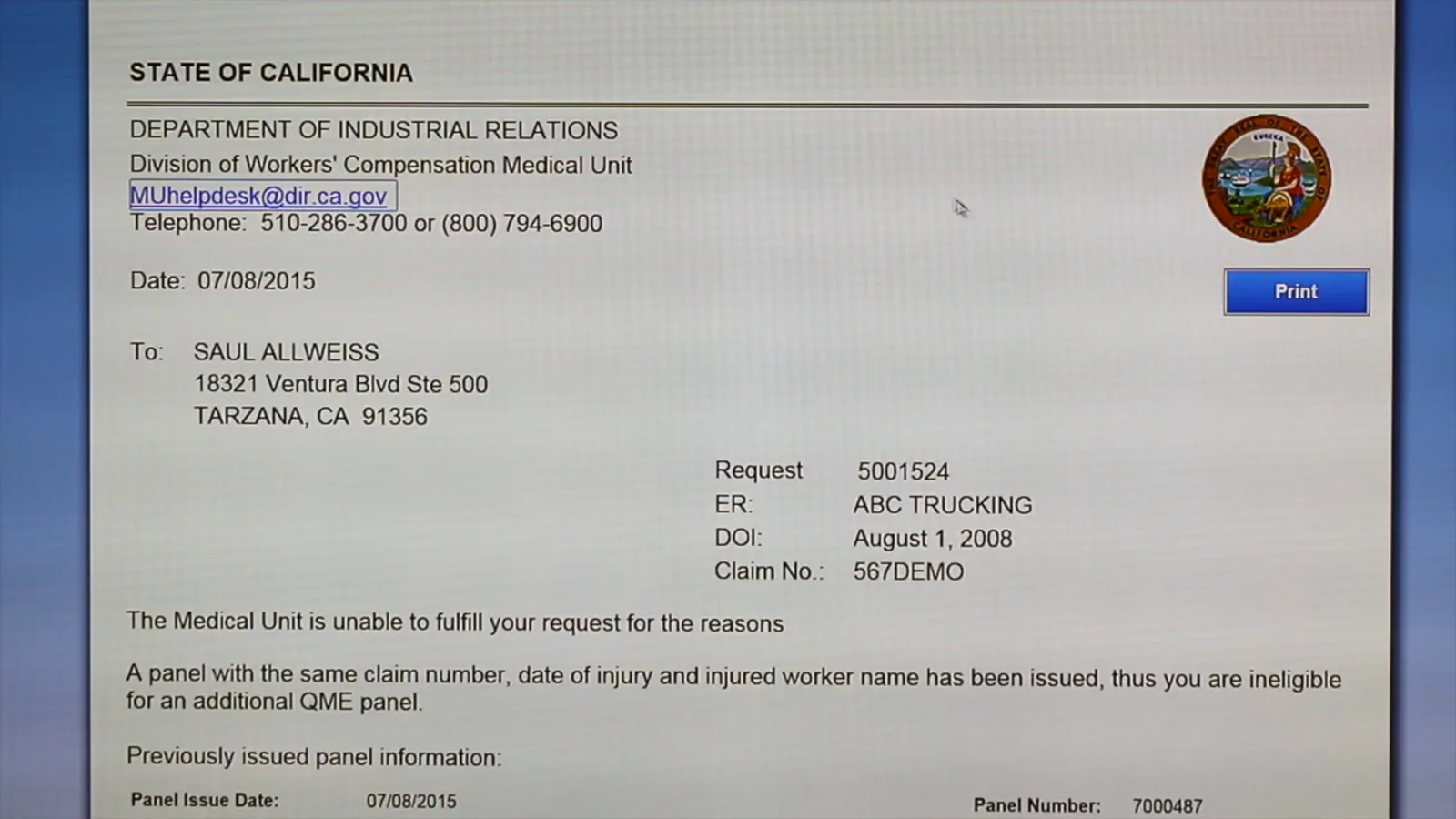
The system can decline a request, and the recording demonstrates all three ways. A duplicate request produces a letter saying that a panel with the same claim number, date of injury and injured worker name has already been issued, and it prints the previously issued panel so the filer can see what exists. A request filed too early produces a letter saying the request is premature as defined in Labor Code section 4062.2 and 8 CCR sections 10507 and 10508. A request for a specialty with too few evaluators produces a letter saying the selected specialty has an insufficient pool of QME panelists at this time and inviting a request for a different specialty. All three letters carry the Medical Unit help desk address, [email protected], and the Medical Unit telephone number, 1-800-794-6900.
A declined request comes back as a letter, not an error screen.Watch at 12:22
Frequently asked questions
- Who is allowed to use the DWC online QME Form 106 system?
- It is for initial panel requests in represented cases. The DWC moved those requests onto this system on October 1, 2015, and parties in a represented case are required to submit initial panel requests online so that a panel can issue immediately. The system also enforces a date-of-injury limit: the recording shows that a pre-2005 injury produces a red banner saying the Medical Unit cannot issue an online panel because the date of injury is prior to January 1, 2005. If your injury predates 2005, or your case is not represented, this portal is the wrong door and the DWC Medical Unit is the right one.
- What should I have in hand before I start the request?
- Gather the claim number, the date of injury, the treating physician’s name (or the word UNKNOWN for both name fields), the parties’ names, addresses and EAMS UANs, and the objection letter or request for a compensability exam as a PDF or TIFF under 10 MB. The one item that blocks a request is the EAMS UAN behind the applicant attorney firm name: the tool tip inside the form says you must have a UAN to use the online system, and the DWC FAQ says a newly assigned firm name can take up to 10 business days to appear, so register well before you file.
- What is the 20-day question when I select Labor Code 4062?
- Section 4062 adds a timing question to page 1: was the written objection communicated within 20 days of your receipt of the report you are objecting to? Answer yes and that requirement is satisfied. Answer no and the form asks you to select a reason — mutual agreement satisfies the question, while good cause requires you to explain why the objection went out more than 20 days after the report, in a box the video notes is capped at 2,000 characters.
- Why did my online QME panel request come back as ineligible?
- The recording demonstrates three reasons, each arriving as a Medical Unit letter rather than an error message. A duplicate request is declined because a panel with the same claim number, date of injury and injured worker name has already been issued, and the letter prints the existing panel. A request filed too early is declined as premature under Labor Code section 4062.2 and 8 CCR sections 10507 and 10508. A request for a specialty with too few evaluators is declined because the selected specialty has an insufficient pool of QME panelists at this time. All three letters point to [email protected] and 1-800-794-6900.
- Does submitting the online request finish the job?
- No. The online panel issues immediately, but the DWC page states that the requesting party is then responsible for serving the panel request form, any required documentation and the QME panel on all parties with a proof of service. The recording shows the same duty from inside the form: the declaration statement you affirm on page 6 promises to serve the panel form, the panel list and the uploaded documents within one business day, and the declaration-of-service page that follows the issued panel is there to generate that proof of service.
- Can I request a different specialty or a second panel?
- The form can be run again — the final print page keeps a link back to the start of the form to submit another request. What you cannot do is duplicate an existing panel: that produces the ineligibility letter. Where the specialty is the problem, the insufficient-pool letter itself says you may submit another request for a different specialty. If the case simply is not ready for a panel yet, the premature letter is the signal to wait rather than resubmit.
Keep reading
Educational information only, not legal advice. These steps describe the DWC online Form 106 panel request system as the DWC’s own training video demonstrates it, and that recording shows the system as it stood at launch, so screens and field labels can change. Panel requests through this portal are for represented cases, and an error in the request can cost you the panel — confirm your own filing with the DWC Medical Unit or your attorney.